
vscode使用:指定python解释器、安装code runner、jupyter、kite、mysql插件;livecode for python;命令行快捷打开ide;远程连接服务器;debug
1、指定python解释器快捷:crtl+shift+p调用Python:Select Interpreter命令2、安装code runner、jupyter插件code runner 指定默认python环境参考:https://blog.csdn.net/qq_32224299/article/details/88421101指定上自己的解释器路径即可jupyter 指定默认python环境
1、指定python解释器
前提先在插件中心安装python插件
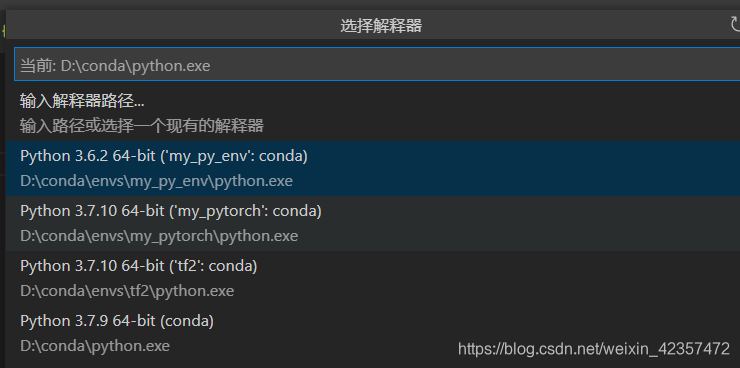
快捷:crtl+shift+p
调用Python:Select Interpreter命令
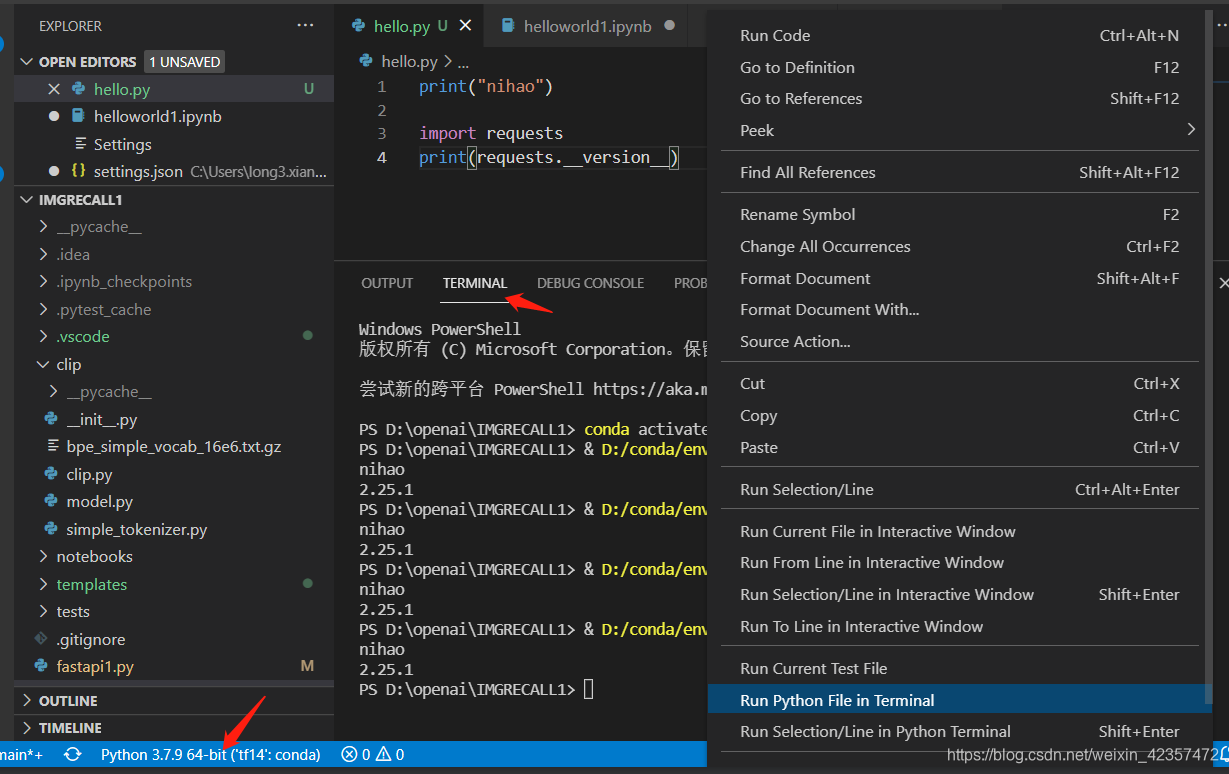
也可以点击左下方选择,运行程序terminal可以看到指定python环境
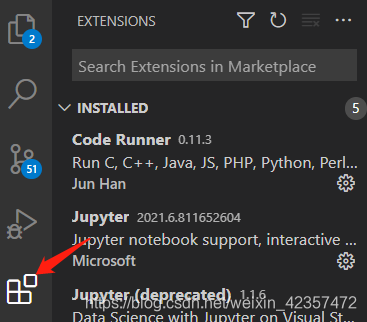
2、安装code runner、jupyter、kite、mysql插件
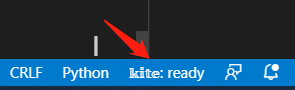
kite代码补全;安装号右下角显示
mysql安装mysql和mysql syntax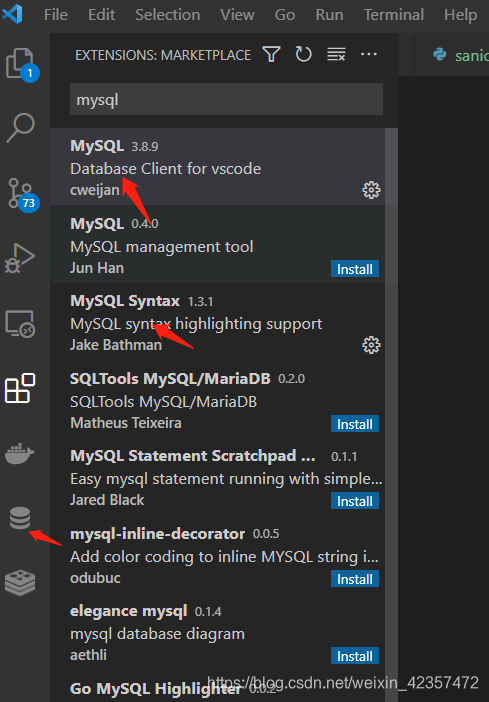
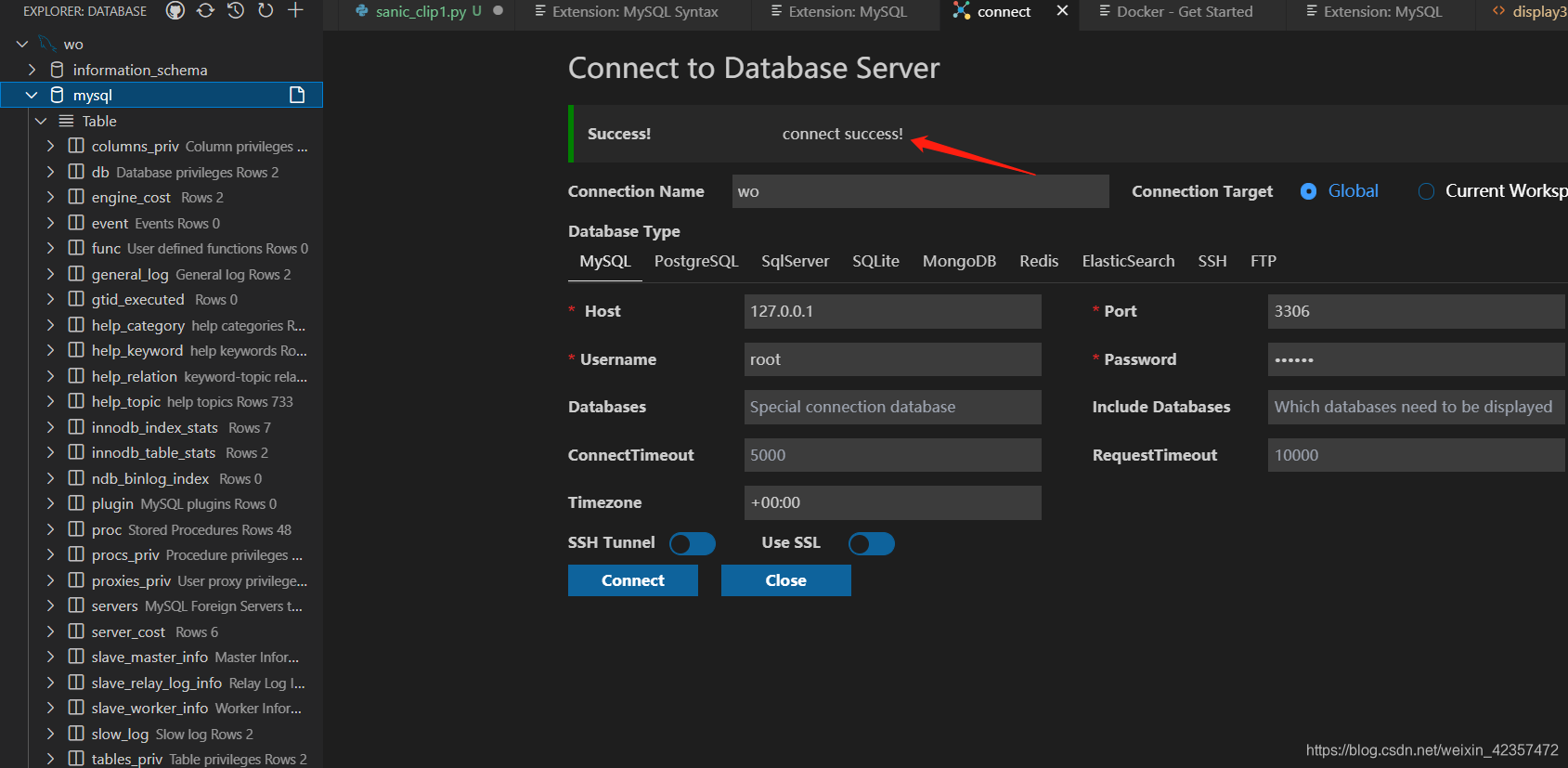
code runner 指定默认python环境
参考:https://blog.csdn.net/qq_32224299/article/details/88421101
指定上自己的解释器路径即可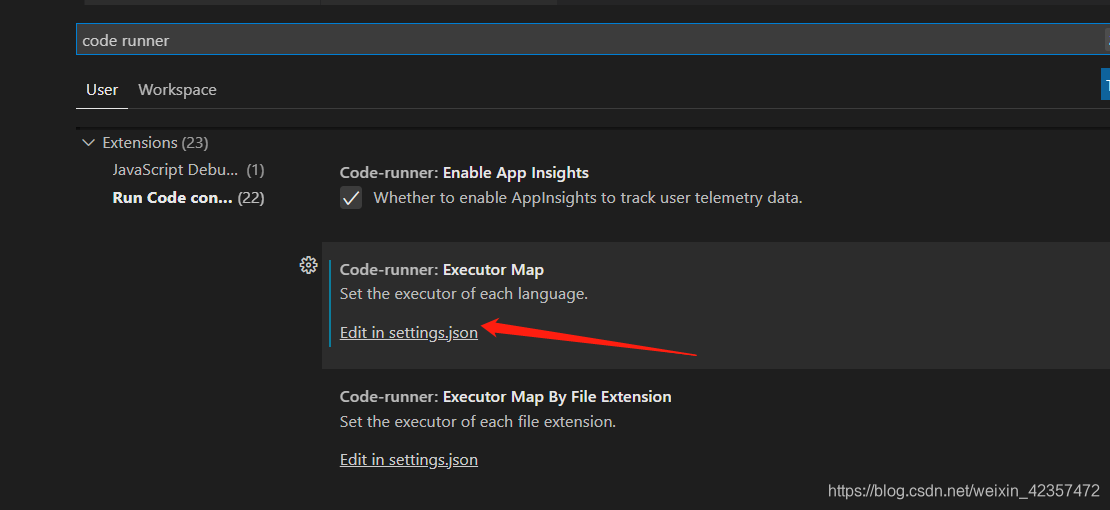
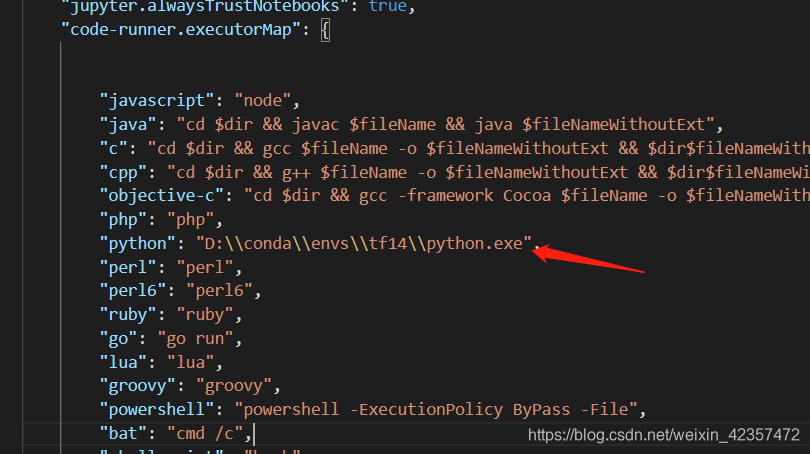
然后右键运行有run code选项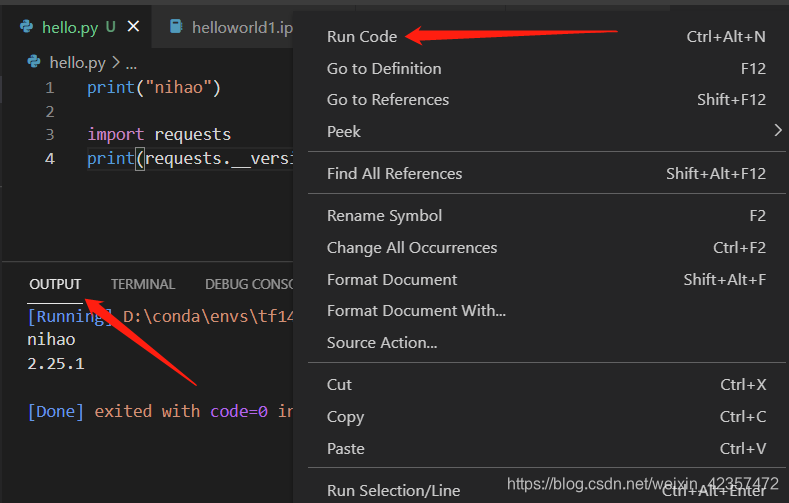
jupyter 指定默认python环境
jupyter安装后重启下软件
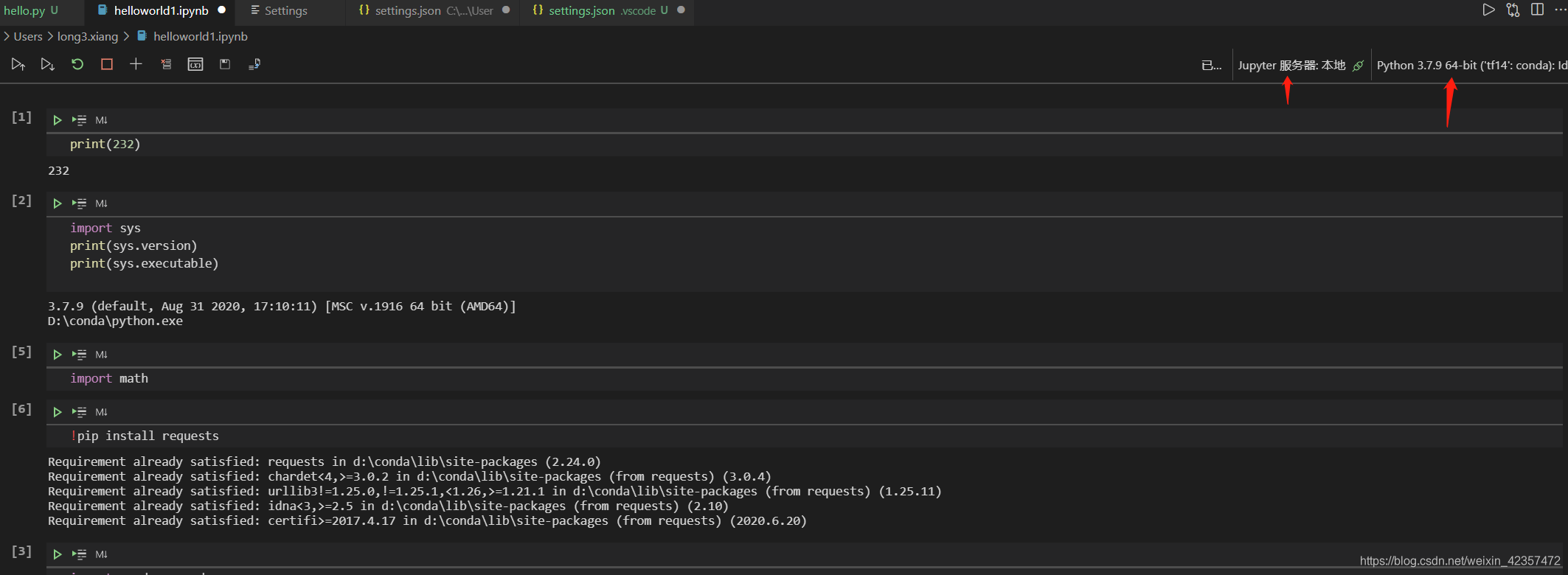
3、livecode for python
变量和打印可以实时看到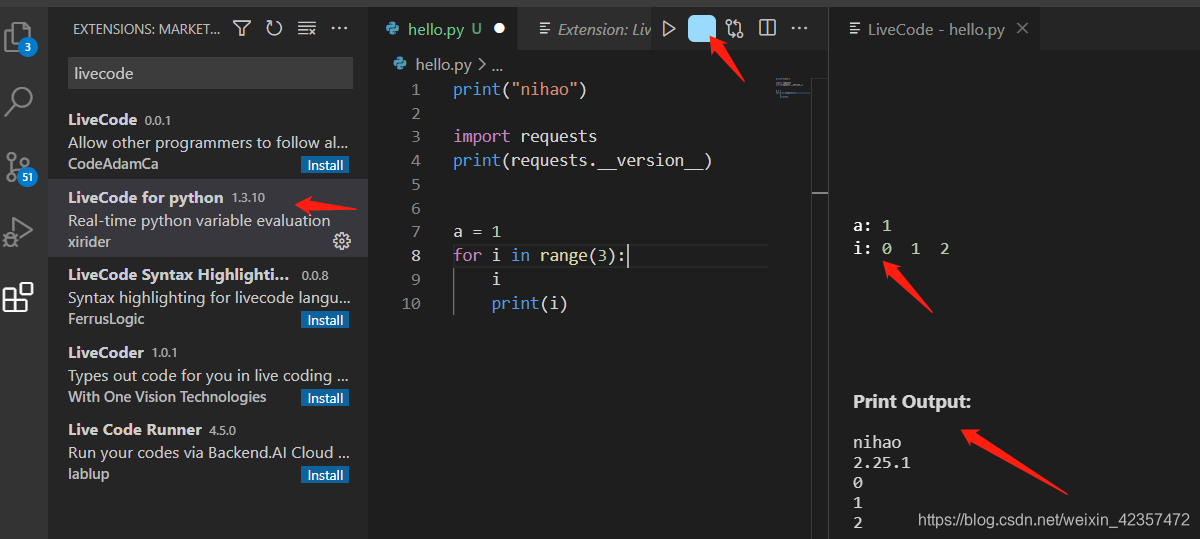
其他插件参考:https://www.jb51.net/article/197220.htm
4、命令行快捷打开ide
对应需要打开文件命令窗口使用
code .
5、远程连接服务器
下载相关插件
remote ssh(wsl是可以连接windowswsl子系统)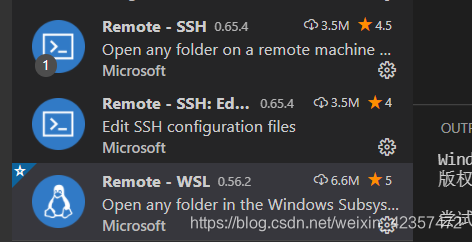
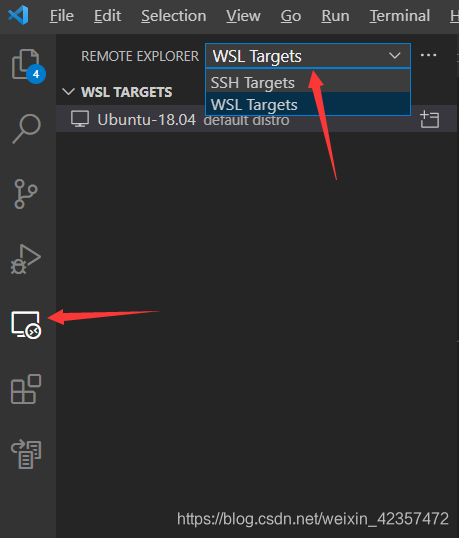
支持ssh连接远程服务器,也可wsl连接虚拟机,也可以连接docker打开,例如下面: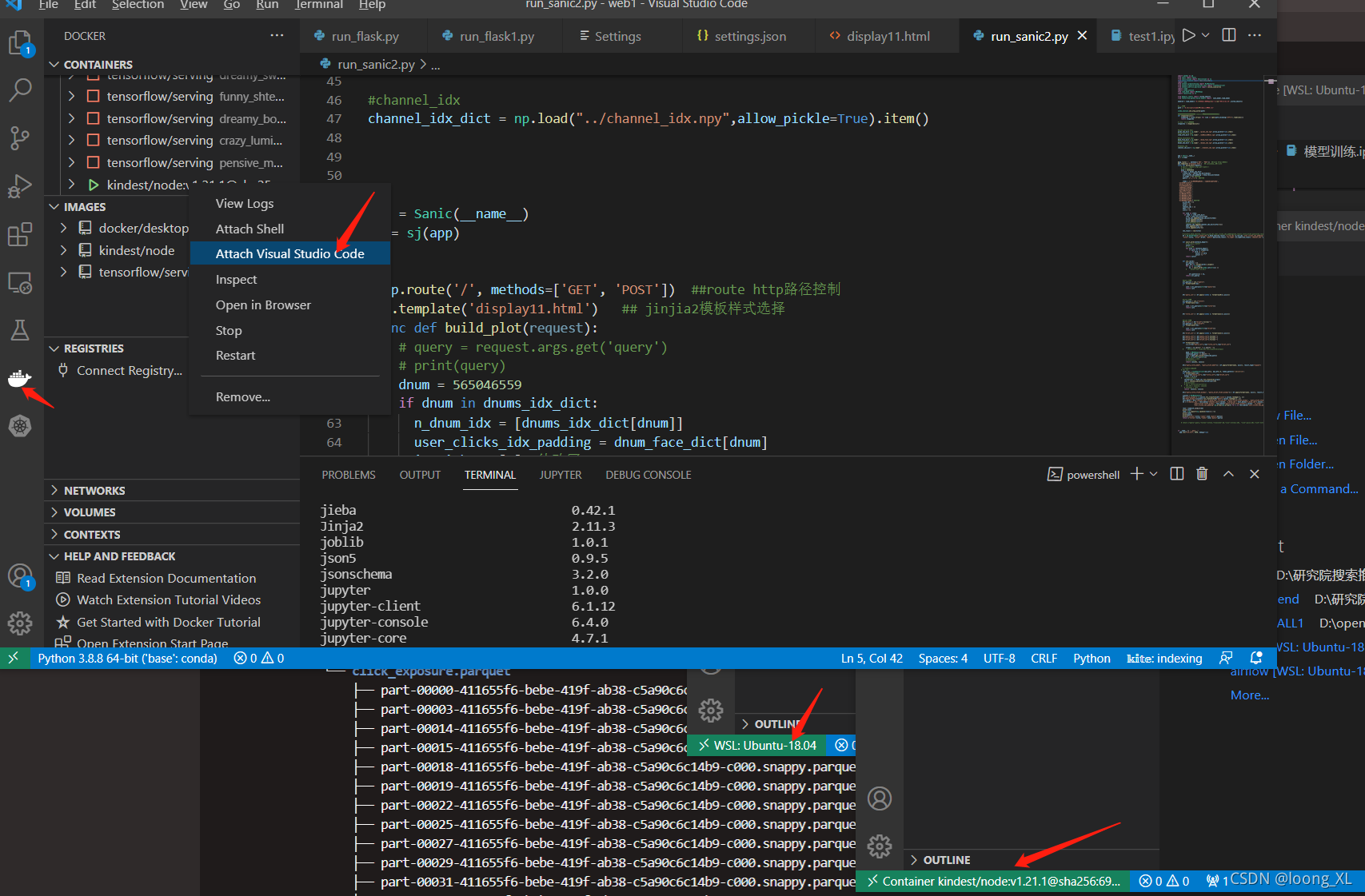
6、代码文件快捷打开vscode ide
在对应要打开的文件夹下打开终端,输入code . 即可
7、debug指定文件
参考:https://blog.csdn.net/qq_43331089/article/details/126263468
传参,需要在debug的launch.json文件arges里写入各参数;如果需要进入第三方库进行debug,需要设置justMyCode为false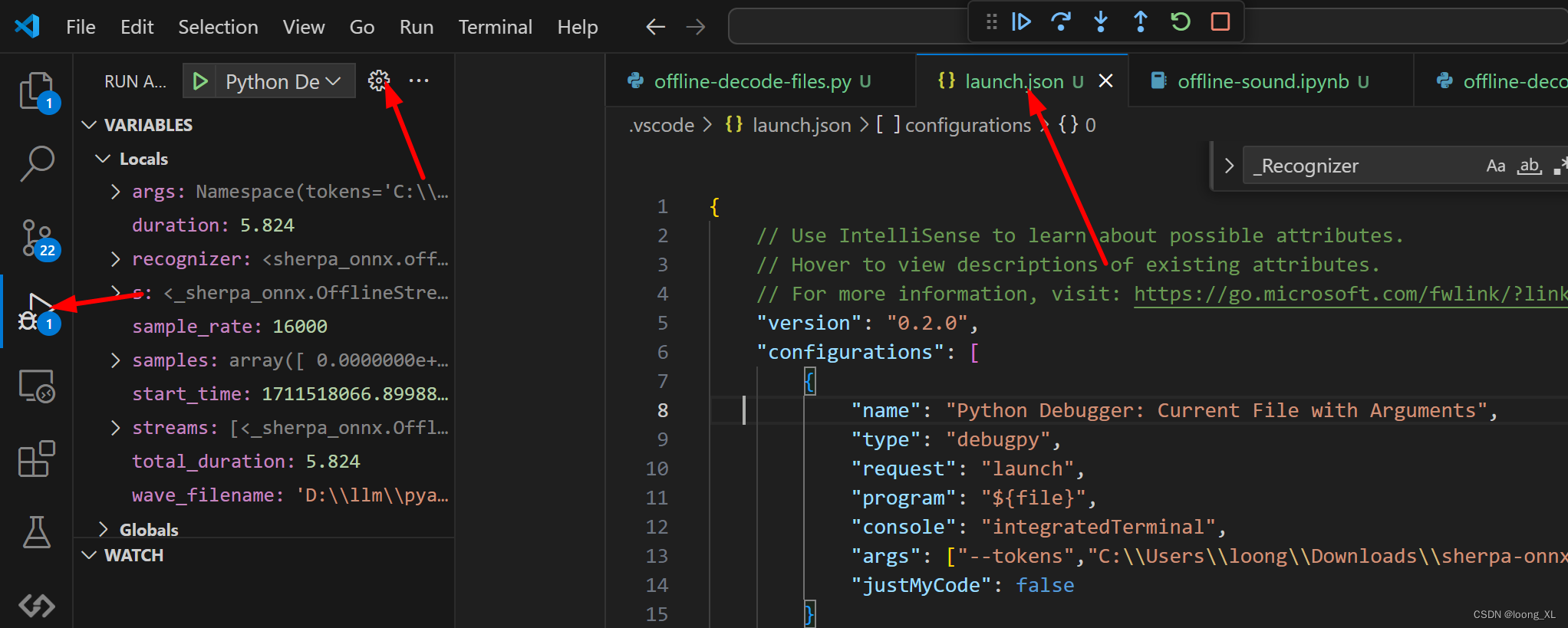
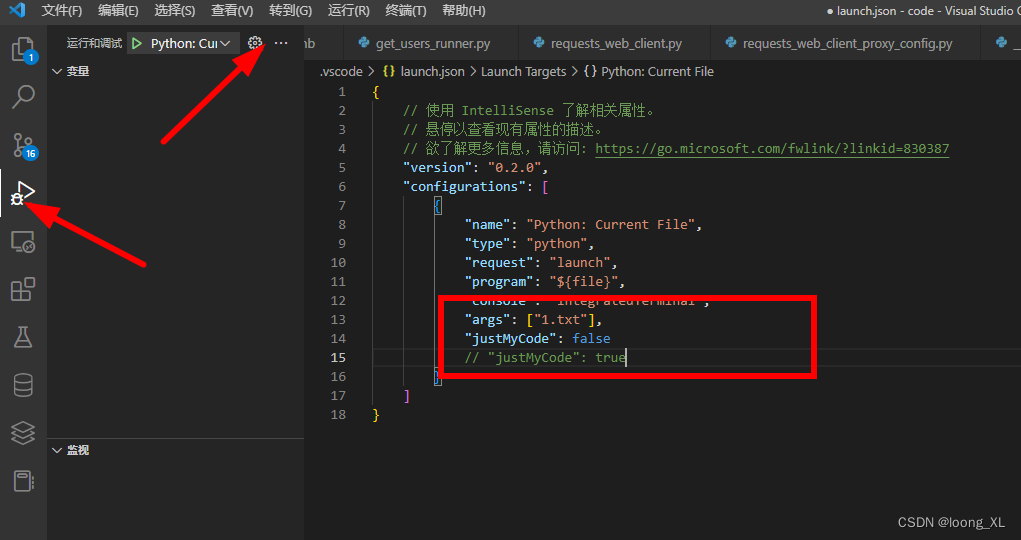

点击左上角debug播放按钮即可运行debug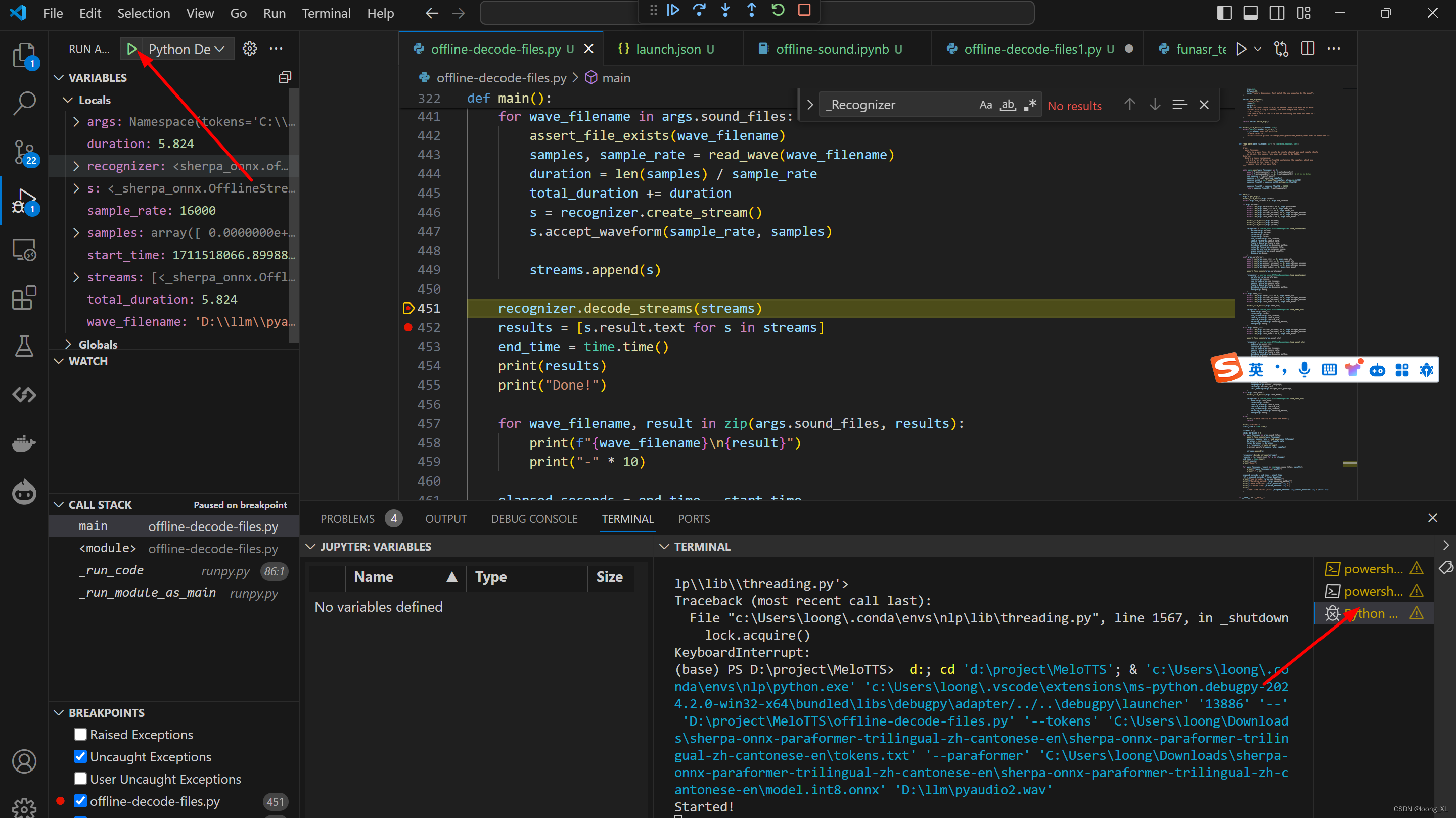

一站式 AI 云服务平台
更多推荐


 2
2 0
0- 0


 已为社区贡献1条内容

所有评论(0)