
windows下搭建php开发环境
windows下搭建php开发环境
http://wed.xjx100.cn/news/139397.html?action=onClick
https://www.bilibili.com/read/cv23429835/
https://www.php.cn/faq/498307.html
安装iis
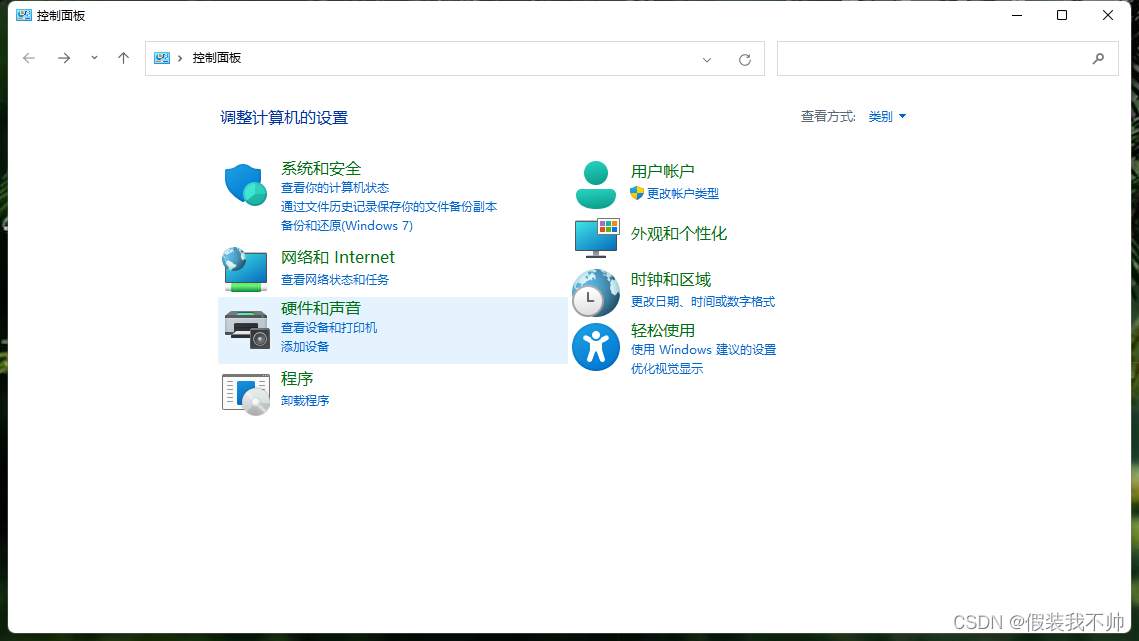
选择卸载程序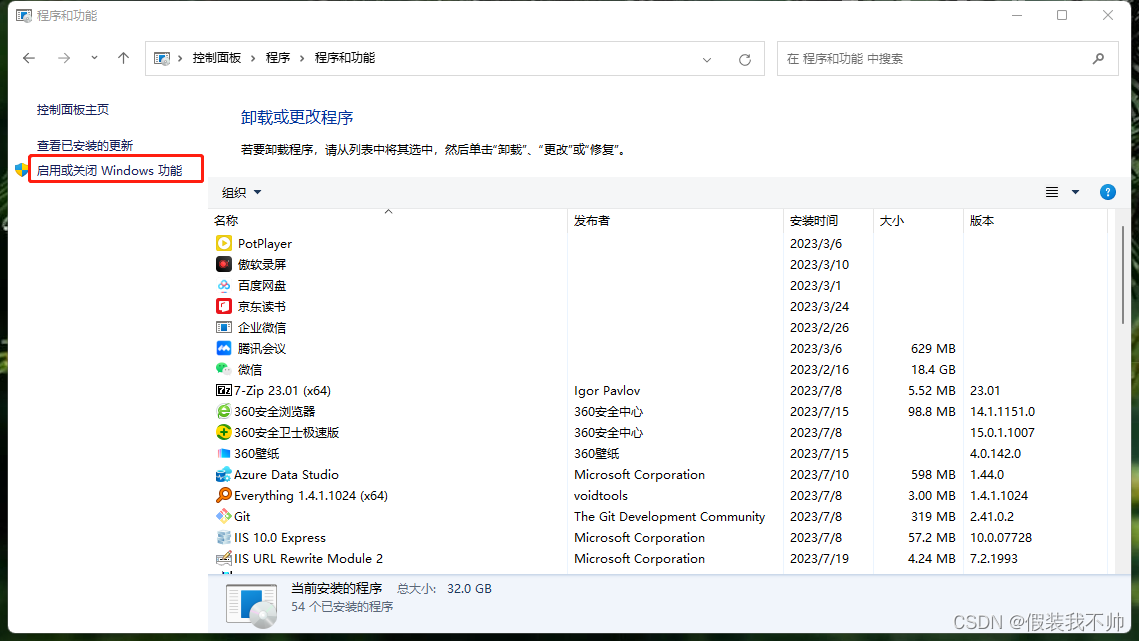
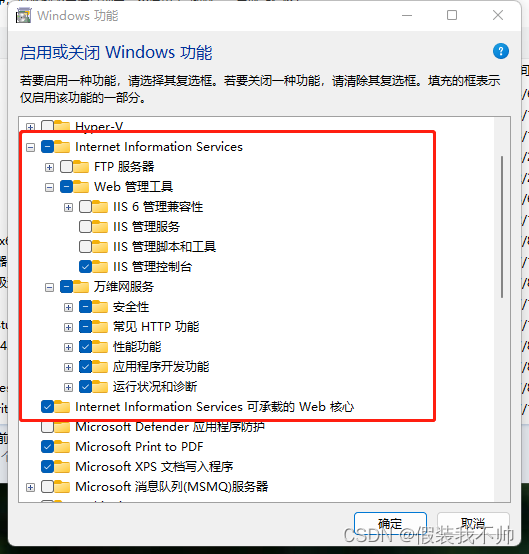
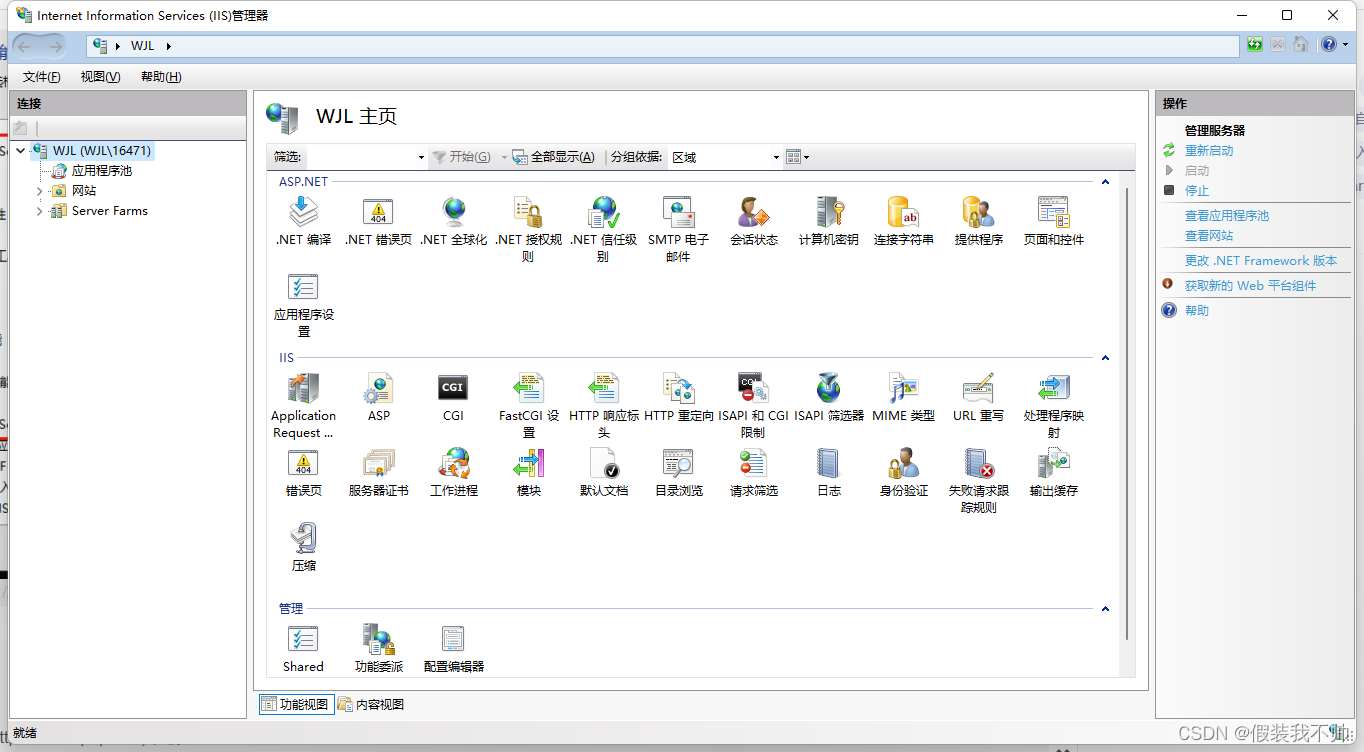
安装php
官网https://www.php.net/下载
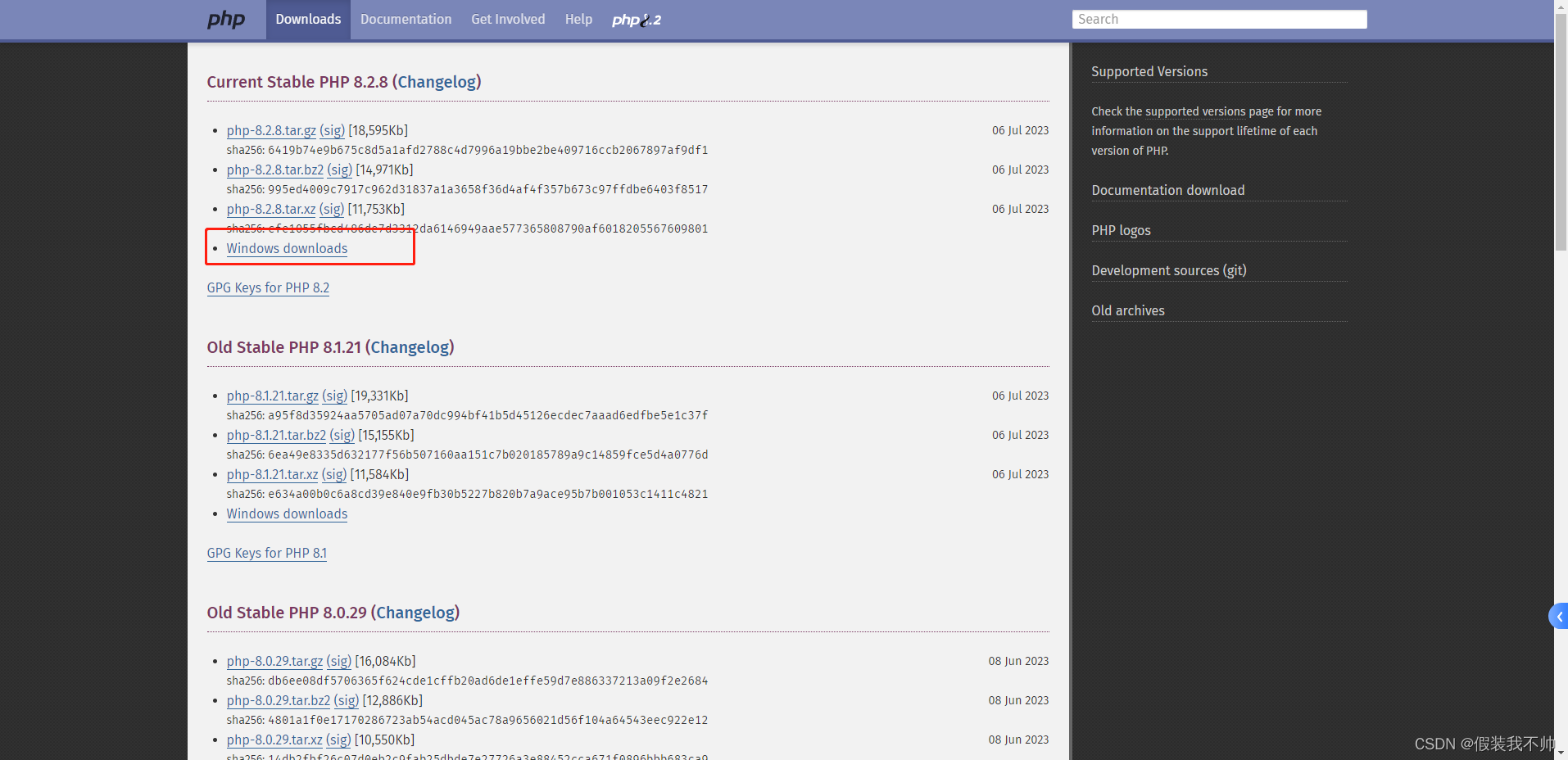
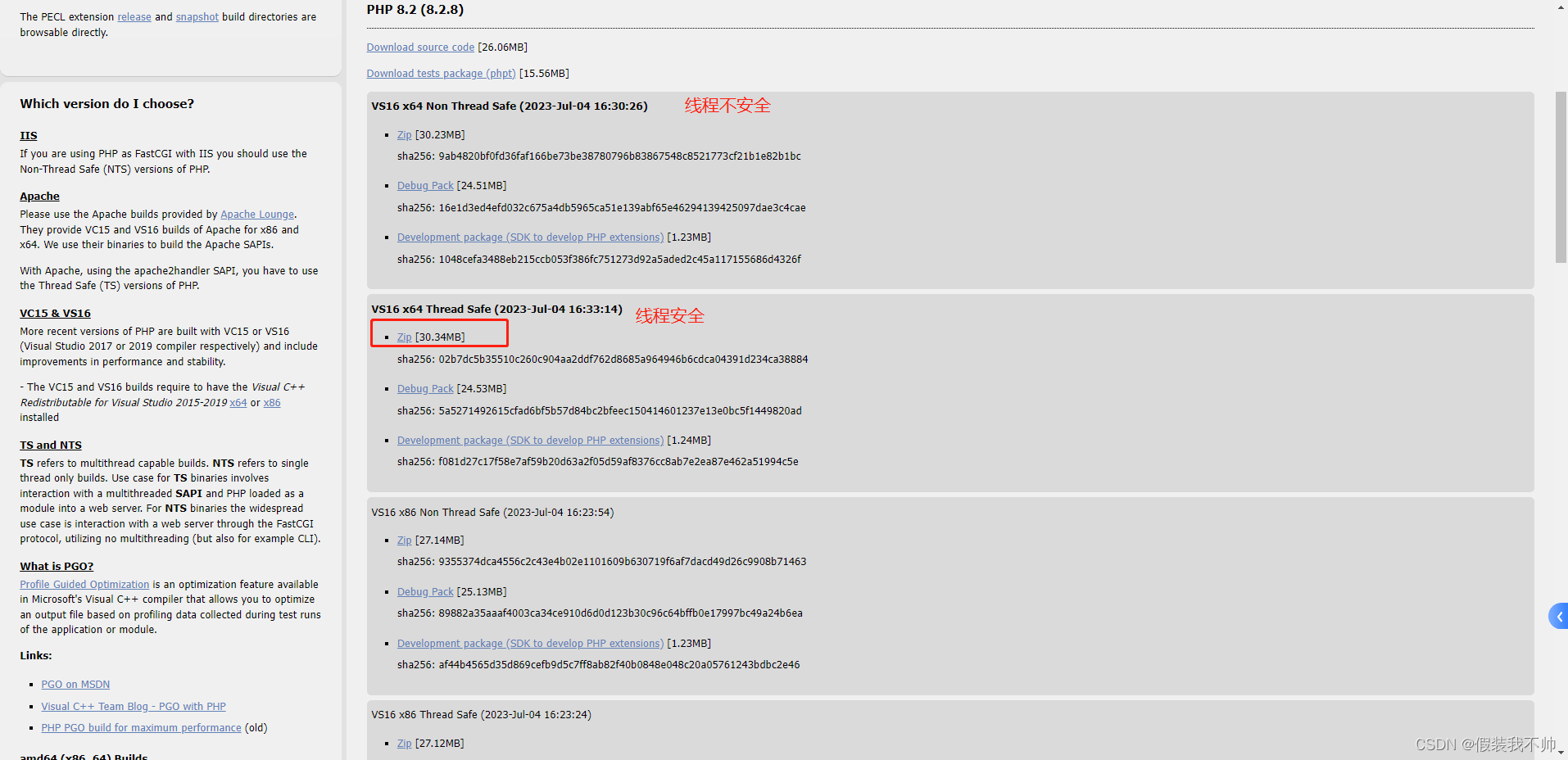
选择线程安全
国内地址
其他版本的php下载
下载完成后解压放到想存放的路径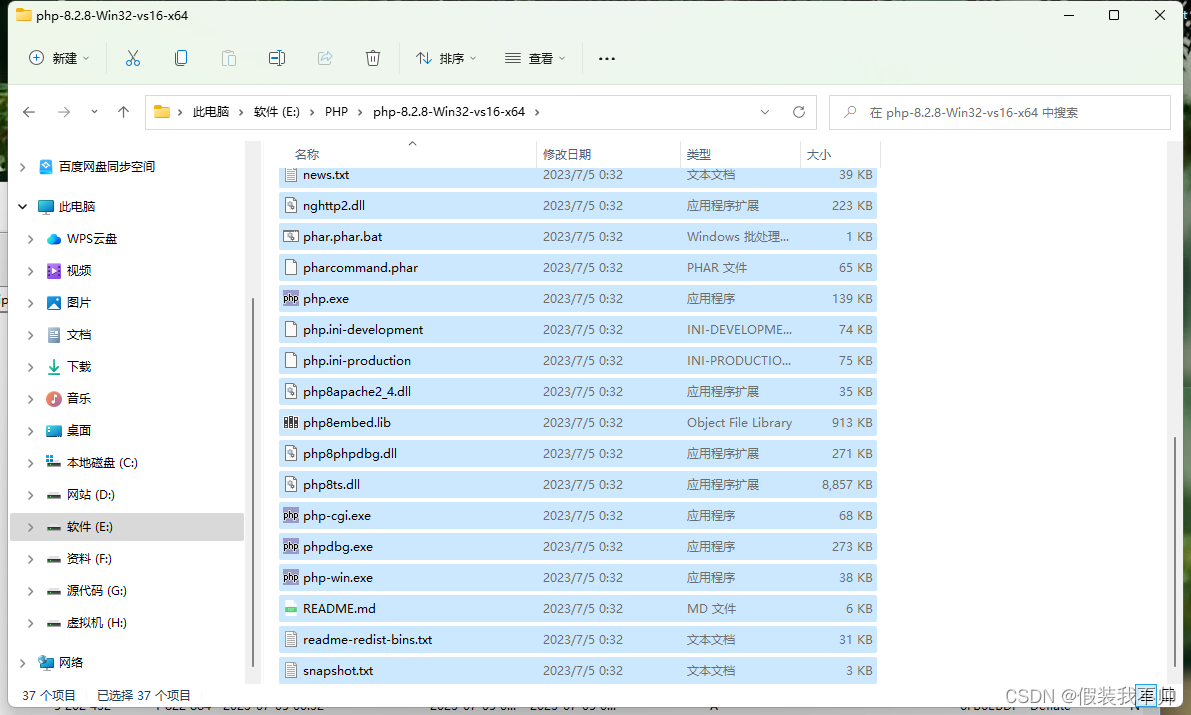
添加path环境变量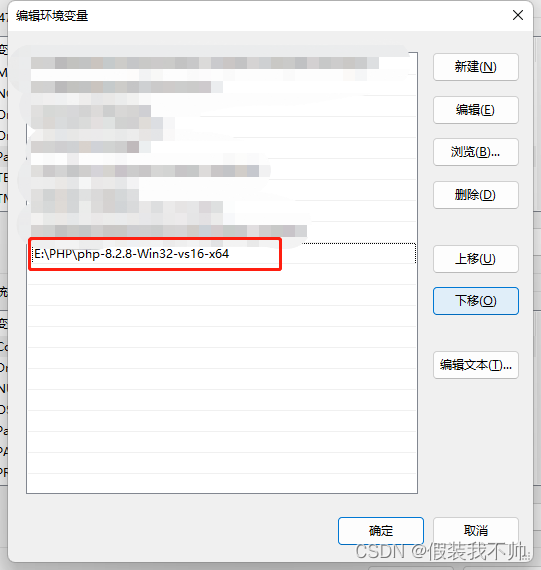
命令行中输入php -v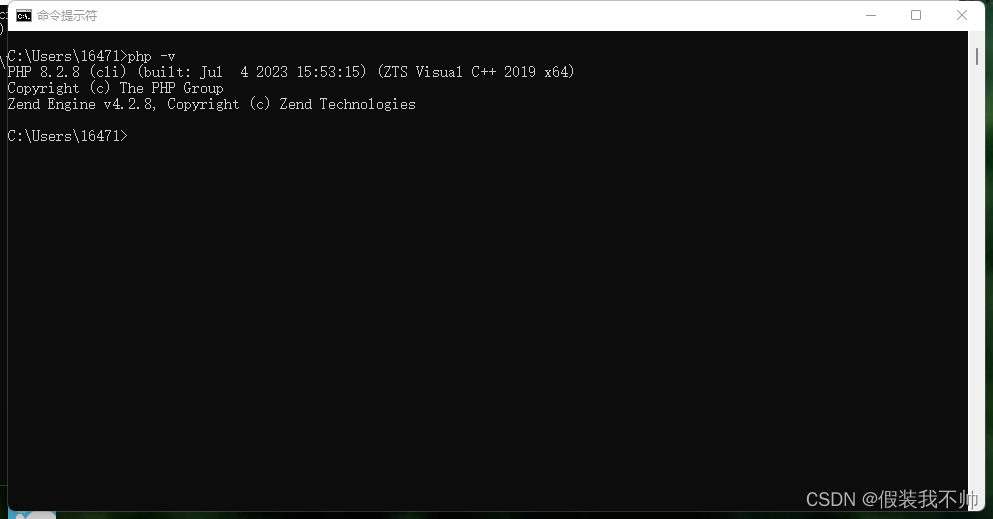
安装xdebug
Xdebug 要下载与 php 对应的版本,我们下载的 php 版本为 8.2.8,而且是 thread safe 版本,对应的是带 TS 的版本。
xdebug官网
github
下载页面
历史版本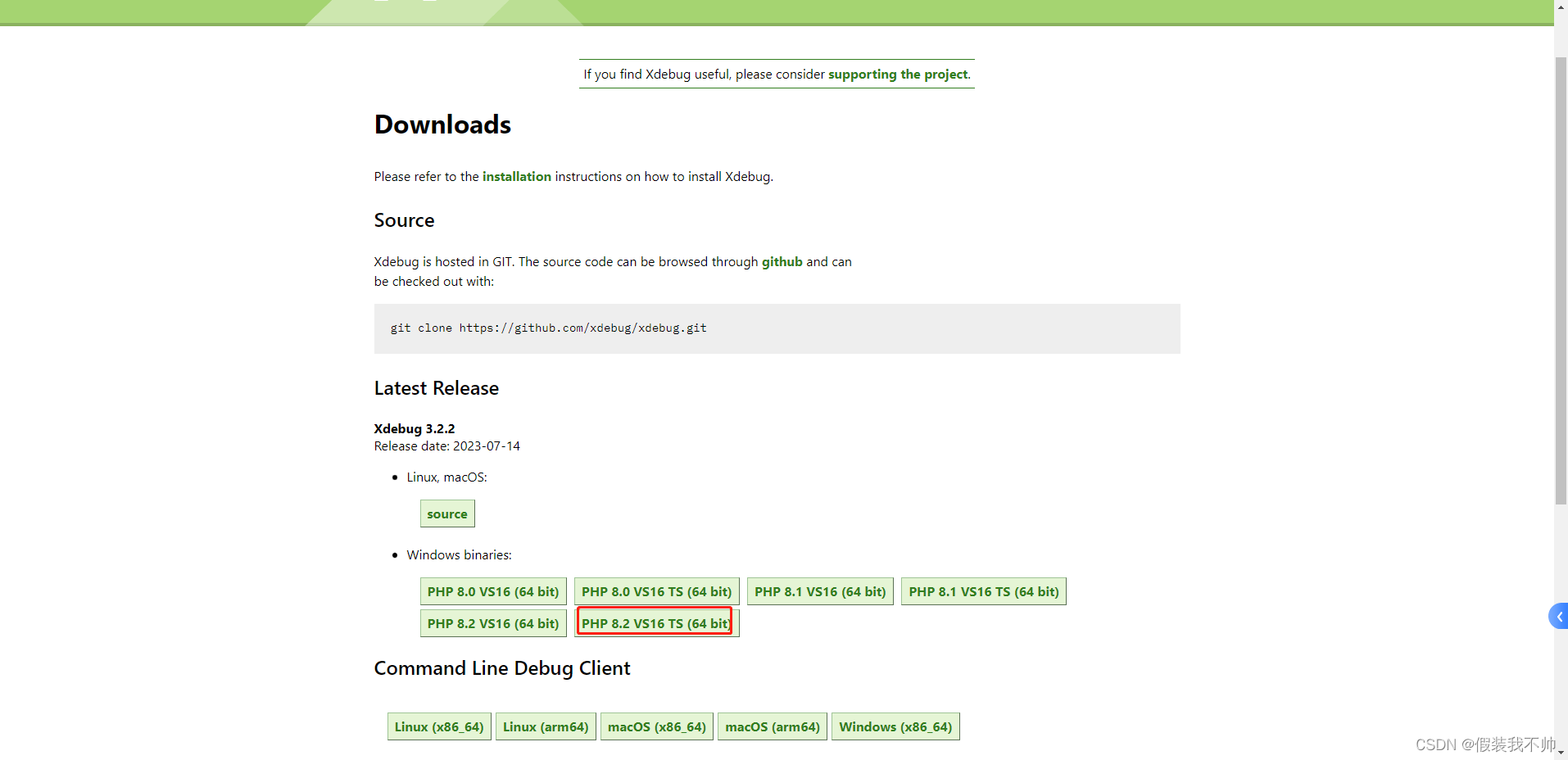
把下载的 php_xdebug-3.2.2-8.2-vs16-x86_64.dll 文件,复制到 php 根目录下的 ext 目录中,然后在 php 根目录下找到 php.ini 文件,有如下两种情况。
有 php.ini 文件
直接在 php 目录的 php.ini 的文件末尾添加如下配置即可(记得修改路径)。
没有php.ini文件
这里我们可以在 php 根目录下找到 php.ini-development (开发环境用)与 php.ini-production(生产环境用)两个文件。这里虽然没有 php.ini 文件,而 php 还是会去加载 php.ini 作为配置文件的。我们只要选择其中一个,把它备份,然后重命名为php.ini,最后加入自己个性化的配置即可。这里建议将 php.ini-development 文件备份重命名为 php.ini 就行,如下图所示: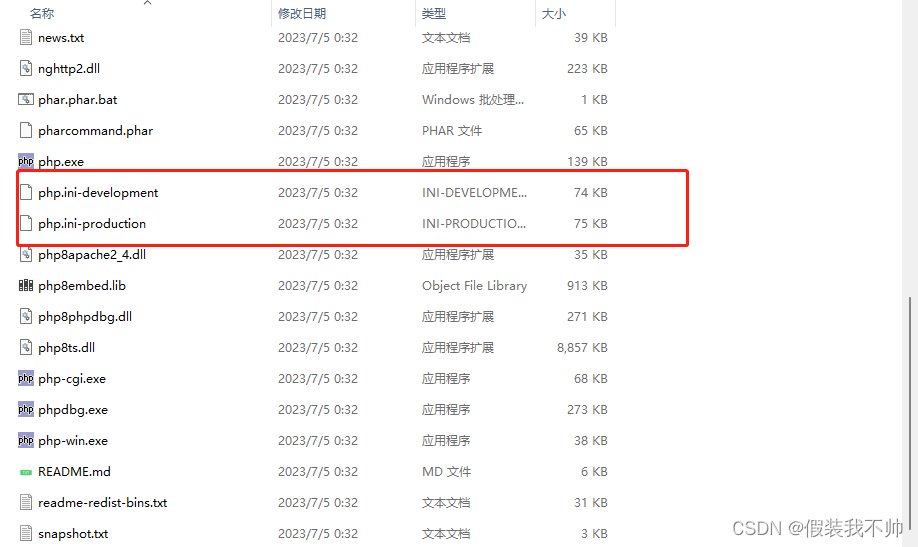
开启扩展
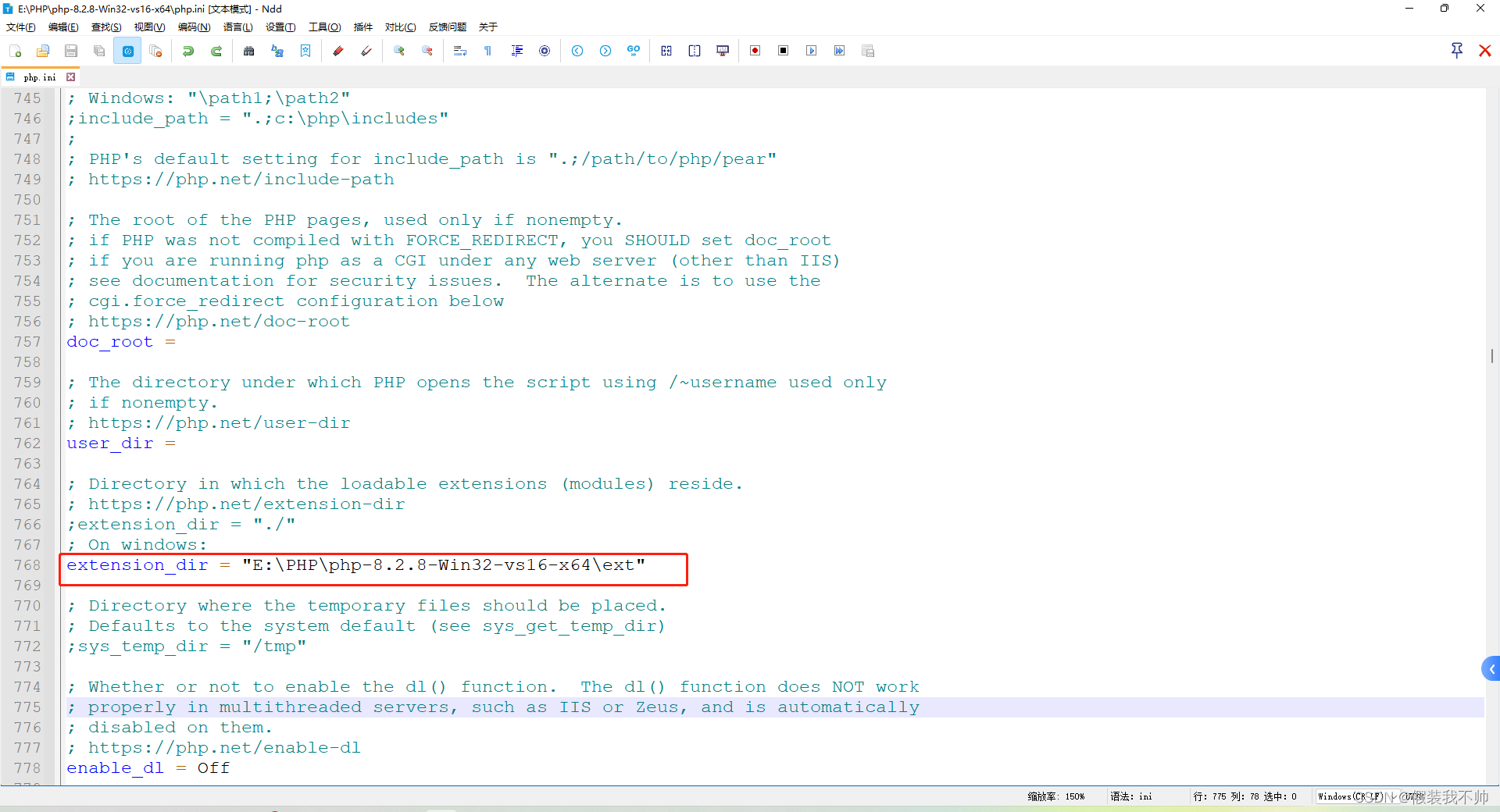
;指定xdebug扩展位置
zend_extension=php_xdebug-3.2.2-8.2-vs16-x86_64.dll

;配置xdebug
[xdebug]
;配置xdebug主机地址
xdebug.client_host = localhost
;监听端口
xdebug.client_port = 9103
;idekey
xdebug.idekey = VSCODE
;调试模式建议设置成debug可以打断点调试,默认是default
xdebug.mode = debug,trace
以上就是最少的xdebug配置了,想知道更多xdebug配置介绍可以去官网看看 Xdebug: Documentation » All settings ,里面都有介绍什么配置有什么功能。
最后可以在命令行输入php -m 查看是否安装xdebug成功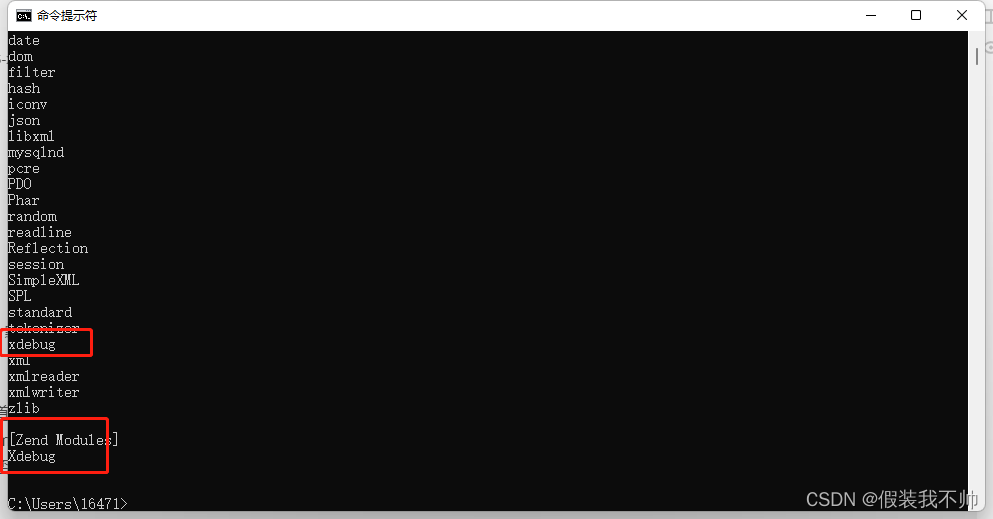
iis开启php支持
新建网站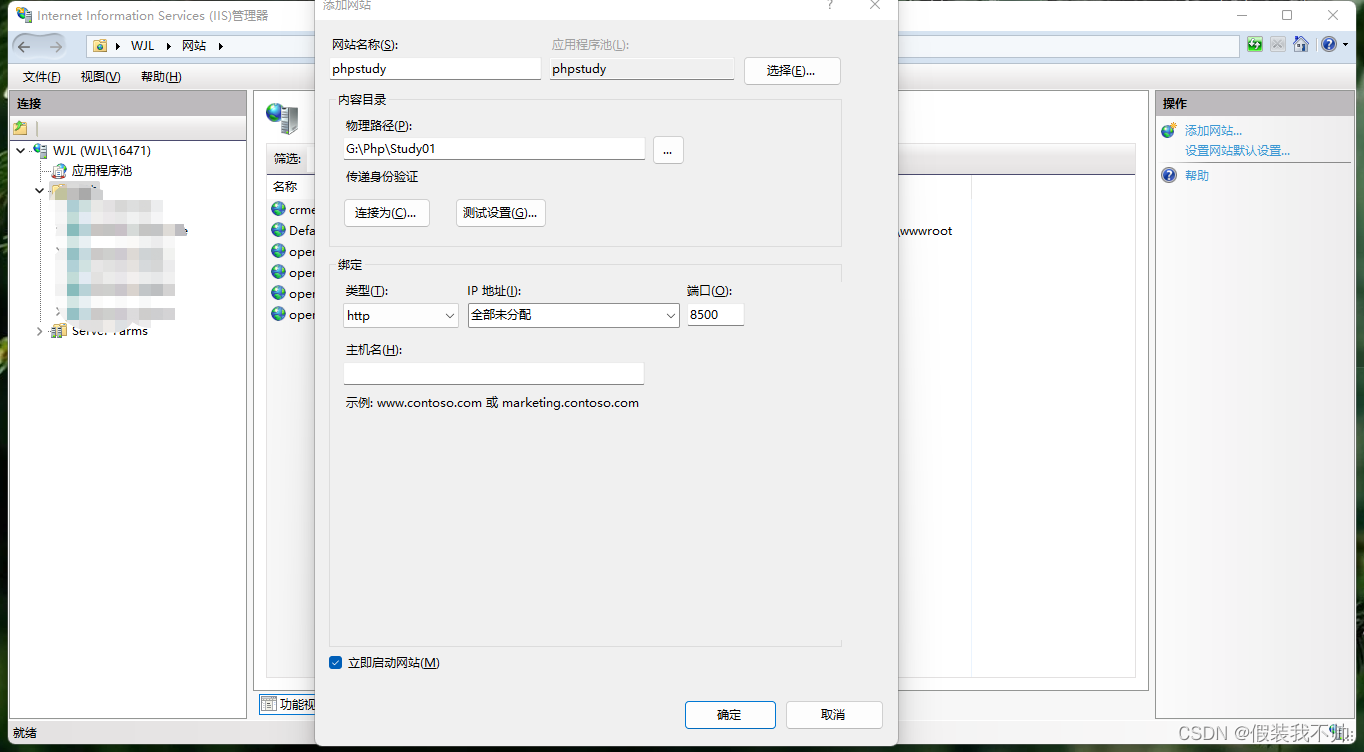
Windows默认自带的Web服务器是IIS(Internet Information Services),支持ASP和.Net(aspx),如果要支持对PHP文件的解析,可以通过以下两种方式:
(1)通过FastCGI,将扩展名为.php的文件指定到PHP官方的fast CGI引擎中去解析。
(2)使用反向代理,将指定网站反向代理到Apache服务商,或者php-fpm服务进程中。
我们这里通过第一种方式,即FastCGI,在IIS的全局,或者指定网站,选择“处理程序映射”这个功能模块。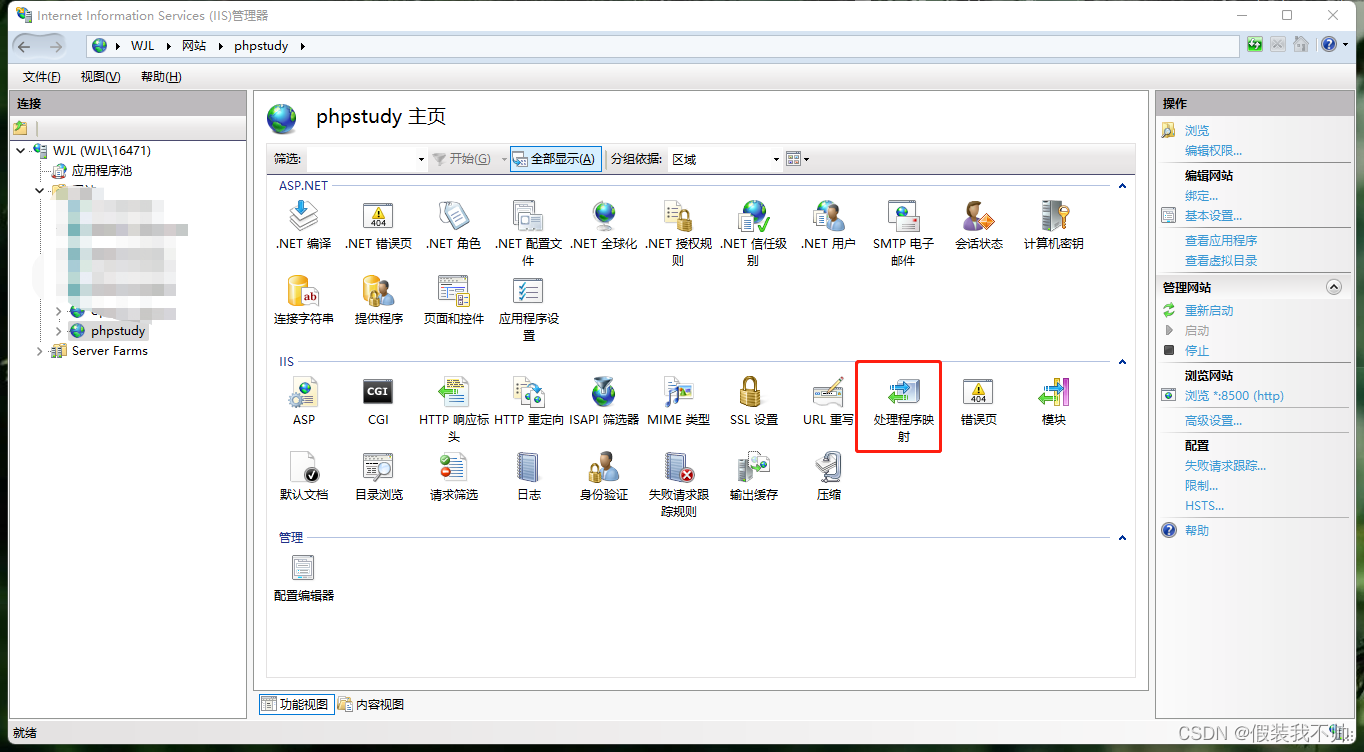
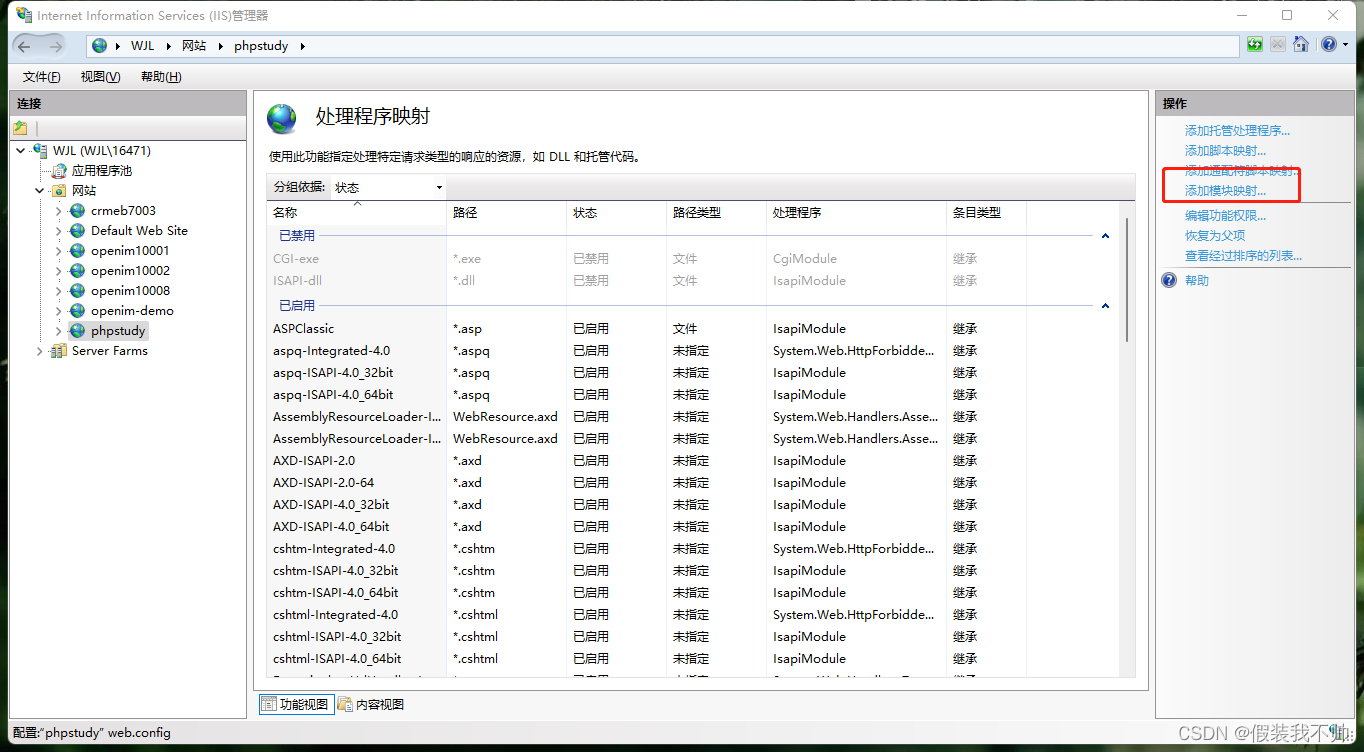
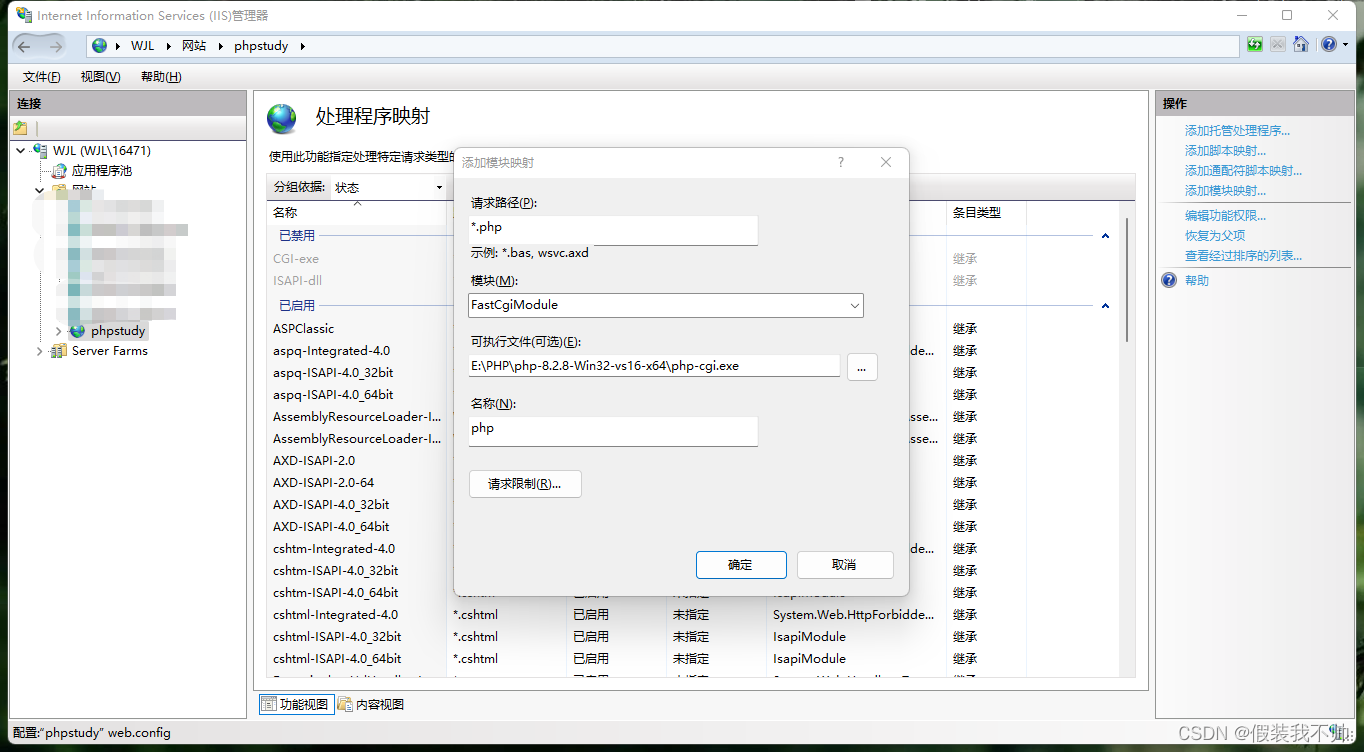
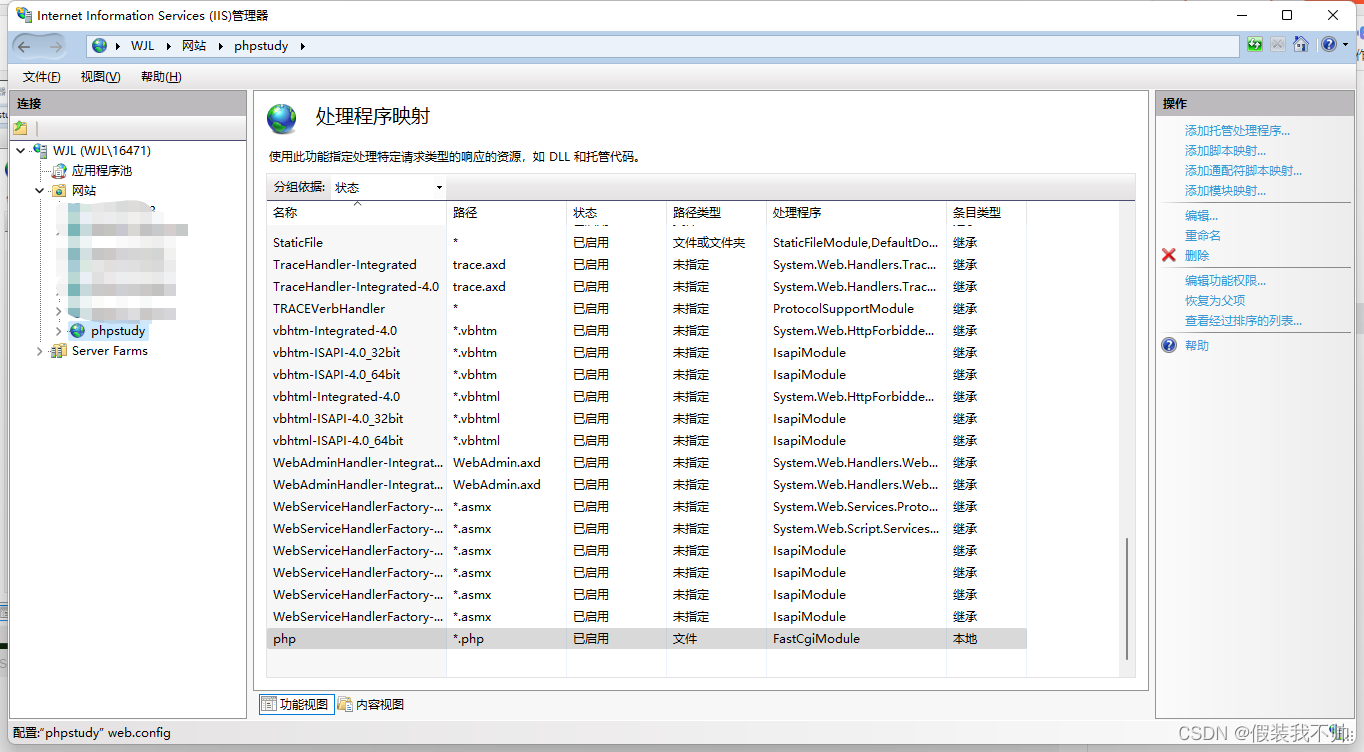
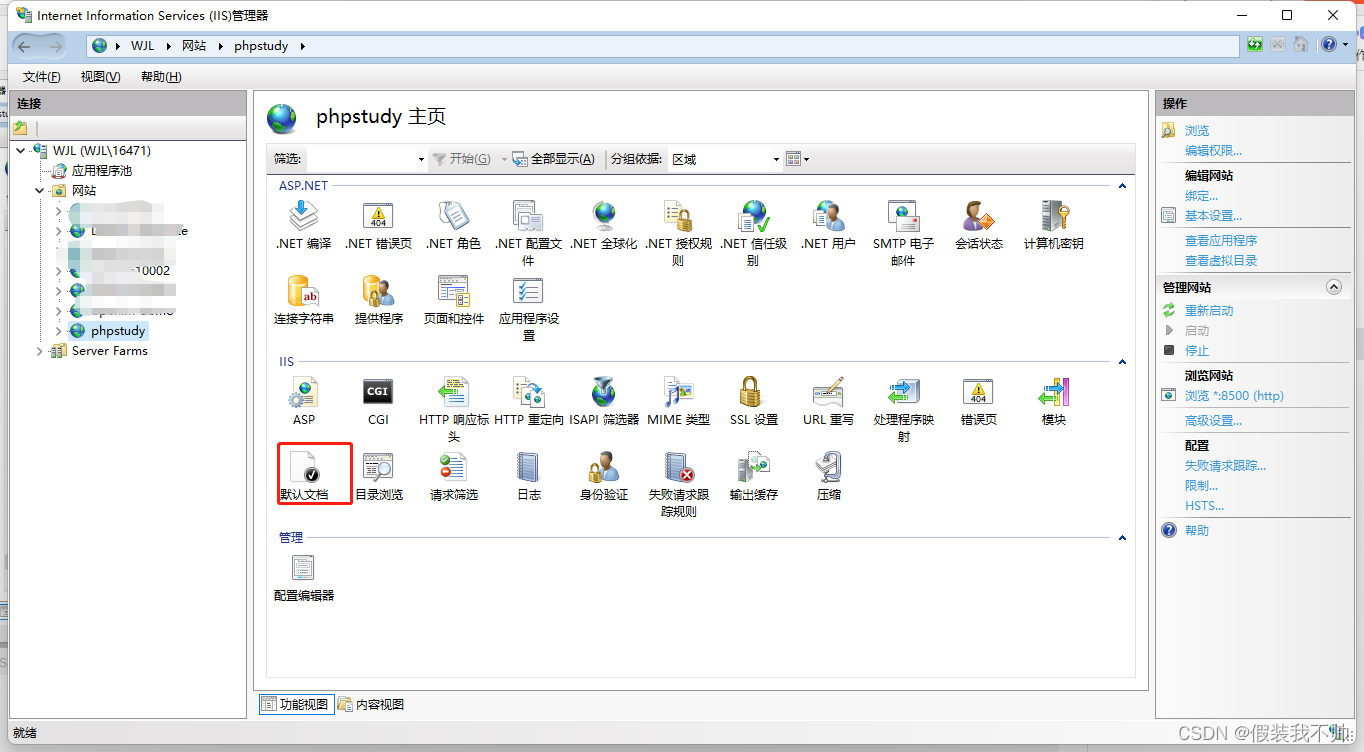
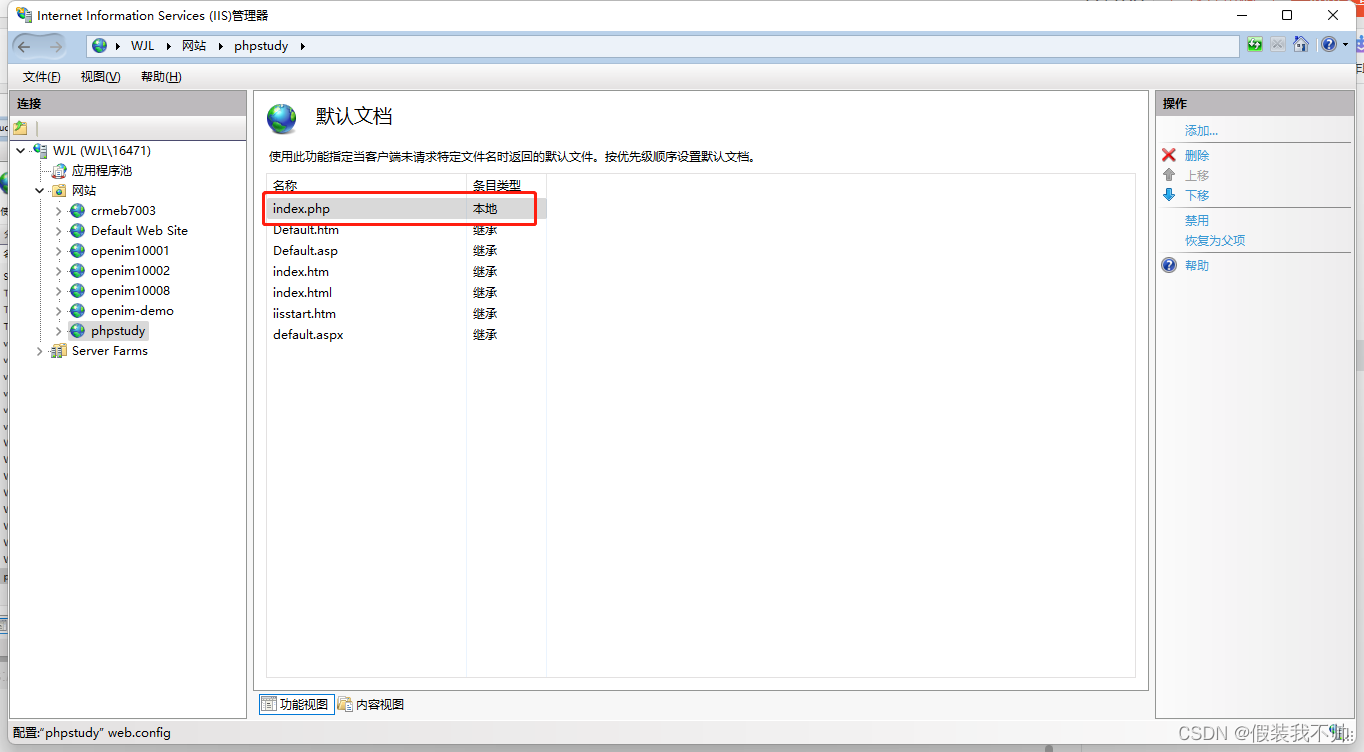
设置默认页面
处理500错误
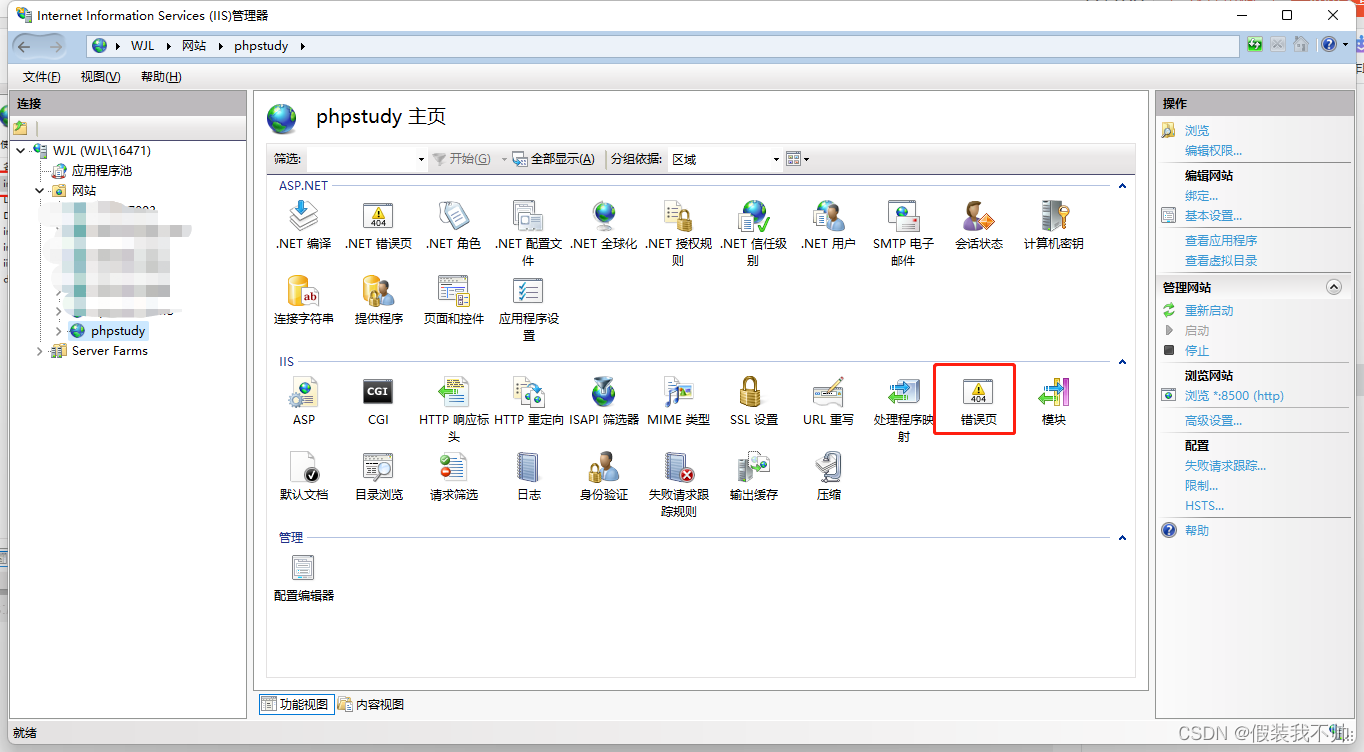
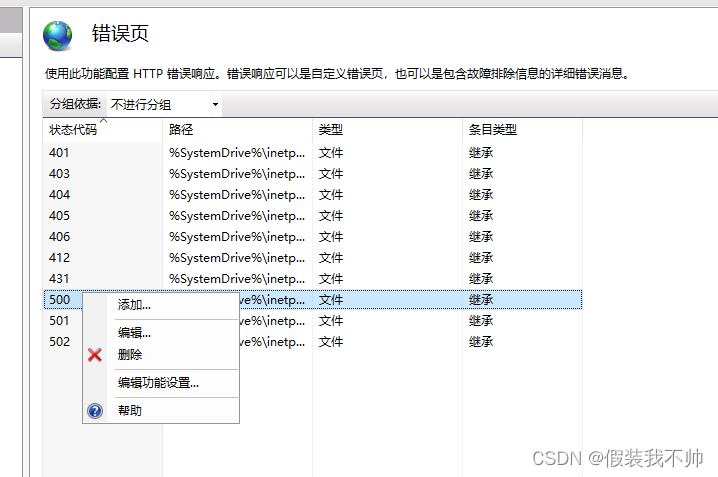
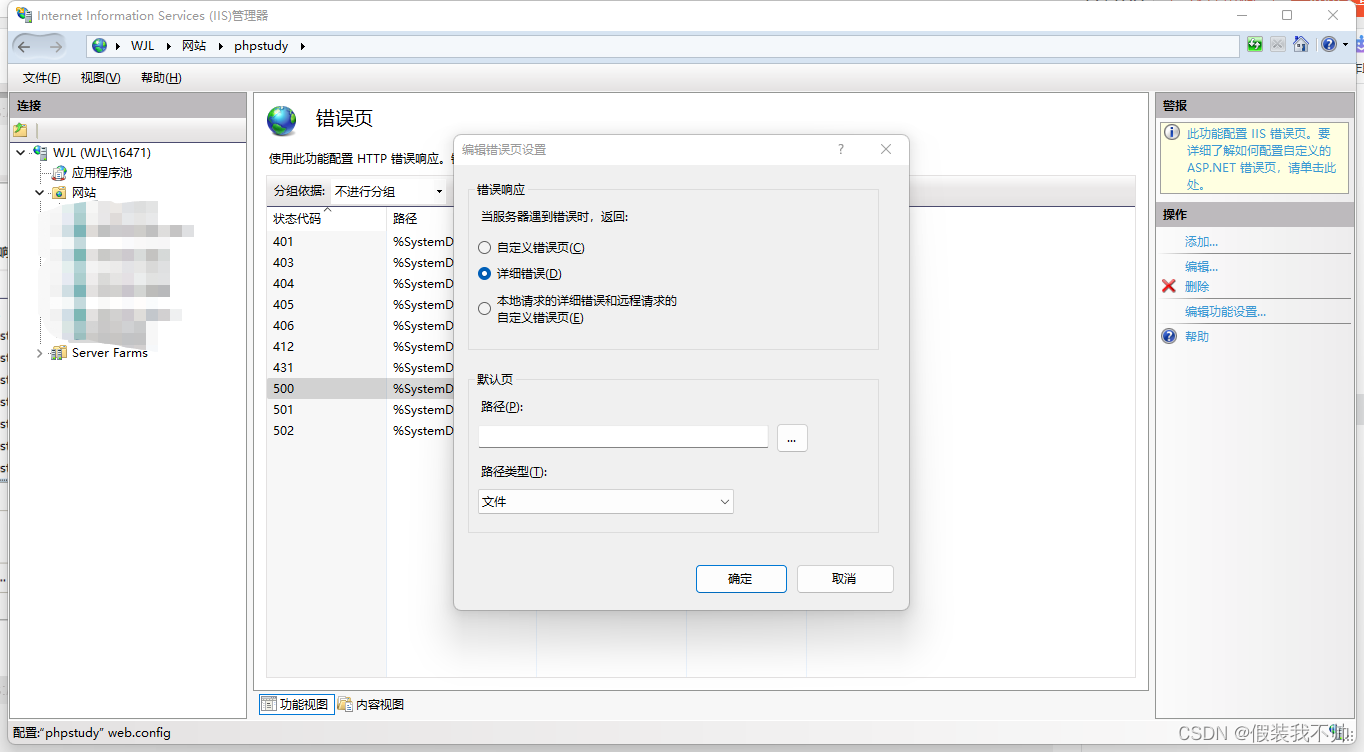
配置完成之后web.config如下,但是第一次配置不要使用否则会报错,因为第一次写入会写入到iis的全局配置中
<?xml version="1.0" encoding="UTF-8"?>
<configuration>
	<system.webServer>
		<defaultDocument>
			<files>
				<add value="index.php" />
			</files>
		</defaultDocument>
		<httpErrors errorMode="Detailed" />
		<rewrite>
			<rules>
				<rule name="OrgPage" stopProcessing="true">
					<match url="^(.*)$" />
					<conditions logicalGrouping="MatchAll">
						<add input="{HTTP_HOST}" pattern="^(.*)$" />
						<add input="{REQUEST_FILENAME}" matchType="IsFile" negate="true" />
						<add input="{REQUEST_FILENAME}" matchType="IsDirectory" negate="true" />
					</conditions>
					<action type="Rewrite" url="index.php/{R:1}" />
				</rule>
			</rules>
		</rewrite>
        <handlers>
            <add name="php" path="*.php" verb="*" modules="FastCgiModule" scriptProcessor="D:\php\php-7.4.32-Win32-vc15-x64\php-cgi.exe" resourceType="File" />
        </handlers>
	</system.webServer>
</configuration>
新建index.php内容如下
<?php
phpinfo();
开启php.ini下
short_open_tag = On
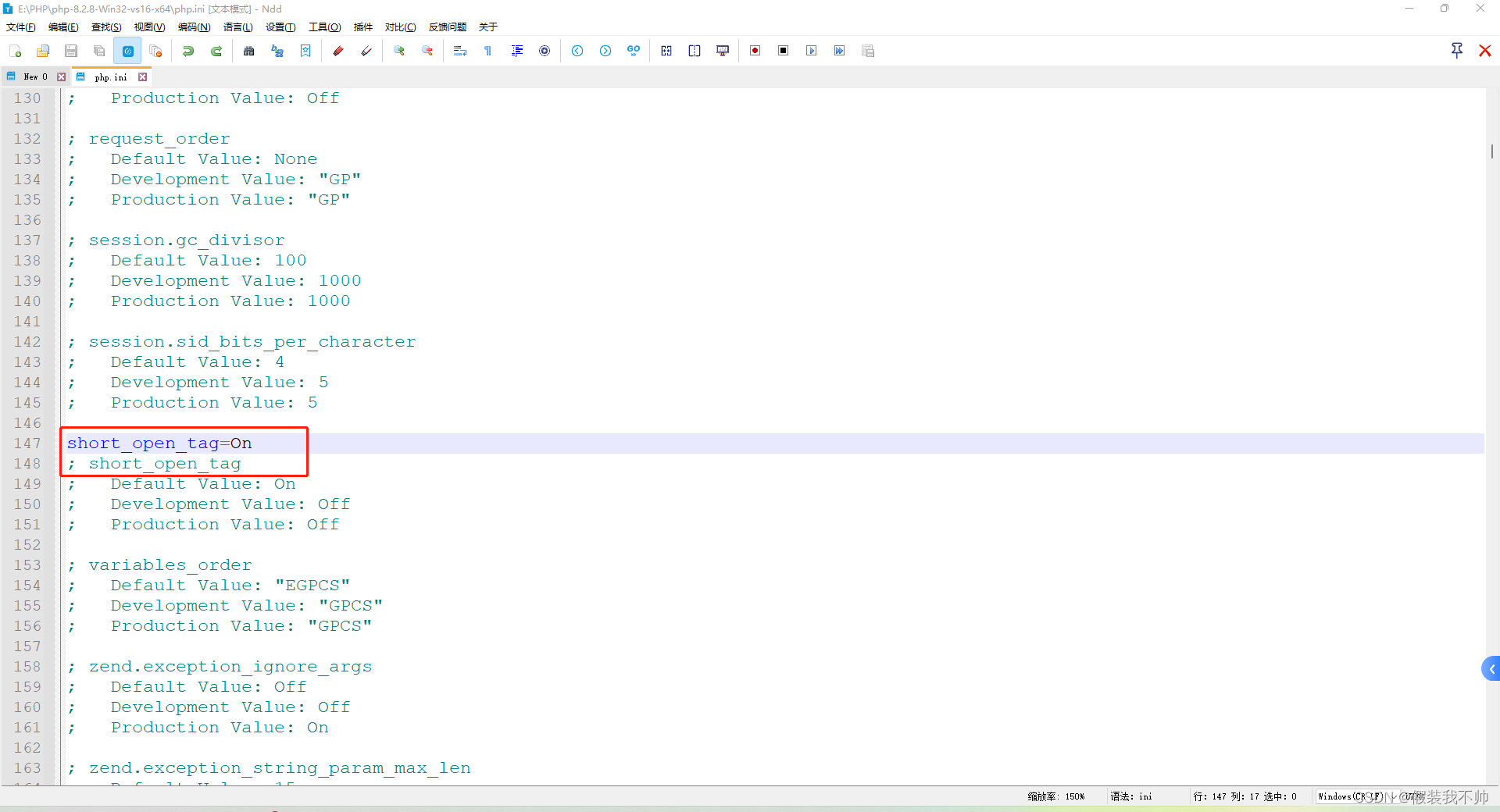
重新启动iis应用程序池
访问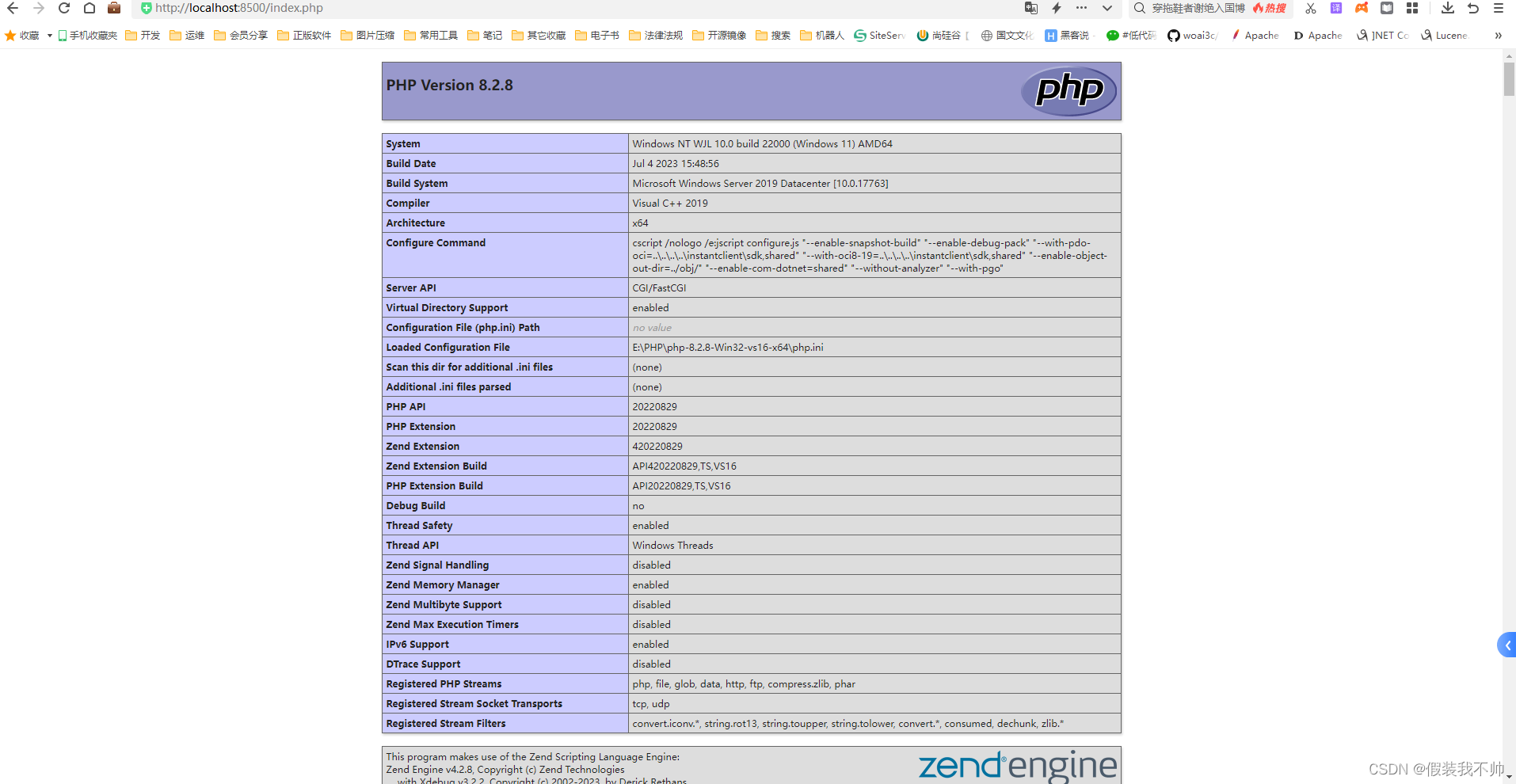
vscode
安装vscode,安装phpdebug插件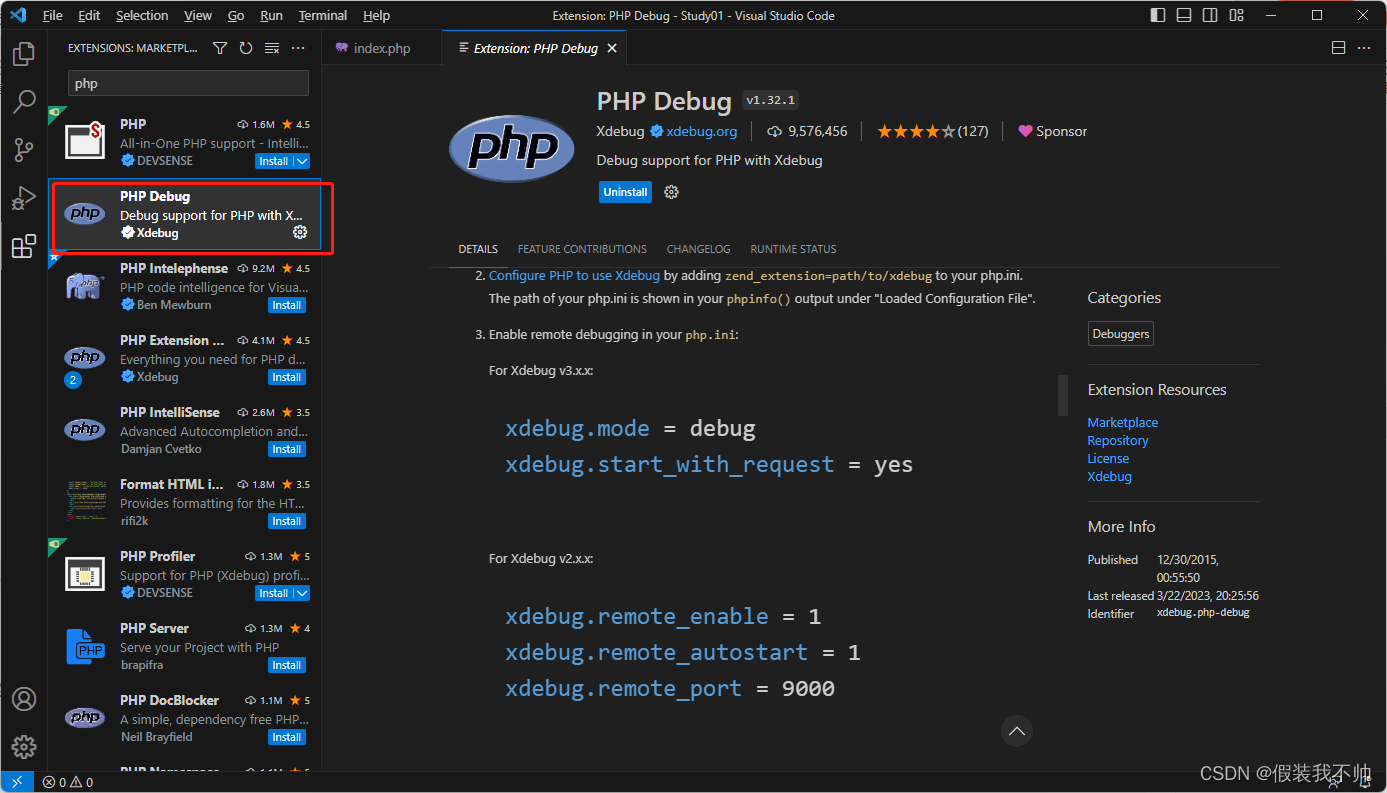
修改php.ini
;配置xdebug
[xdebug]
;配置xdebug主机地址
xdebug.client_host = localhost
;监听端口
xdebug.client_port = 9103
;idekey
xdebug.idekey = VSCODE
;调试模式建议设置成debug可以打断点调试,默认是default
xdebug.mode = debug,trace
xdebug.start_with_request = yes
重启应用程序池
vscode增加配置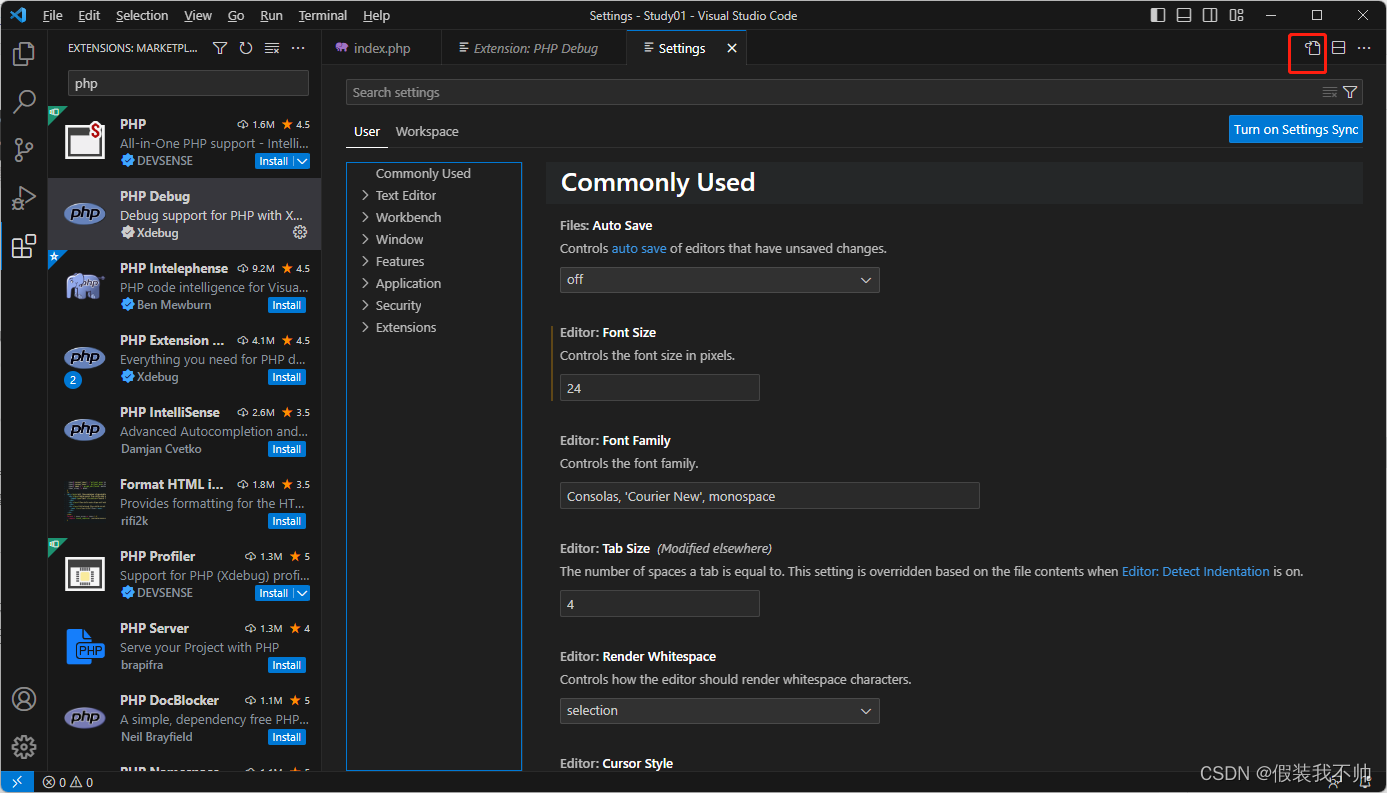
"php.validate.executablePath": "E:\\PHP\\php-8.2.8-Win32-vs16-x64\\php.exe",
"php.debug.executablePath": "E:\\PHP\\php-8.2.8-Win32-vs16-x64\\php.exe",
"phpserver.phpConfigPath": "E:\\PHP\\php-8.2.8-Win32-vs16-x64\\php.ini",
"phpserver.phpPath": "E:\\PHP\\php-8.2.8-Win32-vs16-x64\\php.exe",
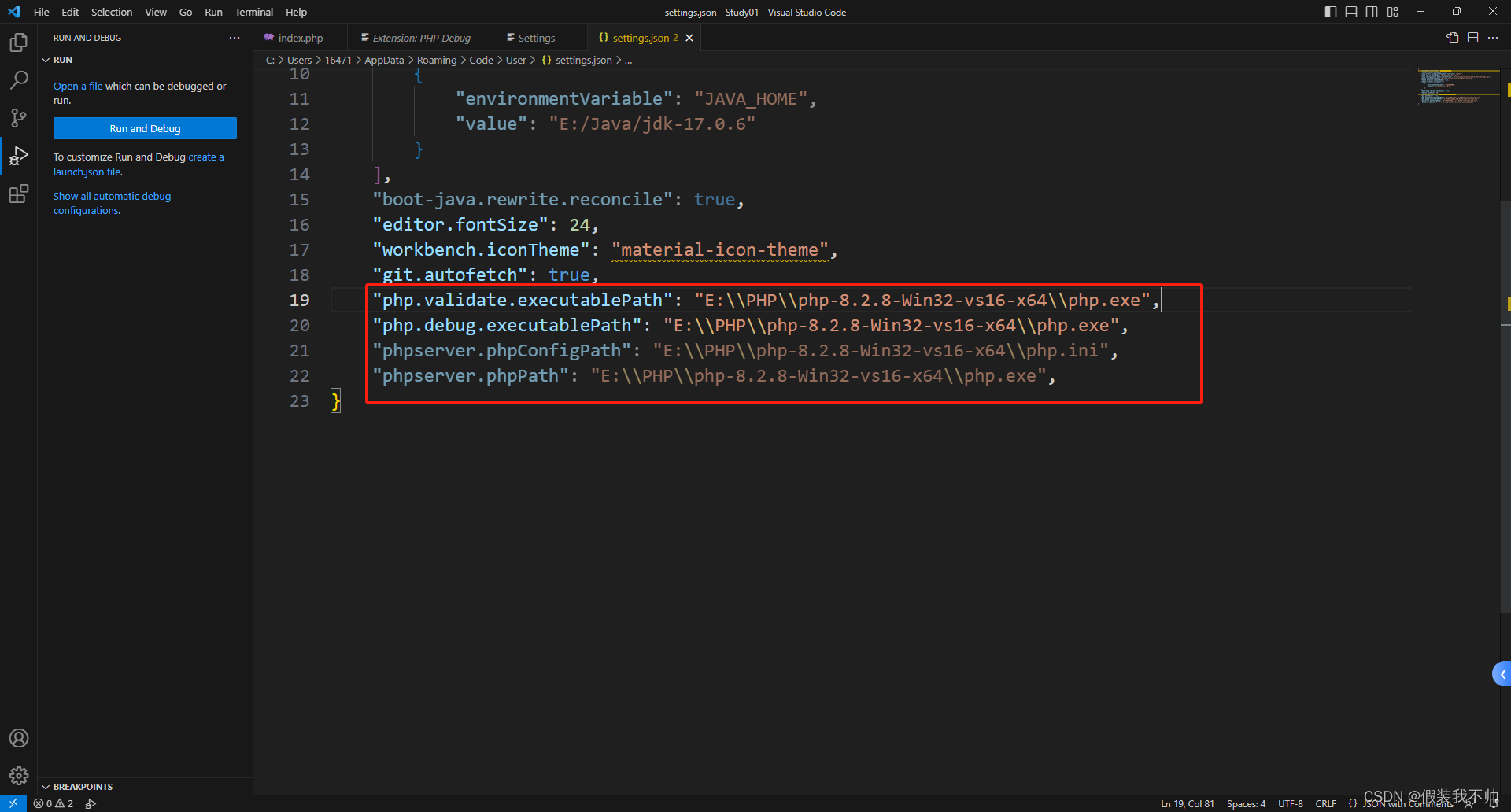
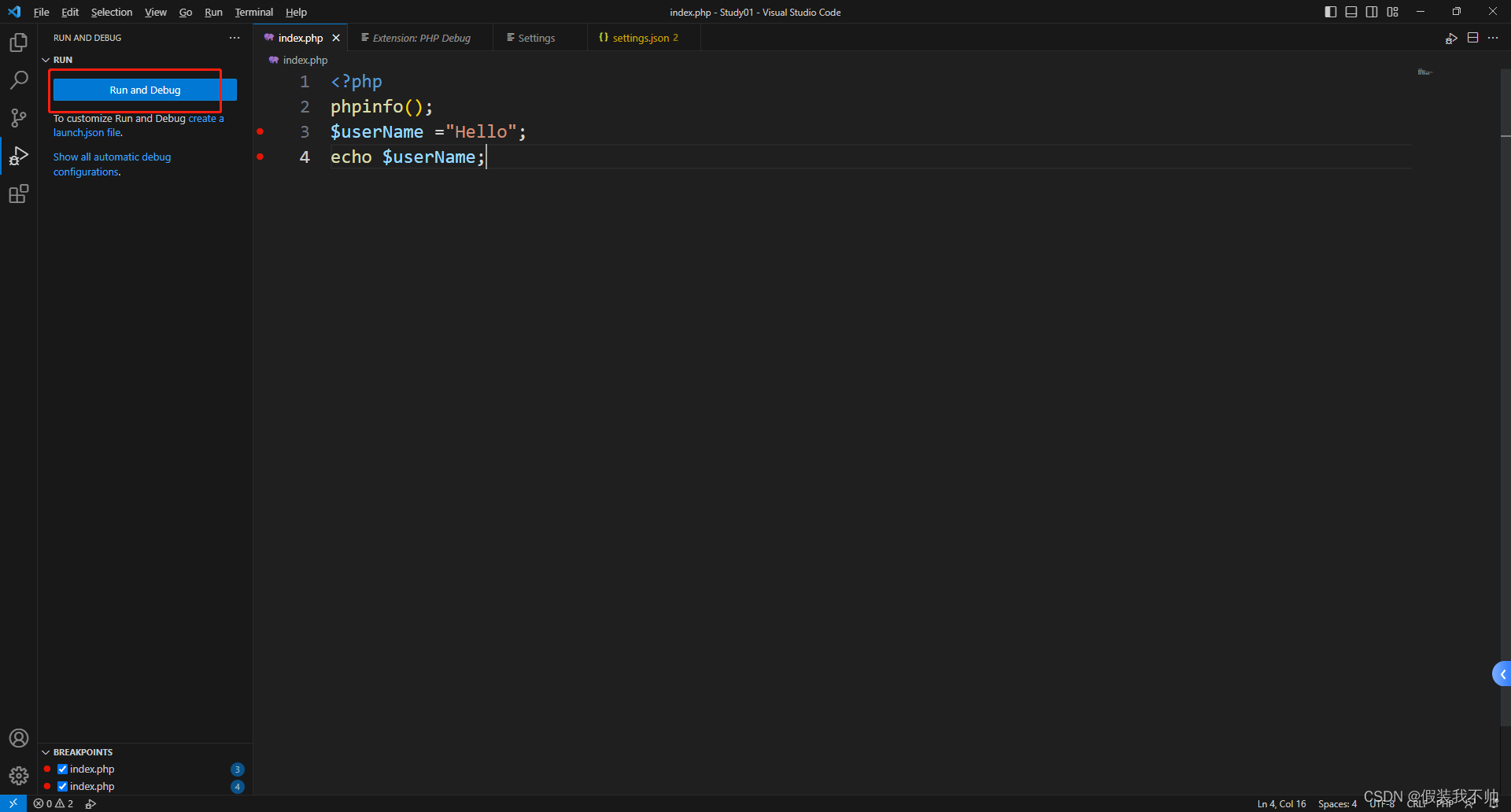
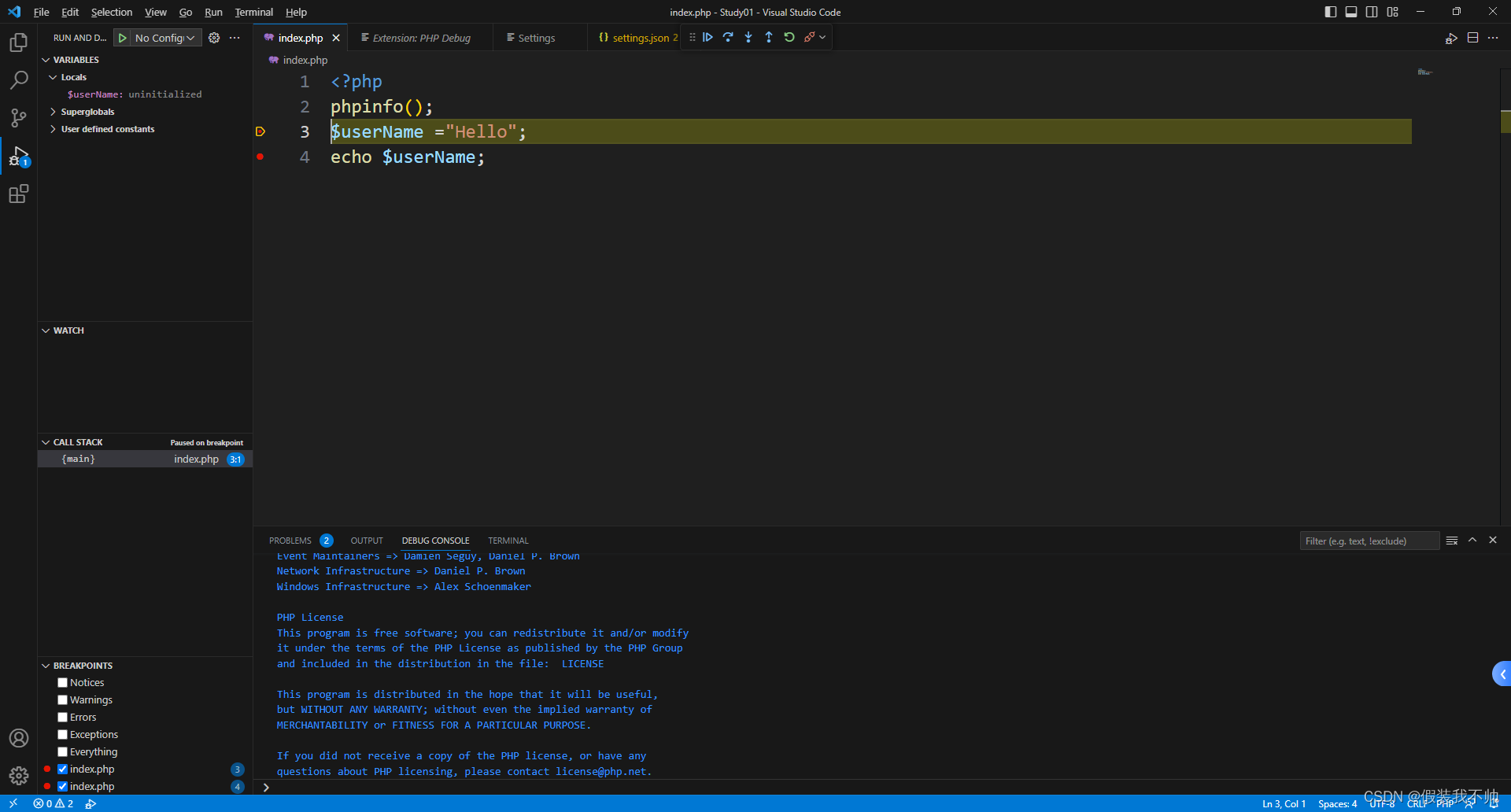
创建json配置文件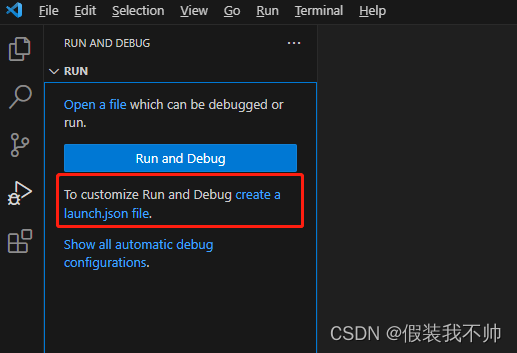
内容如下:
{
    // Use IntelliSense to learn about possible attributes.
    // Hover to view descriptions of existing attributes.
    // For more information, visit: https://go.microsoft.com/fwlink/?linkid=830387
    "version": "0.2.0",
    "configurations": [
        {
            "name": "Listen for Xdebug",
            "type": "php",
            "request": "launch",
            "port": 9003
        },
        {
            "name": "Launch currently open script",
            "type": "php",
            "request": "launch",
            "program": "${file}",
            "cwd": "${fileDirname}",
            "port": 0,
            "runtimeArgs": [
                "-dxdebug.start_with_request=yes"
            ],
            "env": {
                "XDEBUG_MODE": "debug,develop",
                "XDEBUG_CONFIG": "client_port=${port}"
            }
        },
        {
            "name": "Launch Built-in web server",
            "type": "php",
            "request": "launch",
            "runtimeArgs": [
                "-dxdebug.mode=debug",
                "-dxdebug.start_with_request=yes",
                "-S",
                "localhost:0"
            ],
            "program": "",
            "cwd": "${workspaceRoot}",
            "port": 9003,
            "serverReadyAction": {
                "pattern": "Development Server \\(http://localhost:([0-9]+)\\) started",
                "uriFormat": "http://localhost:%s",
                "action": "openExternally"
            }
        }
    ]
}
因为xdebug配置的是监听9103所以需要修改配置文件
{
    // Use IntelliSense to learn about possible attributes.
    // Hover to view descriptions of existing attributes.
    // For more information, visit: https://go.microsoft.com/fwlink/?linkid=830387
    "version": "0.2.0",
    "configurations": [
        {
            "name": "Listen for Xdebug",
            "type": "php",
            "request": "launch",
            "port": 9103
        },
        {
            "name": "Launch currently open script",
            "type": "php",
            "request": "launch",
            "program": "${file}",
            "cwd": "${fileDirname}",
            "port": 0,
            "runtimeArgs": [
                "-dxdebug.start_with_request=yes"
            ],
            "env": {
                "XDEBUG_MODE": "debug,develop",
                "XDEBUG_CONFIG": "client_port=${port}"
            }
        },
        {
            "name": "Launch Built-in web server",
            "type": "php",
            "request": "launch",
            "runtimeArgs": [
                "-dxdebug.mode=debug",
                "-dxdebug.start_with_request=yes",
                "-S",
                "localhost:0"
            ],
            "program": "",
            "cwd": "${workspaceRoot}",
            "port": 9103,
            "serverReadyAction": {
                "pattern": "Development Server \\(http://localhost:([0-9]+)\\) started",
                "uriFormat": "http://localhost:%s",
                "action": "openExternally"
            }
        }
    ]
}
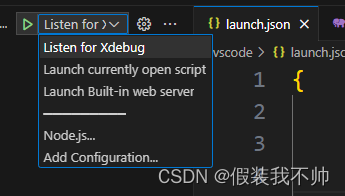
这里配置了三种方式
- Listen for xdebug是监听服务器请求的时候触发
- 直接访问当前的页面
- 启动一个web服务,然后监听断点
再推荐一款插件:PHP Intelephense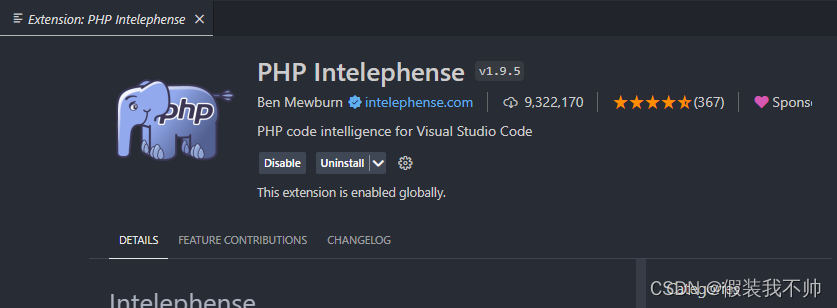

一站式 AI 云服务平台
更多推荐


 0
0 0
0- 0


 已为社区贡献4条内容

所有评论(0)