
VsCode-单片机开发环境配置
1. 在VSCode 搭建单片机开发环境的详细步骤;2. 通过 VSCode+EIDE+Cortex-Debug 的组合,搭建了一套轻量化、跨平台的嵌入式开发环境,相比传统 Keil/IAR,具有免费开源、插件丰富、代码提示智能等优势.
·
目录
1. 环境准备
2. Embedded IDE扩展安装和配置
3. Cortex-Debug 安装和配置
1. 环境准备
- 安装 VS Code;
- 安装 MinGW 编译器;
2. Embedded IDE扩展安装和配置
Embedded Tools 是嵌入式开发核心工具
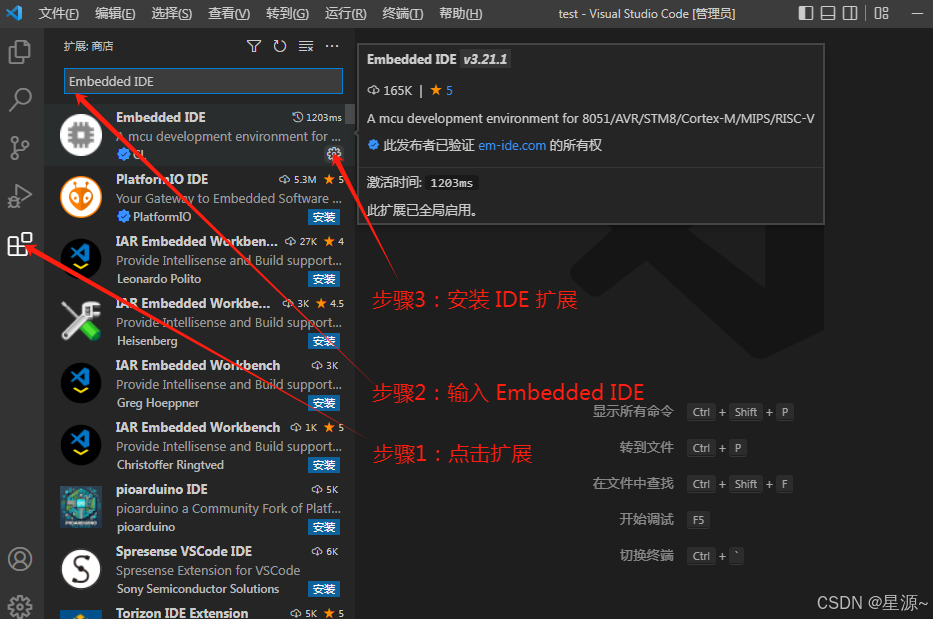
- 在扩展商店搜索 Embedded IDE 并安装:
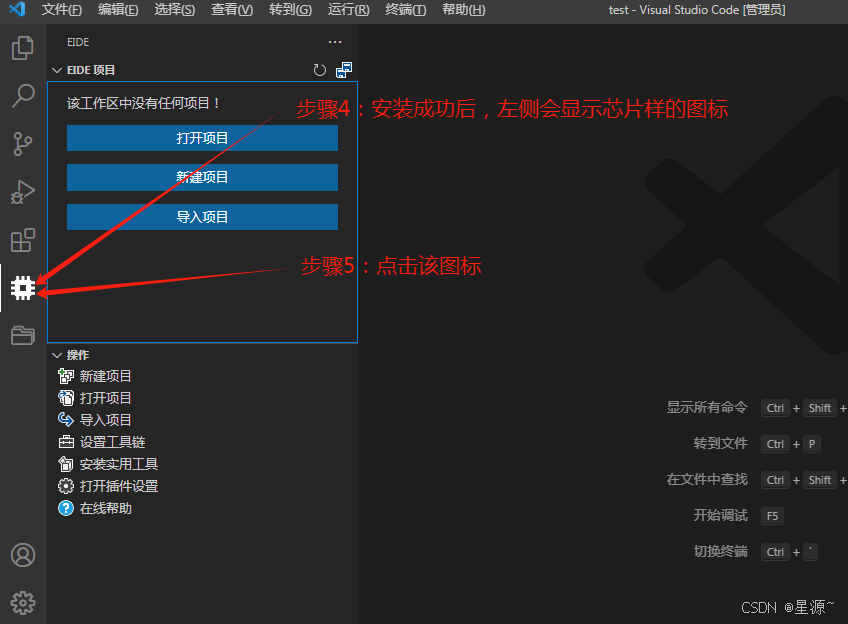
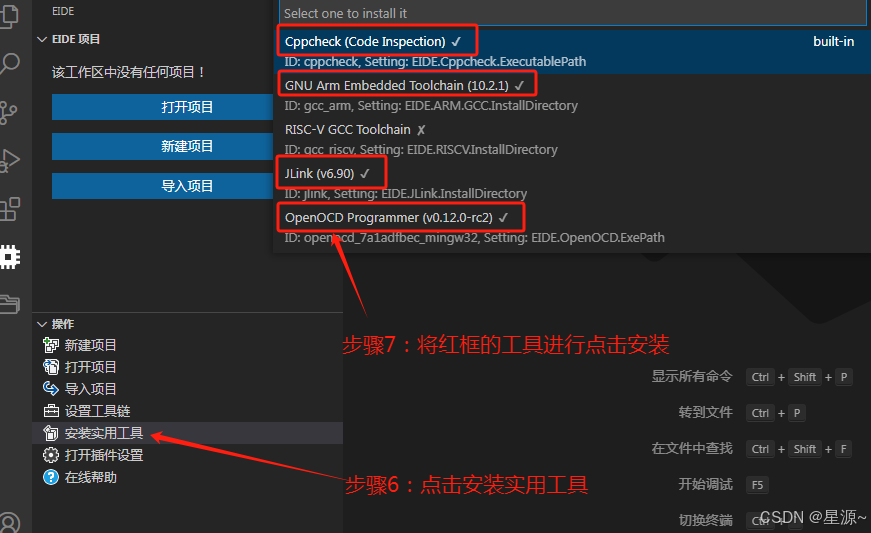
- 打开EIDE ,点击“安装实用工具:
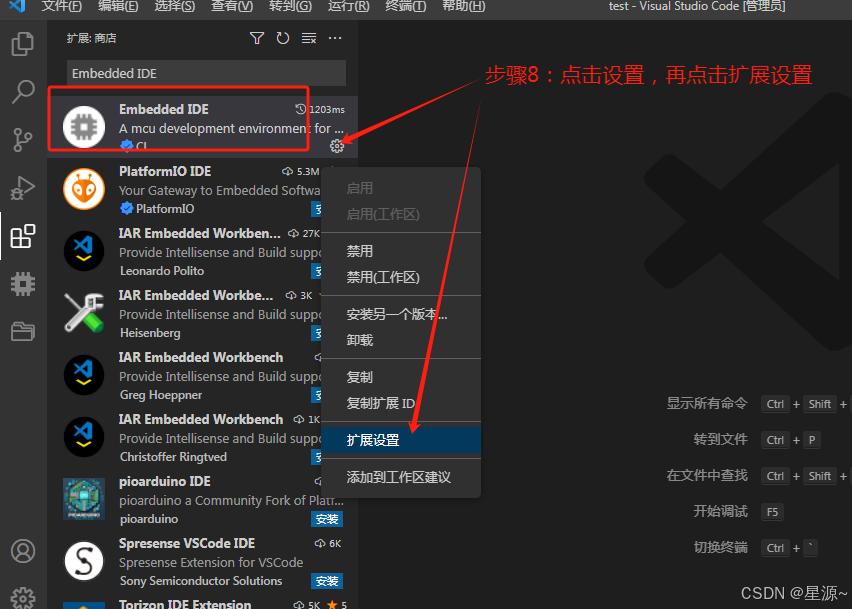
- 将axf to elf选项打勾:
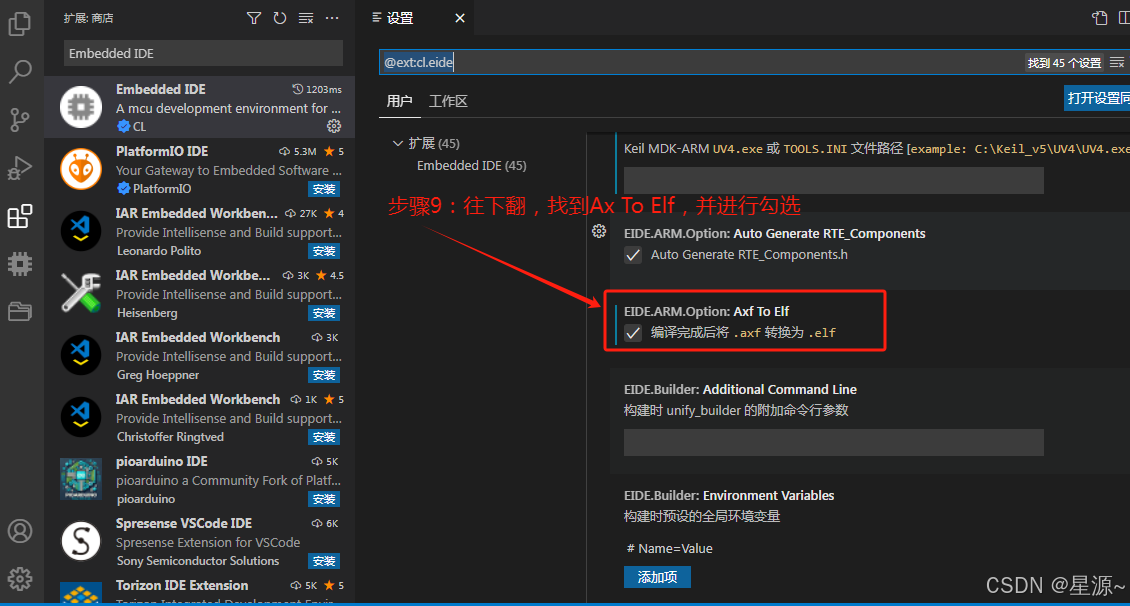
2.1 方法2:更改EIDE编译器,配置指定安装的编译器,来编译MCU工程
# 3. Cortex-Debug 安装和配置
- 在扩展商店搜索[ cortex-debug ],点击安装:

- 安装完成后点击设置, 找到 Cortex-debug:Arm Toolchain Path–>点击setting.json 进行编辑 (可参考我的设置)
{
    "C_Cpp.default.compilerPath": "D:/mingw64/bin/gcc.exe",  // mingw 编译器路径
    "files.autoGuessEncoding": true,
    "EIDE.ARM.Option.AxfToElf": true,
    "editor.wordWrap":"on",
    "EIDE.DisplayLanguage": "zh-cn",
    "EIDE.ARM.GCC.InstallDirectory": "${userRoot}/Administrator/.eide/tools/gcc_arm", // eide 安装路径
    "EIDE.OpenOCD.ExePath": "${userRoot}/Administrator/.eide/tools/openocd_7a1adfbec_mingw32/bin/openocd.exe",
    "EIDE.JLink.InstallDirectory": "${userRoot}/Administrator/.eide/tools/jlink",
    "terminal.integrated.defaultProfile.windows": "PowerShell",
    "EIDE.SDCC.InstallDirectory": "${userRoot}/Administrator/.eide/tools/sdcc",
    "cortex-debug.armToolchainPath": null,
    "cortex-debug.openocdPath":null,
    "cortex-debug.JLinkGDBServerPath": null,
    "EIDE.Cppcheck.ExecutablePath": "${userRoot}/Administrator/.eide/tools/cppcheck/cppcheck.exe",
    "workbench.editorAssociations": {
        "*.FLM": "default"
    },
    "workbench.startupEditor": "none",
    "EIDE.STLink.ExePath": "${userRoot}/Administrator/.eide/tools/st_cube_programer/bin/STM32_Programmer_CLI.exe",
    "EIDE.ARM.INI.Path": "",
    "EIDE.C51.INI.Path": ""
}
至此,Vs Code 进行Embedded IDE 搭建单片机开发环境完毕。

一站式 AI 云服务平台
更多推荐



 8
8 0
0- 0


 已为社区贡献2条内容

所有评论(0)