
vs code的c/c++的开发环境的搭建和一些问题的解决方法(菜菜鸟入门推荐)
如何配置vs code中基于MinGW的c/c+语言的开发环境,详细的介绍新手如何搭建基于vscode的c语言环境,书写这篇文章时候我也是第一次搭建,最终搭建出来,分享给大家,可以节省很多这方面的信息查找和辩真,主要包括详细的.josn文件的讲解(很详细的注释讲解),自己的见解,懒人直接搬运配置文件的代码,配置过程中遇到的问题以及解决方法。又补充了不借助别的工具插件,只用修改.json文件就可实现
目录
基于MinGW(win和linux)
VSCode安装的一处注意点
VSCode安装几乎没有啥坑,唯一要注意的地方只有一处
 注意将打勾的选项,都打上无所谓,如果漏的话最好重装VSC,否则有些时候一些骚操作我们会无法实现------利用cmd或者终端调用VSC打开文件.
VScode设置cpp代码格式化配置设置
在VSCode中配置ROS开发环境
自行配置编译器
对于安装VScode,MinGw以及配置MinGW的系统变量我就不多说了,可自行百,下面我只是对自行配置编译器的方法做说明。
1.建立一个文件夹来储存自己语言文件,如下图所示,我建立了一个C文件夹来储存我的语言文件。
2.下载必要插件
在vs code拓展应用商店中搜索如图所示两个插件并下载,之后重启vs code
3.点击左上角的资源管理器图标 打开自己所建立的文件夹的位置,就会在左边出现你添加位置的文件夹,下次打开vs code时该文件夹自动打开,在文件夹下建立一个测试文件text.c。
4.开发环境的搭建(简单方法)
在C文件夹中建立一个头文件夹,命名为.vscode 并且在该文件夹中建立两个子文件分别命名为launch.json和tasks.json。

launch.json文件配置
在launch.json文件中黏贴下面内容,按ctrl+s保存
{
    // 使用 IntelliSense 了解相关属性。
    // 悬停以查看现有属性的描述。
    // 欲了解更多信息,请访问: https://go.microsoft.com/fwlink/?linkid=830387
    "version": "0.2.0",
    "configurations": [

        {
            "name": "C++ Launch(GDB)",  //配置名称,将在启动配置的下拉菜单中显示
            "type": "cppdbg",   //配置类型,这里只能为cppdbg
            "request": "launch",    //请求配置类型,可以为launch(启动)或者attach(附加)
            "program": "${fileDirname}\\${fileBasenameNoExtension}.exe",    //将要进行调试的程序(.exe)生成路径,此处路径应该要和tasks.json中的args[]中的路径一致
            "args": [], //程序调试时传递给程序的命令行参数,一般设为空即可
            "stopAtEntry": false,   //设为true时程序将暂停在程序入口处,一般设置为false
            "cwd": "${workspaceFolder}",    //调试程序时的工作目录,此为工作区文件夹;改成${fileDirname}可变为文件所在目录
            "environment": [],  //额外的环境变量
            "externalConsole": true,    //调试时是否显示控制台窗口,一般设置为true显示控制台
            "internalConsoleOptions": "neverOpen", // 如果不设为neverOpen,调试时会跳到“调试控制台”选项卡,你应该不需要对gdb手动输命令吧?
            "MIMode": "gdb",    //指定连接的调试器,一般windows下为gdb
            "miDebuggerPath": "C:\\software\\mingw\\mingw64\\bin\\gdb.exe", //miDebugger的路径,注意这里要与MinGw的路径对应
            "setupCommands": [
                {
                    "description": "为 gdb 启用整齐打印",
                    "text": "-enable-pretty-printing",
                    "ignoreFailures": true
                }
            ],
            "preLaunchTask": "C/C++: g++.exe build active file" //调试绘画开始前执行的任务,预编译任务名称,执行与tasks.json中的lable名称相同的任务。
        }
    ]
}
// 修改时间24-5-23
注意一下“miDebuggerpath”路径要与自己所安装的MinGW的路径对应,也就是MinGW的bin文所在位置+\gdb.exe,注意黏贴路径方法如图所示 要修改\为//才能被编译器识别。
task.json文件配置
在tasks.json文件中黏贴如下代码,并且Ctrl+s保存;
{
	"version": "2.0.0",
	"tasks": [
		{
			"type": "cppbuild",// 针对cpp有三个选项,cppbuild,shell和process;推荐使用cppbuild,可参	      // 考https://blog.csdn.net/LaoYuanPython/article/details/133908025
			"label": "C/C++: g++.exe build active file",
			"command": "C:\\software\\mingw\\mingw64\\bin\\g++.exe",	//c语言是gcc,但是c++是g++
			"args": [
				"-g",
				"${file}",
				"-finput-charset=UTF-8",
				"-fexec-charset=GBK", // 生成的程序使用GBK编码,不加这一条会导致Win下输出中文乱码
				//上述具体解释参考:https://www.zhihu.com/question/316450440/answer/2821777121
				"-o",
				//"-static-libgcc",     // 静态链接libgcc,一般都会加上,但是加上会报错,原因未知
				"${fileDirname}\\${fileBasenameNoExtension}.exe" //将要进行调试的程序(.exe)的启动路径
			],
			"options": {
				"cwd": "${workspaceFolder}"
			},
			"problemMatcher": [
				"$gcc"
			],
			"group": {
				"kind": "build",
				// "isDefault": true	// 默认是false,不为true时ctrl shift B或者手动选择按照label来执行指定task设置
			}
		}
	]
}
// 修改时间 24-5-23
注意一下,“command”:对应的路径是自己电脑所安装的MinGW中的bin文件夹所在位置+\gcc.exe(如果是c++请改为g++)。
5.重启vscode,调试一下text.c文件 效果如下图
效果如下图
关于c_cpp_properties.json的配置
根据vscode官网介绍,如果您想进一步控制C / C ++扩展,可以创建一个c_cpp_properties.json文件,修改该文件可让您更改设置,例如编译器的路径,包含路径,C ++标准(默认为C ++ 17),和更多。
但是,对于新手,一般不会使用别人的库或者自己编写的库(总而言之就是不使用头文件不在workspaceFolder下的库),就不需要单独配置一遍这个文件了,cpptool会自动使用默认的配置不会出现问题。
对于这个标准文件的配置,我会在搭建arduino的VScode环境中介绍,有兴趣的话可以移步我的另外一篇博客。
{
    "configurations": [
        {
            "name": "Linux_noetic",
            "includePath": [
                "${workspaceFolder}/**",
                "${workspaceFolder}/gaoxiangslam2/slambook2/text/include/*",
                // "${workspaceFolder}/gaoxiangslam2/slambook2/ch13/include/*",
                "/usr/include/c++/9",
                "/usr/include/x86_64-linux-gnu/c++/9",
                "/usr/include/c++/9/backward",
                "/usr/lib/gcc/x86_64-linux-gnu/9/include",
                "/usr/include/x86_64-linux-gnu",
                "/usr/local/include/**",
                "/usr/include/**",
                "/usr/include/eigen3",
                "/usr/include/pcl-1.10/"
            ],
            "defines": [],
            "compilerPath": "/usr/bin/gcc",
            "cStandard": "c17",
            // "cppStandard": "gnu++14",
            "cppStandard": "c++17",

            "intelliSenseMode": "linux-gcc-x64"
        }
    ],
    "version": 4
    // 2025/6/26
}
最后,恭喜,基于win下的MinGW的vs code的c/c++的开发环境就搭建完成了!!!
我搭建环境中的学习心得
对于这两个配置文件,一直以来我都是复制粘贴别人的,但是网上的配置文件五花八门,运气好了就能直接成功,运气不好了就会不知道问题发生在哪里有点小崩溃,所以我就自己到处参考资料好好研究了一下。下面就进入主题吧。
环境搭建过程中出现的一些问题
- 对于很多的常见问题我觉得这位博主所学的博客已经介绍的很详细了,我觉得大家可以首先参考一下该文章,链接奉上, 不过对于问题1的解决方法中的参数
${file}.exe我要做一下解释说明“${file}” = “${fileDirname}” + “${fileBasename}”(效果在作者博客下面也做了说明),所以我不喜欢用这样的多后缀执行文件名,所以我填写在args参数里面的为“${fileDirname}/${fileBasenameNoExtension}.exe”,两者区别如图

不过两者都是可以正常调试的,所以不用担心。对了,“\”等价"//"。
不过我遇到的问题解决方法和此文介绍的解决方法不怎么一致,我遇到
时,我解决方法是将tasks.json中的“command”中最后的gdb改成g++或者gcc,所以大家如果文章中的方法没有解决的话不妨再试试我的方法。
配置文件API的解释
对于这两个配置文件的含义我进行了一些学习,所以我配置这两个文件的方法不是简单地复制粘贴了,而是自己在系统提示下建立的:
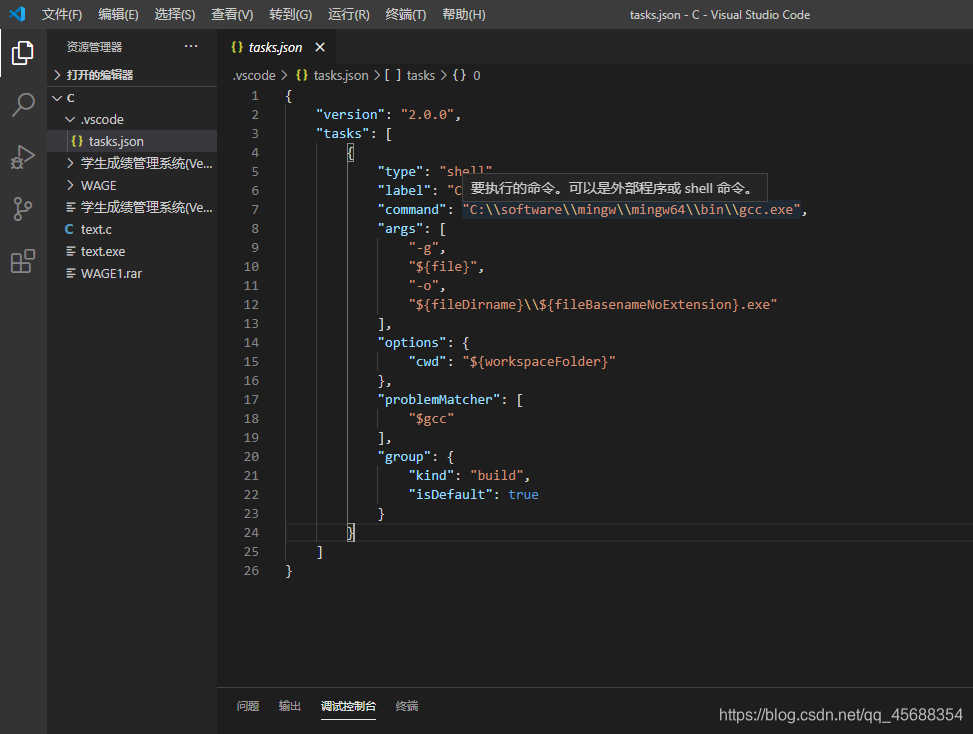
首先建立tasks.json文件,点击终端,选择最下面的配置默认生成任务,出现一个使用模板创建tasks.json文件选项时候如图一,点击左边的建立好的text.c模板重复上述操作会出现如图2所示选项点击即可建立一个tasks.json模板,如图三所示,只需要在args下增加一行"-fexec-charset=GBK", 来防止win下输出中文乱码,-fexec-charset的参考点击这里。

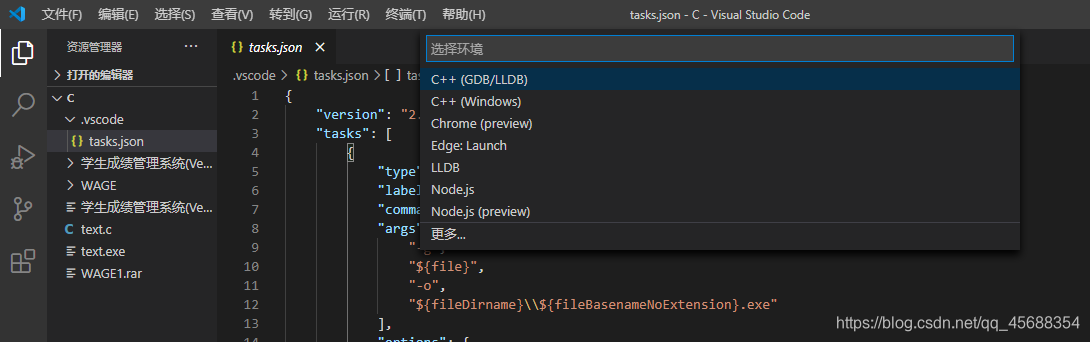
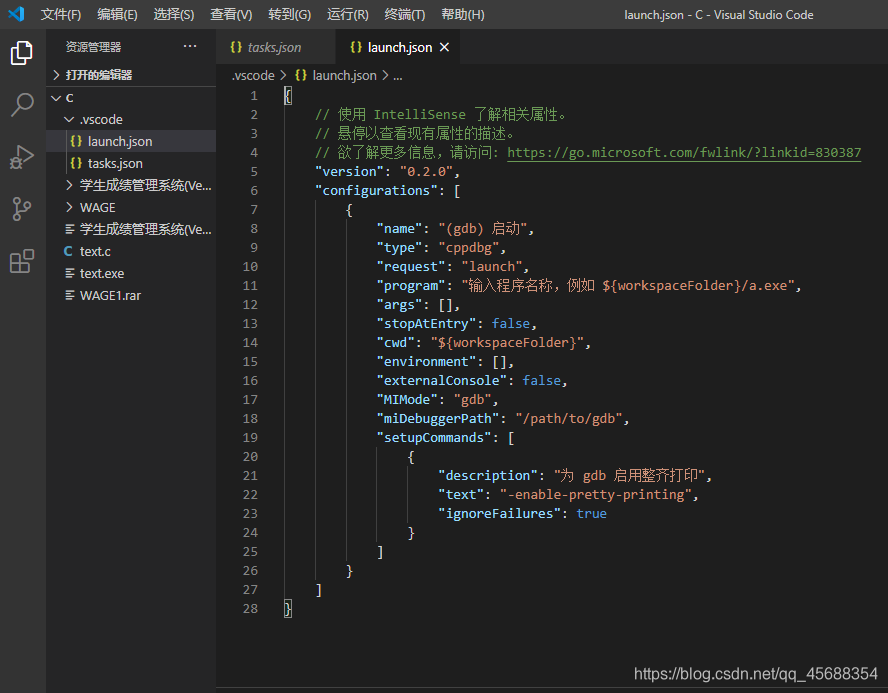
其次建立launch.json文件,点击运行->添加配置->选择c++(GDB/LLDB)如图一就会生成一个launch.json文件如图2,需要对"program", “externalConsole”, "miDebuggerPath"的路径进行修改并且添加一个"preLaunchTask"命令参数,对于launch.json中的参数解释我已经在开始那里的参考代码注释了,还需要额外学习vs code中的预定义变量的含义才能理解。
"program"修改内容要和tasks.json中的“args”最后一行指示一模一样就可以。
“externalConsole”false和ture都可以,具体解释我也前面注释过了,推荐ture。
“miDEbuggerPath”修改内容为你所安装的MinGW软件bin文件夹的位置+//gdb.exe
添加“preLaunchTask”内容要与tasks.json中的“label”内容一致。
修改后的参考模板我在放一边:
launch.json(c/c++)
{
    // 使用 IntelliSense 了解相关属性。
    // 悬停以查看现有属性的描述。
    // 欲了解更多信息,请访问: https://go.microsoft.com/fwlink/?linkid=830387
    "version": "0.2.0",
    "configurations": [

        {
            "name": "C++ Launch(GDB)",  //配置名称,将在启动配置的下拉菜单中显示
            "type": "cppdbg",   //配置类型,这里只能为cppdbg
            "request": "launch",    //请求配置类型,可以为launch(启动)或者attach(附加)
            "program": "${fileDirname}\\${fileBasenameNoExtension}.exe",    //将要进行调试的程序(.exe)生成路径,此处路径应该要和tasks.json中的args[]中的路径一致
            "args": [], //程序调试时传递给程序的命令行参数,一般设为空即可
            "stopAtEntry": false,   //设为true时程序将暂停在程序入口处,一般设置为false
            "cwd": "${workspaceFolder}",    //调试程序时的工作目录,此为工作区文件夹;改成${fileDirname}可变为文件所在目录
            "environment": [],  //额外的环境变量
            "externalConsole": true,    //调试时是否显示控制台窗口,一般设置为true显示控制台
            "MIMode": "gdb",    //指定连接的调试器,一般windows下为gdb,注意生成的exe不能包括中文名字,否则会报错无法debugging。
            "miDebuggerPath": "C:\\software\\mingw\\mingw64\\bin\\gdb.exe", //miDebugger的路径,注意这里要与MinGw的路径对应
            "setupCommands": [
                {
                    "description": "为 gdb 启用整齐打印",
                    "text": "-enable-pretty-printing",
                    "ignoreFailures": true
                }
            ],
            "preLaunchTask": "C/C++: g++.exe build active file" //调试绘画开始前执行的任务,预编译任务名称,当tasks.json中是复合task时,与tasks.json中的对应的task的label相同的task相匹配
        }
    ]
}
//更新于2024-5-23
tasks.json(c/c++)
{
	"version": "2.0.0",
	"tasks": [
		{
			"type": "cppbuild",// 针对cpp有三个选项,cppbuild,shell和process;推荐使用cppbuild,可参	      // 考https://blog.csdn.net/LaoYuanPython/article/details/133908025
			"label": "C/C++: g++.exe build active file",
			"command": "C:\\software\\mingw\\mingw64\\bin\\g++.exe",	//c语言是gcc,但是c++是g++
			"args": [
				"-g",
				"${file}",
				"-finput-charset=UTF-8",// 编写程序使用的代码格式是UTF-8
				"-fexec-charset=GBK", // 使得编译后生成的程序使用gbk编码(因为中国地区的windows的cmd默认使用gbk编码格式),不加这一条会导致Win下输出中文乱码
				//上述两条命令的具体解释参考:https://www.zhihu.com/question/316450440/answer/2821777121
				//具体解决中文乱码方法还可以参考这篇文章:https://blog.51cto.com/mlxia/6345831
				//最好不要修改编辑器的默认编码格式,因为UTF-8目前是普遍使用的编码格式,以防以后出现其他问题
				"-o",
				//"-static-libgcc",     // 静态链接libgcc,一般都会加上,但是加上会报错,原因未知
				"${fileDirname}\\${fileBasenameNoExtension}.exe" //将要进行调试的程序(.exe)的启动路径
			],
			"options": {
				"cwd": "${workspaceFolder}"
			},
			"problemMatcher": [
				"$gcc"
			],
			"group": {
				"kind": "build",
				// "isDefault": true	// 默认是false,不为true时ctrl shift B或者手动选择按照label来执行指定task设置
			}
		},
	   {
            "type": "cbuild",
            "label": "C/C++: gcc.exe build active file",
            "command": "D:\\software\\mingw64\\bin\\gcc.exe",
            "args": [
                "-g",
                "-fdiagnostics-color=always",
                "${file}",
                "-finput-charset=UTF-8",
                "-o",
                "${fileDirname}\\${fileBasenameNoExtension}.exe",
                "-fexec-charset=GBK"
            ],
            "options": {
                "cwd": "${workspaceFolder}"
            },
            "problemMatcher": [
                "$gcc"
            ],
            "group": "build"
     }
   ]
}
// 这个task.json文件是复合task,有两个task,其中一个是cpp一个是c;所以编译过程中需要手动选
// 择具体按照什么任务执行。但如果某个任务下面的group中设置了"isDefault":true,则默认直接按照这个任务执行
// 修改时间 24-5-23
如果大家不喜欢阅读,我推荐一个视频网址so nice,链接奉上
对了,谭九鼎大佬所写的博客十分值得新手阅读,链接奉上链接奉上
最后再附上vs code预定义变量的解释网址,链接奉上
settings.json配置文件(c/c++)(不是setting.json)
c/c++语言的settings.json配置参考知乎作者谭九鼎。
作者:谭九鼎
链接:https://www.zhihu.com/question/30315894/answer/154979413
来源:知乎
著作权归作者所有。商业转载请联系作者获得授权,非商业转载请注明出处。
 {
    "files.defaultLanguage": "cpp", // ctrl+N新建文件后默认的语言
    // "editor.formatOnType": true, // 输入分号(C/C++的语句结束标识)后自动格式化当前这一行的代码
    "editor.suggest.snippetsPreventQuickSuggestions": false, // 代码片段和快速建议同时显示,而不需要手动触发 Intellisense
    // "editor.acceptSuggestionOnEnter": "off", // 我个人的习惯,按回车时一定是真正的换行,只有tab才会接受Intellisense
    // "editor.snippetSuggestions": "top", // (可选)snippets显示在补全列表顶端,默认是inline
    "code-runner.runInTerminal": true, // 设置成false会在“输出”中输出,无法输入
    "code-runner.executorMap": {
        "c": "cd $dir && gcc '$fileName' -o '$fileNameWithoutExt.exe' -Wall -g -O2 -static-libgcc -std=c11 -fexec-charset=GBK && &'$dir$fileNameWithoutExt'",
        "cpp": "cd $dir && g++ '$fileName' -o '$fileNameWithoutExt.exe' -Wall -g -O2 -static-libgcc -std=c++17 -fexec-charset=GBK && &'$dir$fileNameWithoutExt'"
        // "c": "cd $dir && gcc $fileName -o $fileNameWithoutExt.exe -Wall -g -O2 -static-libgcc -std=c11 -fexec-charset=GBK && $dir$fileNameWithoutExt",
        // "cpp": "cd $dir && g++ $fileName -o $fileNameWithoutExt.exe -Wall -g -O2 -static-libgcc -std=c++17 -fexec-charset=GBK && $dir$fileNameWithoutExt"
    }, // 右键run code时运行的命令;未注释的仅适用于PowerShell(Win10默认),文件名中有空格也可以编译运行;注释掉的适用于cmd(win7默认),PS和bash也能用,但文件名中有空格时无法运行
    "code-runner.saveFileBeforeRun": true, // run code前保存
    "code-runner.preserveFocus": true, // 若为false,run code后光标会聚焦到终端上。如果需要频繁输入数据可设为false
    "code-runner.clearPreviousOutput": false, // 每次run code前清空属于code runner的终端消息,默认false
    "code-runner.ignoreSelection": true, // 默认为false,效果是鼠标选中一块代码后可以单独执行,但C是编译型语言,不适合这样用
    "C_Cpp.clang_format_sortIncludes": true,
    "files.associations": {
        "iostream": "cpp",
        "cmath": "cpp",
        "core": "cpp",
        "ostream": "cpp",
        "chrono": "cpp",
        "regex": "cpp",
        "matrixfunctions": "cpp",
        "cctype": "cpp",
        "clocale": "cpp",
        "csignal": "cpp",
        "cstdarg": "cpp",
        "cstddef": "cpp",
        "cstdio": "cpp",
        "cstdlib": "cpp",
        "cstring": "cpp",
        "ctime": "cpp",
        "cwchar": "cpp",
        "cwctype": "cpp",
        "array": "cpp",
        "atomic": "cpp",
        "strstream": "cpp",
        "bit": "cpp",
        "bitset": "cpp",
        "compare": "cpp",
        "complex": "cpp",
        "concepts": "cpp",
        "condition_variable": "cpp",
        "cstdint": "cpp",
        "deque": "cpp",
        "list": "cpp",
        "map": "cpp",
        "set": "cpp",
        "unordered_map": "cpp",
        "unordered_set": "cpp",
        "vector": "cpp",
        "exception": "cpp",
        "algorithm": "cpp",
        "functional": "cpp",
        "iterator": "cpp",
        "memory": "cpp",
        "memory_resource": "cpp",
        "numeric": "cpp",
        "optional": "cpp",
        "random": "cpp",
        "ratio": "cpp",
        "string": "cpp",
        "string_view": "cpp",
        "system_error": "cpp",
        "tuple": "cpp",
        "type_traits": "cpp",
        "utility": "cpp",
        "fstream": "cpp",
        "initializer_list": "cpp",
        "iomanip": "cpp",
        "iosfwd": "cpp",
        "istream": "cpp",
        "limits": "cpp",
        "mutex": "cpp",
        "new": "cpp",
        "ranges": "cpp",
        "sstream": "cpp",
        "stdexcept": "cpp",
        "stop_token": "cpp",
        "streambuf": "cpp",
        "thread": "cpp",
        "cfenv": "cpp",
        "cinttypes": "cpp",
        "typeindex": "cpp",
        "typeinfo": "cpp",
        "variant": "cpp",
        "future": "cpp"
    }, // 格式化时调整include的顺序(按字母排序)
    "path-autocomplete.pathMappings": {
        "/": "/",
        // "./": "${folder}",//这里的folder和vscode的folder不一样,这里指的是工作空间根目录也就是workspace
        "~": "/home/hakuii",
        "../": "${fileDirname}",
        // "workspace/": "${folder}"
        //"abs_path": "/home/user/path/to/directory"
        //正常./就是基于当前文件的路径,不需要额外设置
    },
    "cmake.sourceDirectory": "/home/hakuii/Desktop/learning_slam/gaoxiangslam2/slambook",
    // // terminal 字体大小,默认14
    // "terminal.integrated.fontSize": 15
}
用户设置(全局设置)
{
  "workbench.colorTheme": "One Dark Pro",
  "workbench.iconTheme": "vscode-icons",
  "oneDarkPro.editorTheme": "One Dark Pro Darker",
  //针对的是Trailing Spaces插件,用于高亮显示行尾空格
  "trailing-spaces.backgroundColor": "#66ffe6",
  "trailing-spaces.borderColor": "#00bfff",
  "[python]": {
    "editor.formatOnSaveMode": "file",
    "editor.formatOnSave": true,
    "editor.defaultFormatter": "ms-vscode.cpptools"
  },
  "workbench.colorCustomizations": {
    "[One Dark Pro]": {
      "activityBar.foreground": "#f9e8d0", //控制活动栏所选图标的前景颜色
      "activityBar.inactiveForeground": "#00ffff", //控制活动栏非所选图标的前景颜色
      "activityBarBadge.background": "#faf0e6", //控制活动栏通知徽章背景颜色
      "activityBarBadge.foreground": "#cc5500" //控制活动栏通知徽章前景颜色
    }
  },
  "files.trimTrailingWhitespace": true, //自动删除文件行尾空格,保存时候删除
  "editor.fontSize": 16,
  "editor.fontLigatures": true, // 连体字,效果不太好形容,见 https://typeof.net/Iosevka 最后一部分
  "editor.fontFamily": "等距更纱黑体 SC", //代码字体形式,需要去微软商店搜索下载
  "window.zoomLevel": 0,
  // 键入一行回车后是不是自动格式化
  "editor.formatOnType": true,
  // 显示保存自动格式化
  "editor.formatOnSave": true,
  //对保存后自动格式化细节进行设置,让其只对修改过的代码进行格式化,该功能需要版本管理才能实现,
  //相比较modificationsIfAvailable选项,其代码不支持版本管理时,不会自动对整个文档进行格式化
  "editor.formatOnSaveMode": "modifications",
  "[html]": {
    "editor.defaultFormatter": "ms-vscode.cpptools"
  },
  "[javascript]": {
    "editor.defaultFormatter": "ms-vscode.cpptools"
  },
  "files.autoGuessEncoding": false, //自动检测文件编码
  "explorer.confirmDelete": false,
  //让标题能够显示完整的文件路径名
  "window.title": "${dirty}${activeEditorLong}${separator}${rootName}${separator}${appName}",
  "workbench.sideBar.location": "left", //控制栏位置
  "editor.wordSeparators": "`~!@#$%^&*()-=+[{]}\\|;:'\",.<>/?·~!¥…()—【】、;:‘’“”,。《》? ", //字符分割
  //"http.proxySupport": "off",//(是否使用代理的设置)
  //如果你没有注意到一个GBK编码的文件被VSC以UTF-8的编码打开了,又进行了保存,这个文件里的中文是找不回来的
  "[plaintext]": {
    "files.encoding": "gbk"
  },
  "[log]": {
    "files.encoding": "gbk"
  },
  "[batch]": {
    "files.encoding": "gbk"
  },
  "editor.acceptSuggestionOnEnter": "off", // 个人的习惯,按回车时一定是真正的换行,只有tab才会接受Intellisense
  "search.useIgnoreFiles": false,
  "remote.defaultExtensionsIfInstalledLocally": [
    "GitHub.copilot",
    "GitHub.copilot-chat",
    "GitHub.vscode-pull-request-github"
  ],
  "C_Cpp.formatting": "vcFormat",
  "C_Cpp.vcFormat.newLine.beforeElse": false,
  "C_Cpp.vcFormat.newLine.beforeOpenBrace.block": "sameLine",
  "C_Cpp.vcFormat.newLine.beforeOpenBrace.function": "sameLine",

  "cmake.showConfigureWithDebuggerNotification": false,
  "cmake.automaticReconfigure": false,
  "cmake.configureOnEdit": false,
  "cmake.configureOnOpen": false, //打开文件夹时自动配置cmake

  //todo tree配置信息
  //todo-tree 标签配置
  "todo-tree.regex.regex": "((%|#|//|<!--|^\\s*\\*)\\s*($TAGS)|^\\s*- \\[ \\])",
  "todo-tree.general.tags": [
    "TODO", //添加自定义的标签成员,将在下面实现它们的样式
    "BUG",
    "tag",
    "done",
    "mark",
    "test",
    "XXX"
  ],
  //关闭字母大小写识别
  "todo-tree.regex.regexCaseSensitive": false,
  "todo-tree.highlights.defaultHighlight": { //如果相应变量没赋值就会使用这里的默认值
    "foreground": "#000000", //字体颜色
    "background": "#ffff00", //背景色
    "icon": "check", //标签样式 check 是一个对号的样式
    "rulerColour": "#ffff00", //边框颜色
    "type": "tag", //填充色类型  可在TODO TREE 细节页面找到允许的值
    "iconColour": "#ffff00" //标签颜色
  },
  "todo-tree.highlights.customHighlight": {
    //todo 		需要做的功能
    "TODO": {
      "icon": "alert", //标签样式
      "background": "#c9c552", //背景色
      "rulerColour": "#c9c552", //外框颜色
      "iconColour": "#c9c552", //标签颜色
    },
    //bug		必须要修复的BUG
    "BUG": {
      "background": "#eb5c5c",
      "icon": "bug",
      "rulerColour": "#eb5c5c",
      "iconColour": "#eb5c5c",
    },
    //tag		标签
    "tag": {
      "background": "#38b2f4",
      "icon": "tag",
      "rulerColour": "#38b2f4",
      "iconColour": "#38b2f4",
      "rulerLane": "full"
    },
    //done		已完成
    "done": {
      "background": "#5eec95",
      "icon": "check",
      "rulerColour": "#5eec95",
      "iconColour": "#5eec95",
    },
    //mark     	标记一下
    "mark:": {
      "background": "#f90",
      "icon": "note",
      "rulerColour": "#f90",
      "iconColour": "#f90",
    },
    //test		测试代码
    "test": {
      "background": "#df7be6",
      "icon": "flame",
      "rulerColour": "#df7be6",
      "iconColour": "#df7be6",
    },
    //update  	优化升级点
    "XXX": {
      "background": "#d65d8e",
      "icon": "versions",
      "rulerColour": "#d65d8e",
      "iconColour": "#d65d8e",
    }
  },

  // "C_Cpp.intelliSenseEngine": "disabled",//这里是关闭c++官方补全功能,因为和clangd冲突了,如果没有安装clangd插件要改成生效。
  // "cmake.cmakePath": "/path/to/cmake"//当系统安装多个cmake可以通过该命令指定使用什么版本cmake
}
// 更新于2025/6/20
第一次书写,如有出错请见谅.
关于多文件编译时环境的搭建(不借助其他工具插件,只修改.json文件实现)
学习面向对象程序设计及c++时候,在使用类的声明和实现的时候教程推荐多文件书写,比如将类的声明放在.h文件中,类体的实现放在一个.cpp文件中,主函数有放在一个.cpp文件中,因为有两个.cpp文件需要同时编译,所以此处需要一个多文件编译的环境。环境开始之前,补充一些相关的知识。
关于#ifndef和#program once的区别
为了避免同一个.h文件被include多次,c/c++语言有两种方式。一种是#ifndef方式,一种是#program once方式,两者稍微有点区别,此处简短的介绍一下区别:
1.#ifndef不受编译器的限制,适用于所有c/c++编译器,它不光可以保证同一个文件不会被包含多次,也能保证内容完全相同的两个文件(或者代码片)不会被同时包含(设置不同的#define 名称即可)。但一定要注意define名称的书写,避免报错说头文件无声明
2.#program once有些编译器不识别,它也可以保证同一个文件不会被包含多次,但是这里的同一个文件指的是物理上的同一个文件,不包含有着相同内容的的不同名称头文件。例如:A/C.h class C{} ;B/C.h class C{};这就是属于相同内容的不同头文件。好处就是不需要书写一个宏定义名称(define 名称),而且编译速度会稍微快点。
关于多文件编译的环境搭建
上面我已经介绍了单文件编译环境的搭配,多文件编译环境的搭建需要在基础上面相应的进行一些修改。
首先要对.json文件中的替换变量 ${workspaceFolder} ${file} ${fileBasename} ${fileDirname}的含义进行回顾
${workspaceRoot} 当前工作区文件夹的绝对路径+文件夹的名字

${workspaceRootFolderName}   当前打开的工作区文件夹的名字

${file}当前打开的正在编译的文件名,包括绝对路径,文件名,文件后缀名

${relativeFile}从当前打开的文件夹到当前打开的文件的路径,
如:当前打开的是test文件夹,当前的打开的是main.c,
并有test / first / second / main.c,
那么此变量代表的是  first / second / main.c

${fileBasename}  当前打开的编译的文件名+后缀名,不包括路径

${fileBasenameNoExtension} 当前打开的编译文件的文件名,不包括路径和后缀名

${fileDirname} 当前打开的编译的文件所在的文件夹绝对路径,不包括文件名

${fileExtname} 当前打开的编译的文件的后缀名
编译多文件需要对.json文件中的tasks.json文件进行修改
主要是修改tasks.json文件中的"args"中的内容,如何修改呢,就是将需要编译的所有.c/.cpp文件都放入其中。举例说明要做怎样的修改,修改的含义。(为了节省篇幅,举例中代码片只展示要修改的且修改后的"args"片段)
//单文件编译环境时的task.json的内容
{
	"version": "2.0.0",
	"tasks": [
		{
			"type": "shell",
			"label": "C/C++: g++.exe build active file",
			"command": "C:\\software\\mingw\\mingw64\\bin\\gcc.exe",	//c语言是gcc,但是c++是g++
			"args": [
				"-g",
				"${file}",//解释说明:在要编译的.c/.cpp文件下按编译按钮,该文件就是属于${file}
				"-o",
				//"-static-libgcc",     // 静态链接libgcc,一般都会加上,但是加上会报错,原因未知
				"${fileDirname}\\${fileBasenameNoExtension}.exe",	//将要进行调试的程序(.exe)的启动路径
				"-fexec-charset=GBK", // 生成的程序使用GBK编码,不加这一条会导致Win下输出中文乱码
			],
			"options": {
				"cwd": "${workspaceFolder}"
			},
			"problemMatcher": [
				"$gcc"
			],
			"group": {
				"kind": "build",
				"isDefault": true	// 不为true时ctrl shift B就要手动选择了
			}
		}
	]
}
//更新于2020/11/3
举例一:当一个工作区只有一个项目时候,要求工作区下所有.cpp都编译且都在工作区首页面下(所有要编译的.cpp文件路径相同且在工作区首页面),可以这样修改(注意"args"中的注释)
			"args": [
				"-g",
				//"${file}",
				//"${fileDirname}\\3_26_student.cpp",
				"${workspaceFolder}\\*.cpp",//表示该工作区下所有.cpp文件都要进行编译
				//"${fileDirname}\\*.cpp",
				"-o",
				//"-static-libgcc",     // 静态链接libgcc,一般都会加上,但是加上会报错,原因未知
				"${fileDirname}\\${fileBasenameNoExtension}.exe",	//将要进行调试的程序(.exe)的启动路径
				//"${workspaceFolder}\\myProgram.exe",
				"-fexec-charset=GBK", // 生成的程序使用GBK编码,不加这一条会导致Win下输出中文乱码
			],
举例二:当一个工作区总有多个项目,一个子文件夹中是一个完整的项目时,所有.cpp文件都在子文件夹主页面下时(相同路径下)。
			"args": [
				"-g",
				//"${file}",
				//"${fileDirname}\\3_26_student.cpp",
				//"${workspaceFolder}\\*.cpp",
				"${fileDirname}\\*.cpp",//file就是指的图中的3_26_zhu.cpp文件,所以这个语句的意思是指将该文件所在文件夹下所有的.cpp文件全部编译。
				"-o",
				//"-static-libgcc",     // 静态链接libgcc,一般都会加上,但是加上会报错,原因未知
				"${fileDirname}\\${fileBasenameNoExtension}.exe",	//将要进行调试的程序(.exe)的启动路径
				//"${workspaceFolder}\\myProgram.exe",
				"-fexec-charset=GBK", // 生成的程序使用GBK编码,不加这一条会导致Win下输出中文乱码
			],
举例三:当所要编译的文件夹不与编译时界面文件不再相同路径下的话,需要在"args"中一一指明所有要编译的文件的位置(带替换变量的绝对路径)
			"args": [
				"-g",
				"${file}",//依旧是上图,这里这是介绍了如何分别书写两个.cpp文件的路径,并不完全符合举例要求。
				"${fileDirname}\\3_26_student.cpp",
				//"${workspaceFolder}\\*.cpp",
				//"${fileDirname}\\*.cpp",
				"-o",
				//"-static-libgcc",     // 静态链接libgcc,一般都会加上,但是加上会报错,原因未知
				"${fileDirname}\\${fileBasenameNoExtension}.exe",	//将要进行调试的程序(.exe)的启动路径
				//"${workspaceFolder}\\myProgram.exe",
				"-fexec-charset=GBK", // 生成的程序使用GBK编码,不加这一条会导致Win下输出中文乱码
			],
如果要使用run-coder插件进行多文件编译,需要在settings.json中做一些修改

也就是对这个语句进行修改:
"cpp": "cd $dir && g++ '$fileName' -o '$fileNameWithoutExt.exe' -Wall -g -O2 -static-libgcc -std=c++17 -fexec-charset=GBK && &'$dir$fileNameWithoutExt'"
对g++后面的’ ‘中的内容进行修改(’$fileName‘修改成’*.cpp’),不过可能只对上面所说的举例一,二有效,举例三无效。
基于Clang(linux)
VSCode配置Clang C/C++开发环境 [+clangd代码静态检查配置]
1.linux安装clang相关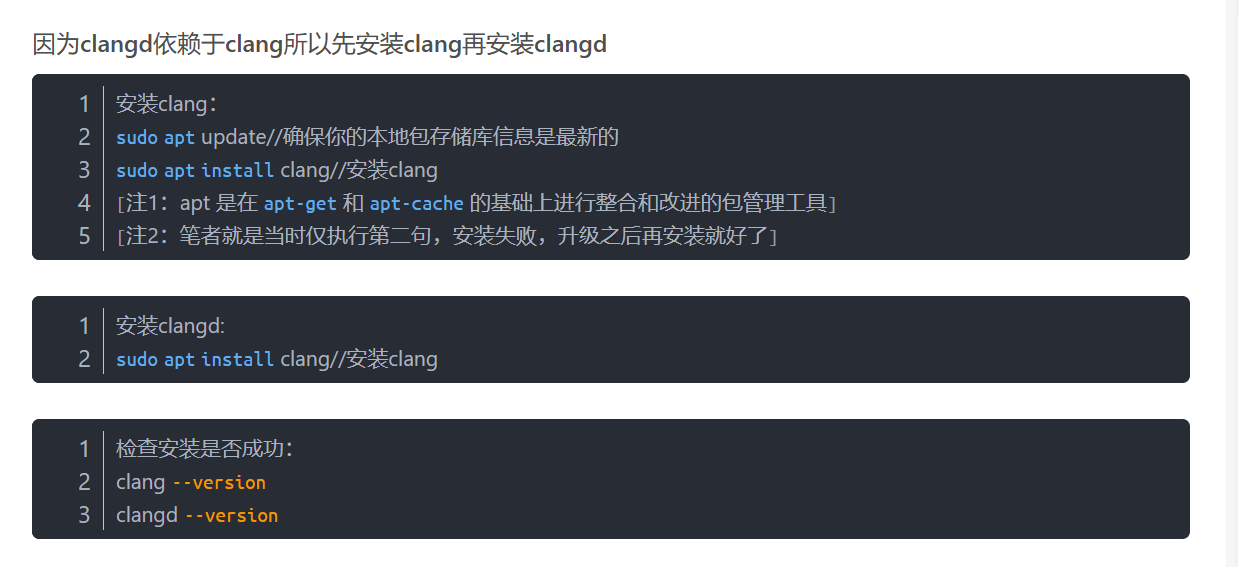
2.vscode 下载插件clangd
完全使用clangd可以把微软官方下述插件禁用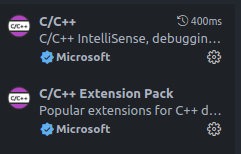
不禁用也可以但会出现下述报错,也就是和官方的补全功能冲突,禁用官方插件补全功能即可,按照下图操作即可。
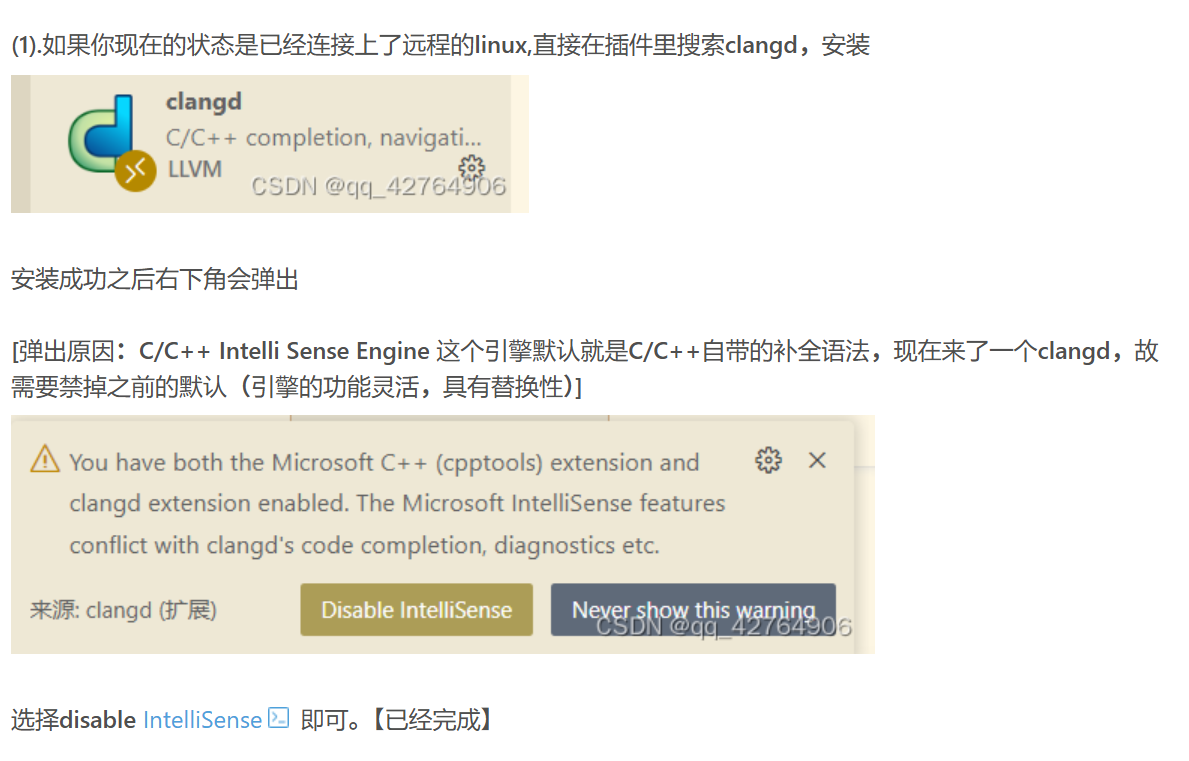
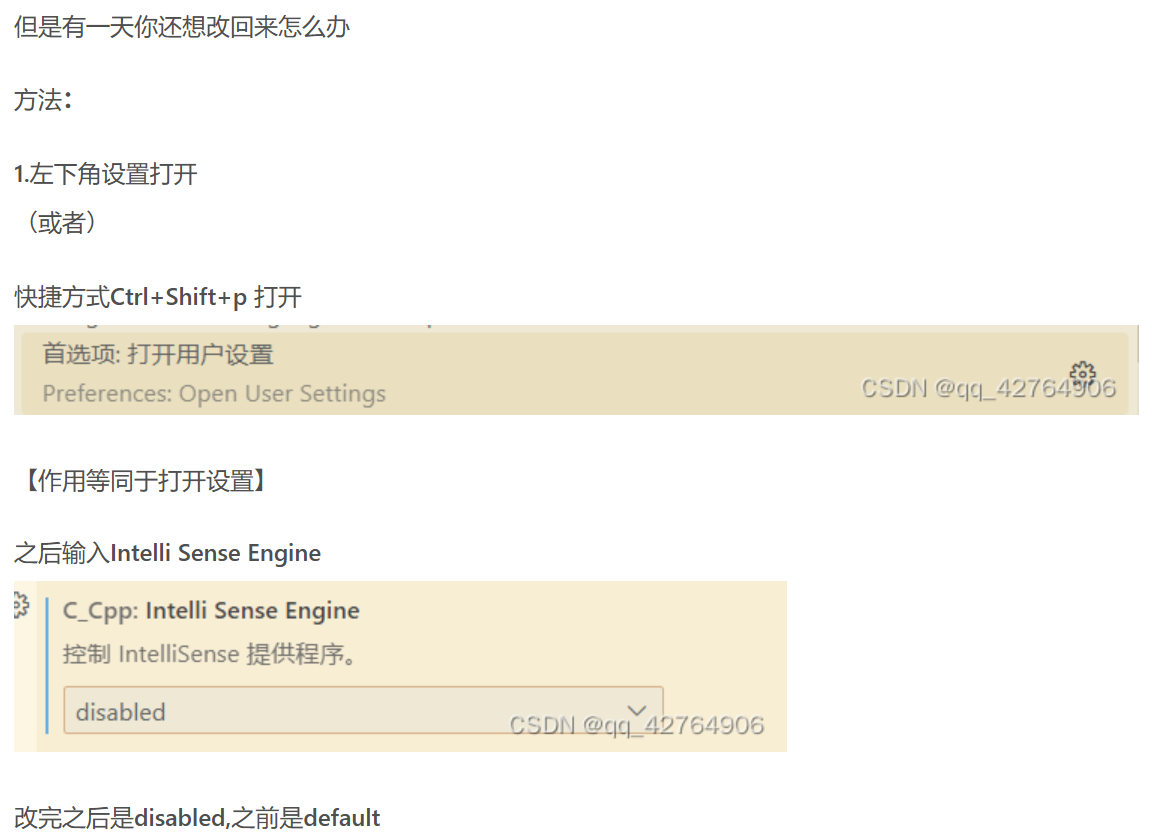
3.配置vscode中的settings.json文件
  //主要补充以下内容
  //禁用 C/C++ 扩展中的错误波浪线(squiggles)功能,在使用其他工具(如 clangd)进行错误检测时避免重复提示。
  "C_Cpp.errorSquiggles": "disabled",
  //当设置为 "Disabled" 时,VS Code 不会回退到旧的 IntelliSense 引擎。
  //这意味着如果新的 IntelliSense 引擎(如 clangd)无法正常工作,VS Code 不会尝试使用旧的引擎。
  //"C_Cpp.intelliSenseEngineFallback": "disabled",//已经失效
  //禁用 C/C++ 扩展的 IntelliSense 引擎,避免与clangd补全功能相冲突
  "C_Cpp.intelliSenseEngine": "disabled",
  //下述内容就是clangd的一些配置了
  "clangd.path": "/usr/bin/clangd",
  // Clangd 运行参数(在终端/命令行输入 clangd --help-list-hidden 可查看更多)
  "clangd.arguments": [
    // compile_commands.json 生成文件夹
    "--compile-commands-dir=${workspaceFolder}/build",
    // 让 Clangd 生成更详细的日志
    "--log=verbose",
    // 输出的 JSON 文件更美观
    "--pretty",
    // 全局补全(输入时弹出的建议将会提供 CMakeLists.txt 里配置的所有文件中可能的符号,会自动补充头文件)
    "--all-scopes-completion",
    // 建议风格:打包(重载函数只会给出一个建议)
    // 相反可以设置为detailed
    "--completion-style=bundled",
    // 跨文件重命名变量
    "--cross-file-rename",
    // 允许补充头文件
    "--header-insertion=iwyu",
    // 输入建议中,已包含头文件的项与还未包含头文件的项会以圆点加以区分
    "--header-insertion-decorators",
    // 在后台自动分析文件(基于 complie_commands,我们用CMake生成)
    "--background-index",
    // 启用 Clang-Tidy 以提供「静态检查」
    "--clang-tidy",
    // Clang-Tidy 静态检查的参数,指出按照哪些规则进行静态检查,详情见「与按照官方文档配置好的 VSCode 相比拥有的优势」
    // 参数后部分的*表示通配符
    // 在参数前加入-,如-modernize-use-trailing-return-type,将会禁用某一规则
    "--clang-tidy-checks=cppcoreguidelines-*,performance-*,bugprone-*,portability-*,modernize-*,google-*",
    // 默认格式化风格: 谷歌开源项目代码指南
    // "--fallback-style=file",
    // 同时开启的任务数量
    "-j=2",
    // pch优化的位置(memory 或 disk,选择memory会增加内存开销,但会提升性能) 推荐在板子上使用disk
    "--pch-storage=disk",
    // 启用这项时,补全函数时,将会给参数提供占位符,键入后按 Tab 可以切换到下一占位符,乃至函数末
    // 我选择禁用
    "--function-arg-placeholders=false",
    // compelie_commands.json 文件的目录位置(相对于工作区,由于 CMake 生成的该文件默认在 build 文件夹中,故设置为 build)
    "--compile-commands-dir=build"
  ],
4.生成compelie_commands.json文件,用于代码静态检查
cmake文档编写的注意事项:linux默认使用的是gdb编译器,需要特别指定编译器为clang,当然也可以使用gdb编译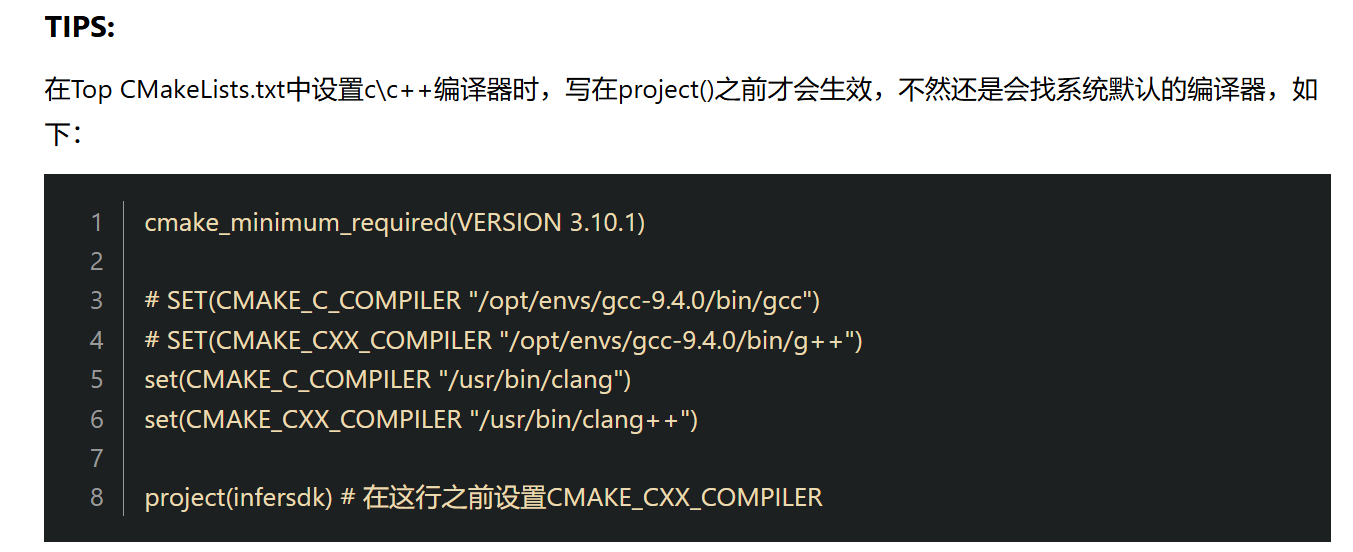
什么是clangd代码静态检查
clangd支持代码的静态检查,但是依赖compelie_commands.json文件,该文件一般可以在项目文件中利用cmake指定生成(配置阶段),然后再打开编译器就可以发现多了clangd优势中下图部分内容提示,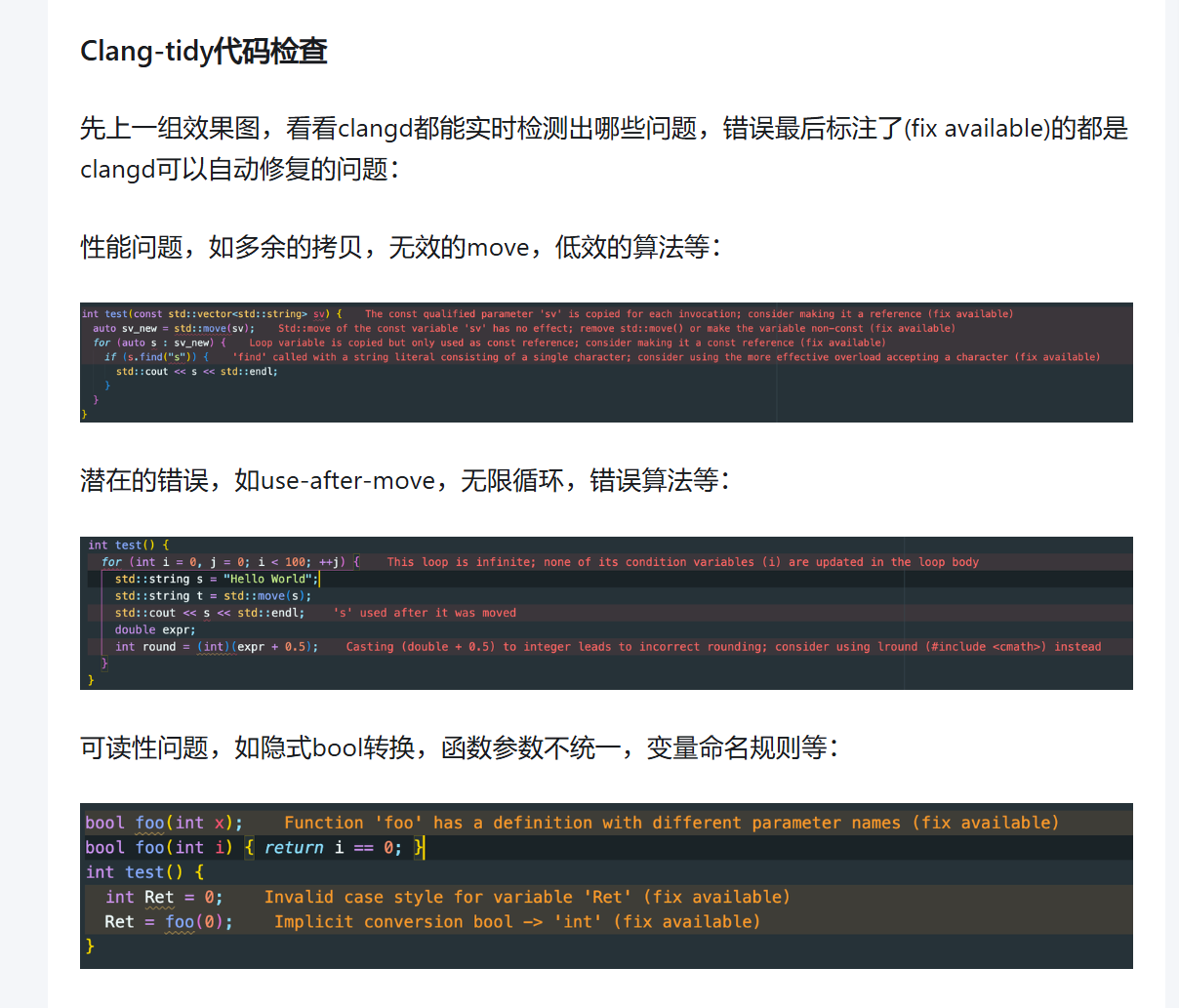
有助于在编译代码(make)之前检测出 C、C++ 和 Objective-C 中的各种常见编程错误。
Cpp库管理–vcpkg安装和配置
参考链接
注:本机安装在C:\src\vcpkg中
linux下vscode和cursor配置文件
vscode
c_cpp_properties.json
{
    "configurations": [
        {
            "name": "Linux",
            "includePath": [
                "${workspaceFolder}/src",
                "/usr/include",         // Linux系统标准头文件目录
                "/usr/local/include",   // 用户本地安装的头文件目录
                "/usr/include/pcl-1.10",
                "/usr/include/eigen3",
                "/usr/include/opencv4",
                "/usr/include/vtk-7.1",
                "${workspaceFolder}/thirdparty/sophus",
                "${workspaceFolder}/thirdparty"

            ],
            "defines": [],
            "compilerPath": "/usr/bin/gcc",
            "cStandard": "c17",
            "cppStandard": "gnu++14",
            "intelliSenseMode": "linux-gcc-x64"
        }
    ],
    "version": 4
}
工作区settings.json
 {
    "files.defaultLanguage": "cpp", // ctrl+N新建文件后默认的语言
    // "editor.formatOnType": true, // 输入分号(C/C++的语句结束标识)后自动格式化当前这一行的代码
    "editor.suggest.snippetsPreventQuickSuggestions": false, // 代码片段和快速建议同时显示,而不需要手动触发 Intellisense
    // "editor.acceptSuggestionOnEnter": "off", // 我个人的习惯,按回车时一定是真正的换行,只有tab才会接受Intellisense
    // "editor.snippetSuggestions": "top", // (可选)snippets显示在补全列表顶端,默认是inline
    "code-runner.runInTerminal": true, // 设置成false会在“输出”中输出,无法输入
    "code-runner.executorMap": {
        "c": "cd $dir && gcc '$fileName' -o '$fileNameWithoutExt.exe' -Wall -g -O2 -static-libgcc -std=c11 -fexec-charset=GBK && &'$dir$fileNameWithoutExt'",
        "cpp": "cd $dir && g++ '$fileName' -o '$fileNameWithoutExt.exe' -Wall -g -O2 -static-libgcc -std=c++17 -fexec-charset=GBK && &'$dir$fileNameWithoutExt'"
        // "c": "cd $dir && gcc $fileName -o $fileNameWithoutExt.exe -Wall -g -O2 -static-libgcc -std=c11 -fexec-charset=GBK && $dir$fileNameWithoutExt",
        // "cpp": "cd $dir && g++ $fileName -o $fileNameWithoutExt.exe -Wall -g -O2 -static-libgcc -std=c++17 -fexec-charset=GBK && $dir$fileNameWithoutExt"
    }, // 右键run code时运行的命令;未注释的仅适用于PowerShell(Win10默认),文件名中有空格也可以编译运行;注释掉的适用于cmd(win7默认),PS和bash也能用,但文件名中有空格时无法运行
    "code-runner.saveFileBeforeRun": true, // run code前保存
    "code-runner.preserveFocus": true, // 若为false,run code后光标会聚焦到终端上。如果需要频繁输入数据可设为false
    "code-runner.clearPreviousOutput": false, // 每次run code前清空属于code runner的终端消息,默认false
    "code-runner.ignoreSelection": true, // 默认为false,效果是鼠标选中一块代码后可以单独执行,但C是编译型语言,不适合这样用
    "C_Cpp.clang_format_sortIncludes": true,
    "files.associations": {
        "iostream": "cpp",
        "cmath": "cpp",
        "core": "cpp",
        "ostream": "cpp",
        "chrono": "cpp",
        "regex": "cpp",
        "matrixfunctions": "cpp",
        "cctype": "cpp",
        "clocale": "cpp",
        "csignal": "cpp",
        "cstdarg": "cpp",
        "cstddef": "cpp",
        "cstdio": "cpp",
        "cstdlib": "cpp",
        "cstring": "cpp",
        "ctime": "cpp",
        "cwchar": "cpp",
        "cwctype": "cpp",
        "array": "cpp",
        "atomic": "cpp",
        "strstream": "cpp",
        "bit": "cpp",
        "bitset": "cpp",
        "compare": "cpp",
        "complex": "cpp",
        "concepts": "cpp",
        "condition_variable": "cpp",
        "cstdint": "cpp",
        "deque": "cpp",
        "list": "cpp",
        "map": "cpp",
        "set": "cpp",
        "unordered_map": "cpp",
        "unordered_set": "cpp",
        "vector": "cpp",
        "exception": "cpp",
        "algorithm": "cpp",
        "functional": "cpp",
        "iterator": "cpp",
        "memory": "cpp",
        "memory_resource": "cpp",
        "numeric": "cpp",
        "optional": "cpp",
        "random": "cpp",
        "ratio": "cpp",
        "string": "cpp",
        "string_view": "cpp",
        "system_error": "cpp",
        "tuple": "cpp",
        "type_traits": "cpp",
        "utility": "cpp",
        "fstream": "cpp",
        "initializer_list": "cpp",
        "iomanip": "cpp",
        "iosfwd": "cpp",
        "istream": "cpp",
        "limits": "cpp",
        "mutex": "cpp",
        "new": "cpp",
        "ranges": "cpp",
        "sstream": "cpp",
        "stdexcept": "cpp",
        "stop_token": "cpp",
        "streambuf": "cpp",
        "thread": "cpp",
        "cfenv": "cpp",
        "cinttypes": "cpp",
        "typeindex": "cpp",
        "typeinfo": "cpp",
        "variant": "cpp",
        "future": "cpp"
    }, // 格式化时调整include的顺序(按字母排序)
    // "cmake.sourceDirectory": "/home/hakuii/Desktop/learning_slam/gaoxiangslam2/slambook",
    // // terminal 字体大小,默认14
    // "terminal.integrated.fontSize": 15
}
tasks.json
{
  "version": "2.0.0",
  "tasks": [
    {
      "type": "cppbuild",
      "label": "C/C++: g++ build active file (Linux)",
      "command": "/usr/bin/g++",
      "args": [
                "-g",
                "${file}",
				"-finput-charset=UTF-8",
                "-o",
                "${fileDirname}/${fileBasenameNoExtension}",
            ],
      "options": {
        "cwd": "${workspaceFolder}"
      },
      "problemMatcher": ["$gcc"],
      "group": {
        "kind": "build",
        // "isDefault": true
      },
      "detail": "Task generated by Debugger."
    }
  ]
}
// 修改时间 24-5-23
launch.json
{
    // Use IntelliSense to learn about possible attributes.
    // Hover to view descriptions of existing attributes.
    // For more information, visit: https://go.microsoft.com/fwlink/?linkid=830387
    "version": "0.2.0",
    "configurations": [
        {
            "name": "C++ Launch (GDB) Linux",
            "type": "cppdbg",
            "request": "launch",
            "program": "enter program name, for example ${workspaceFolder}/a.out",
            "args": [],
            "stopAtEntry": false,
            "cwd": "${fileDirname}",
            "environment": [],
            "externalConsole": false,
            "MIMode": "gdb",
            // 6. miDebuggerPath:GDB调试器的路径。
            //    - 在Linux中,如果gdb已安装并配置到PATH环境变量中,可以不设置此项(即注释掉)。
            //    - 但为了明确性和可靠性,建议指定其完整路径,通常是 "/usr/bin/gdb"。
            "miDebuggerPath": "/usr/bin/gdb", // 请根据您的系统实际GDB路径进行调整
            "setupCommands": [
                {
                    "description": "Enable pretty-printing for gdb",
                    "text": "-enable-pretty-printing",
                    "ignoreFailures": true
                },
                {
                    "description": "Set Disassembly Flavor to Intel",
                    "text": "-gdb-set disassembly-flavor intel",
                    "ignoreFailures": true
                }
            ],
                        // 7. preLaunchTask:调试前执行的预编译任务。
            //    - 此处的字符串必须与 tasks.json 中您为Linux环境构建任务设定的 `label` 完全一致。
            //    - 假设您的 tasks.json 中对应的label是 "C/C++: g++ build active file (Linux)"。
            "preLaunchTask": "C/C++: g++ build active file (Linux)"
        }
    ]
}
全局settings.json
{
  "workbench.colorTheme": "One Dark Pro Darker",
  "workbench.iconTheme": "vscode-icons",
  "oneDarkPro.editorTheme": "One Dark Pro Darker",
  //针对的是Trailing Spaces插件,用于高亮显示行尾空格
  "trailing-spaces.backgroundColor": "#66ffe6",
  "trailing-spaces.borderColor": "#00bfff",
  "[python]": {
    "editor.formatOnSaveMode": "file",
    "editor.formatOnSave": true,
    "editor.defaultFormatter": "ms-vscode.cpptools"
  },
  "workbench.colorCustomizations": {
    "[One Dark Pro Darker]": {
      "activityBar.foreground": "#f9e8d0", //控制活动栏所选图标的前景颜色
      "activityBar.inactiveForeground": "#00ffff", //控制活动栏非所选图标的前景颜色
      "activityBarBadge.background": "#faf0e6", //控制活动栏通知徽章背景颜色
      "activityBarBadge.foreground": "#cc5500" //控制活动栏通知徽章前景颜色
    }
  },
  "files.trimTrailingWhitespace": true, //自动删除文件行尾空格,保存时候删除
  "editor.fontSize": 18,
  "editor.fontLigatures": true, // 连体字,效果不太好形容,见 https://typeof.net/Iosevka 最后一部分
  "editor.fontFamily": "等距更纱黑体 SC",
  "editor.formatOnType": true,
  // 显示保存自动格式化
  "editor.formatOnSave": true,
  //对保存后自动格式化细节进行设置,让其只对修改过的代码进行格式化,该功能需要版本管理才能实现,
  //相比较modificationsIfAvailable选项,其代码不支持版本管理时,不会自动对整个文档进行格式化
  "editor.formatOnSaveMode": "modifications",
  "[html]": {
    "editor.defaultFormatter": "ms-vscode.cpptools"
  },
  "[javascript]": {
    "editor.defaultFormatter": "ms-vscode.cpptools"
  },
  "files.autoGuessEncoding": false, //自动检测文件编码
  "explorer.confirmDelete": false,
  //让标题能够显示完整的文件路径名
  "window.title": "${dirty}${activeEditorLong}${separator}${rootName}${separator}${appName}",
  "workbench.sideBar.location": "left", //控制栏位置
  "editor.wordSeparators": "`~!@#$%^&*()-=+[{]}\\|;:'\",.<>/?·~!¥…()—【】、;:‘’“”,。《》? ", //字符分割
  //"http.proxySupport": "off",//(是否使用代理的设置)
  //如果你没有注意到一个GBK编码的文件被VSC以UTF-8的编码打开了,又进行了保存,这个文件里的中文是找不回来的
  "[plaintext]": {
    "files.encoding": "gbk"
  },
  "[log]": {
    "files.encoding": "gbk"
  },
  "[batch]": {
    "files.encoding": "gbk"
  },
  "editor.acceptSuggestionOnEnter": "off", // 个人的习惯,按回车时一定是真正的换行,只有tab才会接受Intellisense
  "search.useIgnoreFiles": false,
  "remote.defaultExtensionsIfInstalledLocally": [
    "GitHub.copilot",
    "GitHub.copilot-chat",
    "GitHub.vscode-pull-request-github"
  ],
  "C_Cpp.formatting": "vcFormat",
  "C_Cpp.vcFormat.newLine.beforeElse": false,
  "C_Cpp.vcFormat.newLine.beforeOpenBrace.block": "sameLine",
  "C_Cpp.vcFormat.newLine.beforeOpenBrace.function": "sameLine",

  "cmake.showConfigureWithDebuggerNotification": false,
  "cmake.automaticReconfigure": false,
  "cmake.configureOnEdit": false,
  "cmake.configureOnOpen": false, //打开文件夹时自动配置cmake

  "python.condaPath": "D:\\software\\miniconda\\Scripts\\conda.exe",
  "editor.multiCursorModifier": "ctrlCmd",
  // "leetcode.workspaceFolder": "c:\\Users\\13473\\Desktop\\program\\cpp\\leetcode",
  // "leetcode.defaultLanguage": "cpp",
  // "leetcode.editor.shortcuts": [
  //   "submit",
  //   "test",
  //   "description",
  //   "solution"
  // ],
  // "leetcode.endpoint": "leetcode-cn",
  // "leetcode.nodePath": "D:\\software\\node\\node.exe",
  // "leetcode.hint.commentDescription": false,
  // "leetcode.hint.commandShortcut": false,
  // "leetcode.hint.configWebviewMarkdown": false,
  // "C_Cpp.intelliSenseEngine": "disabled",//这里是关闭c++官方补全功能,因为和clangd冲突了,如果没有安装clangd插件要改成生效。
  // "cmake.cmakePath": "/path/to/cmake"//当系统安装多个cmake可以通过该命令指定使用什么版本cmake

  // path intellisense 配置
  "typescript.suggest.paths": false,
  "javascript.suggest.paths": false,

  //todo tree配置信息
  //todo-tree 标签配置
  "todo-tree.regex.regex": "((%|#|//|<!--|^\\s*\\*)\\s*($TAGS)|^\\s*- \\[ \\])",
  "todo-tree.general.tags": [
    "TODO", //添加自定义的标签成员,将在下面实现它们的样式
    "BUG",
    "tag",
    "done",
    "mark",
    "test",
    "XXX"
  ],
  //关闭字母大小写识别
  "todo-tree.regex.regexCaseSensitive": false,
  "todo-tree.highlights.defaultHighlight": { //如果相应变量没赋值就会使用这里的默认值
    "foreground": "#000000", //字体颜色
    "background": "#ffff00", //背景色
    "icon": "check", //标签样式 check 是一个对号的样式
    "rulerColour": "#ffff00", //边框颜色
    "type": "tag", //填充色类型  可在TODO TREE 细节页面找到允许的值
    "iconColour": "#ffff00" //标签颜色
  },
  "todo-tree.highlights.customHighlight": {
    //todo 		需要做的功能
    "TODO": {
      "icon": "alert", //标签样式
      "background": "#c9c552", //背景色
      "rulerColour": "#c9c552", //外框颜色
      "iconColour": "#c9c552", //标签颜色
    },
    //bug		必须要修复的BUG
    "BUG": {
      "background": "#eb5c5c",
      "icon": "bug",
      "rulerColour": "#eb5c5c",
      "iconColour": "#eb5c5c",
    },
    //tag		标签
    "tag": {
      "background": "#38b2f4",
      "icon": "tag",
      "rulerColour": "#38b2f4",
      "iconColour": "#38b2f4",
      "rulerLane": "full"
    },
    //done		已完成
    "done": {
      "background": "#5eec95",
      "icon": "check",
      "rulerColour": "#5eec95",
      "iconColour": "#5eec95",
    },
    //mark     	标记一下
    "mark:": {
      "background": "#f90",
      "icon": "note",
      "rulerColour": "#f90",
      "iconColour": "#f90",
    },
    //test		测试代码
    "test": {
      "background": "#df7be6",
      "icon": "flame",
      "rulerColour": "#df7be6",
      "iconColour": "#df7be6",
    },
    //update  	优化升级点
    "XXX": {
      "background": "#d65d8e",
      "icon": "versions",
      "rulerColour": "#d65d8e",
      "iconColour": "#d65d8e",
    }
  },
  "http.proxy": "http://127.0.0.1:7897",
  "http.proxySupport": "off",// 目的为连接docker时能在容器中使用colpilt
}
// 更新于2025/6/20
cursor
局部settings.json
 {
    "files.defaultLanguage": "cpp", // ctrl+N新建文件后默认的语言
    // "editor.formatOnType": true, // 输入分号(C/C++的语句结束标识)后自动格式化当前这一行的代码
    "editor.suggest.snippetsPreventQuickSuggestions": false, // 代码片段和快速建议同时显示,而不需要手动触发 Intellisense
    // "editor.acceptSuggestionOnEnter": "off", // 我个人的习惯,按回车时一定是真正的换行,只有tab才会接受Intellisense
    // "editor.snippetSuggestions": "top", // (可选)snippets显示在补全列表顶端,默认是inline
    "code-runner.runInTerminal": true, // 设置成false会在“输出”中输出,无法输入
    "code-runner.executorMap": {
        "c": "cd $dir && gcc '$fileName' -o '$fileNameWithoutExt.exe' -Wall -g -O2 -static-libgcc -std=c11 -fexec-charset=GBK && &'$dir$fileNameWithoutExt'",
        "cpp": "cd $dir && g++ '$fileName' -o '$fileNameWithoutExt.exe' -Wall -g -O2 -static-libgcc -std=c++17 -fexec-charset=GBK && &'$dir$fileNameWithoutExt'"
        // "c": "cd $dir && gcc $fileName -o $fileNameWithoutExt.exe -Wall -g -O2 -static-libgcc -std=c11 -fexec-charset=GBK && $dir$fileNameWithoutExt",
        // "cpp": "cd $dir && g++ $fileName -o $fileNameWithoutExt.exe -Wall -g -O2 -static-libgcc -std=c++17 -fexec-charset=GBK && $dir$fileNameWithoutExt"
    }, // 右键run code时运行的命令;未注释的仅适用于PowerShell(Win10默认),文件名中有空格也可以编译运行;注释掉的适用于cmd(win7默认),PS和bash也能用,但文件名中有空格时无法运行
    "code-runner.saveFileBeforeRun": true, // run code前保存
    "code-runner.preserveFocus": true, // 若为false,run code后光标会聚焦到终端上。如果需要频繁输入数据可设为false
    "code-runner.clearPreviousOutput": false, // 每次run code前清空属于code runner的终端消息,默认false
    "code-runner.ignoreSelection": true, // 默认为false,效果是鼠标选中一块代码后可以单独执行,但C是编译型语言,不适合这样用
    "C_Cpp.clang_format_sortIncludes": true,
    "files.associations": {
        "iostream": "cpp",
        "cmath": "cpp",
        "core": "cpp",
        "ostream": "cpp",
        "chrono": "cpp",
        "regex": "cpp",
        "matrixfunctions": "cpp",
        "cctype": "cpp",
        "clocale": "cpp",
        "csignal": "cpp",
        "cstdarg": "cpp",
        "cstddef": "cpp",
        "cstdio": "cpp",
        "cstdlib": "cpp",
        "cstring": "cpp",
        "ctime": "cpp",
        "cwchar": "cpp",
        "cwctype": "cpp",
        "array": "cpp",
        "atomic": "cpp",
        "strstream": "cpp",
        "bit": "cpp",
        "bitset": "cpp",
        "compare": "cpp",
        "complex": "cpp",
        "concepts": "cpp",
        "condition_variable": "cpp",
        "cstdint": "cpp",
        "deque": "cpp",
        "list": "cpp",
        "map": "cpp",
        "set": "cpp",
        "unordered_map": "cpp",
        "unordered_set": "cpp",
        "vector": "cpp",
        "exception": "cpp",
        "algorithm": "cpp",
        "functional": "cpp",
        "iterator": "cpp",
        "memory": "cpp",
        "memory_resource": "cpp",
        "numeric": "cpp",
        "optional": "cpp",
        "random": "cpp",
        "ratio": "cpp",
        "string": "cpp",
        "string_view": "cpp",
        "system_error": "cpp",
        "tuple": "cpp",
        "type_traits": "cpp",
        "utility": "cpp",
        "fstream": "cpp",
        "initializer_list": "cpp",
        "iomanip": "cpp",
        "iosfwd": "cpp",
        "istream": "cpp",
        "limits": "cpp",
        "mutex": "cpp",
        "new": "cpp",
        "ranges": "cpp",
        "sstream": "cpp",
        "stdexcept": "cpp",
        "stop_token": "cpp",
        "streambuf": "cpp",
        "thread": "cpp",
        "cfenv": "cpp",
        "cinttypes": "cpp",
        "typeindex": "cpp",
        "typeinfo": "cpp",
        "variant": "cpp",
        "future": "cpp"
    }, // 格式化时调整include的顺序(按字母排序)
    // "cmake.sourceDirectory": "/home/hakuii/Desktop/learning_slam/gaoxiangslam2/slambook",
    // // terminal 字体大小,默认14
    // "terminal.integrated.fontSize": 15
}
全局settings.json
{
    "workbench.colorTheme": "One Dark Pro Darker",
    "workbench.iconTheme": "vscode-icons",
    "oneDarkPro.editorTheme": "One Dark Pro Darker",
    "trailing-spaces.backgroundColor": "#66ffe6",
    "trailing-spaces.borderColor": "#00bfff",
    "[python]": {
        "editor.formatOnSaveMode": "file",
        "editor.formatOnSave": true,
        "editor.defaultFormatter": "ms-vscode.cpptools"
    },

    "workbench.colorCustomizations": {
        "[One Dark Pro Darker]": {
            "activityBar.foreground": "#f9e8d0",
            "activityBar.inactiveForeground": "#00ffff",
            "activityBarBadge.background": "#faf0e6",
            "activityBarBadge.foreground": "#cc5500"
        }
    },
    "workbench.activityBar.orientation": "vertical",
    "workbench.sideBar.location": "left",

    "files.trimTrailingWhitespace": true,
    "editor.fontSize": 18,
    "editor.fontLigatures": true,
    "editor.fontFamily": "等距更纱黑体 SC",
    "editor.formatOnType": true,
    "editor.formatOnSave": true,
    "editor.formatOnSaveMode": "modifications",
    "[html]": {
        "editor.defaultFormatter": "ms-vscode.cpptools"
    },
    "[javascript]": {
        "editor.defaultFormatter": "ms-vscode.cpptools"
    },
    "files.autoGuessEncoding": false,
    "explorer.confirmDelete": false,
    "window.title": "${dirty}${activeEditorLong}${separator}${rootName}${separator}${appName}",
    "editor.wordSeparators": "`~!@#$%^&*()-=+[{]}\\|;:'\",.<>/?·~!¥…()—【】、;:‘’“”,。《》? ",
    "[plaintext]": {
        "files.encoding": "gbk"
    },
    "[log]": {
        "files.encoding": "gbk"
    },
    "[batch]": {
        "files.encoding": "gbk"
    },
    "editor.acceptSuggestionOnEnter": "off",
    "search.useIgnoreFiles": false,
    "remote.defaultExtensionsIfInstalledLocally": [
        "GitHub.copilot",
        "GitHub.copilot-chat",
        "GitHub.vscode-pull-request-github"
    ],
    "C_Cpp.formatting": "vcFormat",
    "C_Cpp.vcFormat.newLine.beforeElse": false,
    "C_Cpp.vcFormat.newLine.beforeOpenBrace.block": "sameLine",
    "C_Cpp.vcFormat.newLine.beforeOpenBrace.function": "sameLine",
    "cmake.showConfigureWithDebuggerNotification": false,
    "cmake.automaticReconfigure": false,
    "cmake.configureOnEdit": false,
    "cmake.configureOnOpen": false,
    "python.condaPath": "D:\\software\\miniconda\\Scripts\\conda.exe",
    "editor.multiCursorModifier": "ctrlCmd",
    "typescript.suggest.paths": false,
    "javascript.suggest.paths": false,
    "todo-tree.regex.regex": "((%|#|//|<!--|^\\s*\\*)\\s*($TAGS)|^\\s*- \\[ \\])",
    "todo-tree.general.tags": [
        "TODO",
        "BUG",
        "tag",
        "done",
        "mark",
        "test",
        "XXX"
    ],
    "todo-tree.regex.regexCaseSensitive": false,
    "todo-tree.highlights.defaultHighlight": {
        "foreground": "#000000",
        "background": "#ffff00",
        "icon": "check",
        "rulerColour": "#ffff00",
        "type": "tag",
        "iconColour": "#ffff00"
    },
    "todo-tree.highlights.customHighlight": {
        "TODO": {
            "icon": "alert",
            "background": "#c9c552",
            "rulerColour": "#c9c552",
            "iconColour": "#c9c552"
        },
        "BUG": {
            "background": "#eb5c5c",
            "icon": "bug",
            "rulerColour": "#eb5c5c",
            "iconColour": "#eb5c5c"
        },
        "tag": {
            "background": "#38b2f4",
            "icon": "tag",
            "rulerColour": "#38b2f4",
            "iconColour": "#38b2f4",
            "rulerLane": "full"
        },
        "done": {
            "background": "#5eec95",
            "icon": "check",
            "rulerColour": "#5eec95",
            "iconColour": "#5eec95"
        },
        "mark:": {
            "background": "#f90",
            "icon": "note",
            "rulerColour": "#f90",
            "iconColour": "#f90"
        },
        "test": {
            "background": "#df7be6",
            "icon": "flame",
            "rulerColour": "#df7be6",
            "iconColour": "#df7be6"
        },
        "XXX": {
            "background": "#d65d8e",
            "icon": "versions",
            "rulerColour": "#d65d8e",
            "iconColour": "#d65d8e"
        }
    },
    "http.proxy": "http://127.0.0.1:7897",
    "http.proxySupport": "off",// 目的为连接docker时能在容器中使用colpilt
}
c_cpp_properties.json
{
    "configurations": [
        {
            "name": "Linux",
            "includePath": [
                "${workspaceFolder}/src",
                "/usr/include",         // Linux系统标准头文件目录
                "/usr/local/include",   // 用户本地安装的头文件目录
                "/usr/include/pcl-1.10",
                "/usr/include/eigen3",
                "/usr/include/opencv4",
                "/usr/include/vtk-7.1",
                "${workspaceFolder}/thirdparty/sophus",
                "${workspaceFolder}/thirdparty"

            ],
            "defines": [],
            "compilerPath": "/usr/bin/gcc",
            "cStandard": "c17",
            "cppStandard": "gnu++14",
            "intelliSenseMode": "linux-gcc-x64"
        }
    ],
    "version": 4
}
tasks.json
{
    // Use IntelliSense to learn about possible attributes.
    // Hover to view descriptions of existing attributes.
    // For more information, visit: https://go.microsoft.com/fwlink/?linkid=830387
    "version": "0.2.0",
    "configurations": [
        {
            "name": "C++ Launch (GDB) Linux",
            "type": "cppdbg",
            "request": "launch",
            "program": "enter program name, for example ${workspaceFolder}/a.out",
            "args": [],
            "stopAtEntry": false,
            "cwd": "${fileDirname}",
            "environment": [],
            "externalConsole": false,
            "MIMode": "gdb",
            // 6. miDebuggerPath:GDB调试器的路径。
            //    - 在Linux中,如果gdb已安装并配置到PATH环境变量中,可以不设置此项(即注释掉)。
            //    - 但为了明确性和可靠性,建议指定其完整路径,通常是 "/usr/bin/gdb"。
            "miDebuggerPath": "/usr/bin/gdb", // 请根据您的系统实际GDB路径进行调整
            "setupCommands": [
                {
                    "description": "Enable pretty-printing for gdb",
                    "text": "-enable-pretty-printing",
                    "ignoreFailures": true
                },
                {
                    "description": "Set Disassembly Flavor to Intel",
                    "text": "-gdb-set disassembly-flavor intel",
                    "ignoreFailures": true
                }
            ],
                        // 7. preLaunchTask:调试前执行的预编译任务。
            //    - 此处的字符串必须与 tasks.json 中您为Linux环境构建任务设定的 `label` 完全一致。
            //    - 假设您的 tasks.json 中对应的label是 "C/C++: g++ build active file (Linux)"。
            "preLaunchTask": "C/C++: g++ build active file (Linux)"
        }
    ]
}
launch.json
{
    // Use IntelliSense to learn about possible attributes.
    // Hover to view descriptions of existing attributes.
    // For more information, visit: https://go.microsoft.com/fwlink/?linkid=830387
    "version": "0.2.0",
    "configurations": [
        {
            "name": "C++ Launch (GDB) Linux",
            "type": "cppdbg",
            "request": "launch",
            "program": "enter program name, for example ${workspaceFolder}/a.out",
            "args": [],
            "stopAtEntry": false,
            "cwd": "${fileDirname}",
            "environment": [],
            "externalConsole": false,
            "MIMode": "gdb",
            // 6. miDebuggerPath:GDB调试器的路径。
            //    - 在Linux中,如果gdb已安装并配置到PATH环境变量中,可以不设置此项(即注释掉)。
            //    - 但为了明确性和可靠性,建议指定其完整路径,通常是 "/usr/bin/gdb"。
            "miDebuggerPath": "/usr/bin/gdb", // 请根据您的系统实际GDB路径进行调整
            "setupCommands": [
                {
                    "description": "Enable pretty-printing for gdb",
                    "text": "-enable-pretty-printing",
                    "ignoreFailures": true
                },
                {
                    "description": "Set Disassembly Flavor to Intel",
                    "text": "-gdb-set disassembly-flavor intel",
                    "ignoreFailures": true
                }
            ],
                        // 7. preLaunchTask:调试前执行的预编译任务。
            //    - 此处的字符串必须与 tasks.json 中您为Linux环境构建任务设定的 `label` 完全一致。
            //    - 假设您的 tasks.json 中对应的label是 "C/C++: g++ build active file (Linux)"。
            "preLaunchTask": "C/C++: g++ build active file (Linux)"
        }
    ]
}

一站式 AI 云服务平台
更多推荐


 0
0 0
0- 0


 已为社区贡献1条内容

所有评论(0)