
# CentOS7 执行systemctl start iptables 报错:Failed to start iptables.service: Unit not found.
# CentOS7 执行systemctl start iptables 报错:Failed to start iptables.service: Unit not found.在CentOS7 中用firewalld来管理 防火墙的十三太保命令
·
CentOS7 执行systemctl start iptables 报错:Failed to start iptables.service: Unit not found.在CentOS7 中用firewalld来管理 防火墙的十三太保命令
段子手
一、错误描述
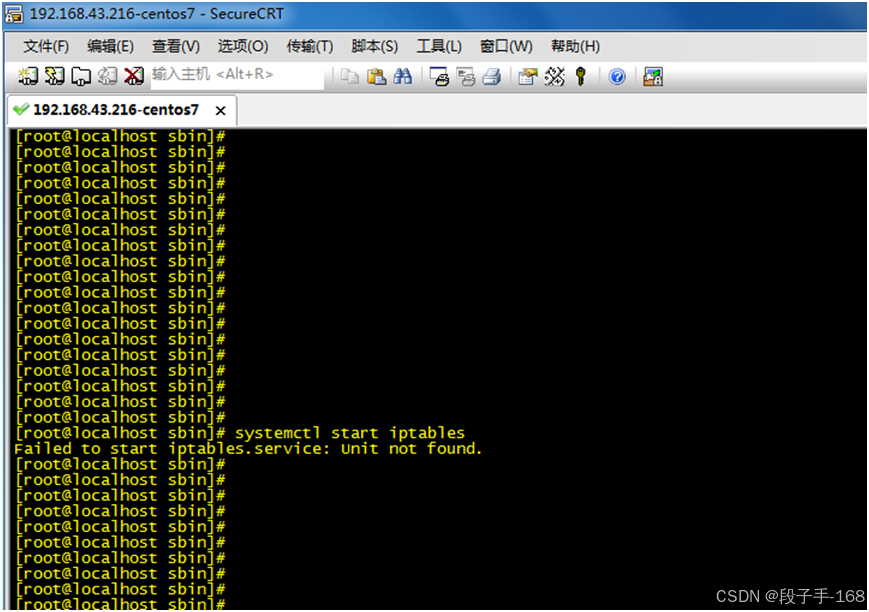
CentOS7 执行systemctl start iptables 尝试启动防火墙时,报错Failed to start iptables.service: Unit not found. 如下图
二、错误分析
这个错误表明在CentOS 7操作系统中,无法启动iptables.service服务,因为系统找不到对应的单元(Unit)。这通常意味着iptables服务可能没有安装,或者安装不正确。
确保您的系统使用的是正确的服务管理工具。在某些系统上,iptables服务可能被集成到了netfilter-persistent或其他工具中,这种情况下需要使用特定的命令来管理规则,如。使用的是firewalld替代iptables。
三、解决方法:
1、确认iptables是否已经安装。可以使用以下命令进行检查:
yum list installed | grep iptables
2、如果没有安装,使用以下命令进行安装:
sudo yum install iptables-services
3、如果iptables已经安装,可能是服务单元文件损坏或丢失。可以尝试重新安装iptables-services:
sudo yum reinstall iptables-services
4、安装或重新安装后,尝试启动服务:
sudo systemctl start iptables.service
5、如果你不需要iptables,可以选择禁用它:
sudo systemctl disable iptables.service
6、如果你使用的是firewalld替代iptables,可以安装并启用firewalld:
sudo yum install firewalld
sudo systemctl start firewalld.service
sudo systemctl enable firewalld.service
四、在CentOS7 中用firewalld来管理 防火墙十三太保命令。
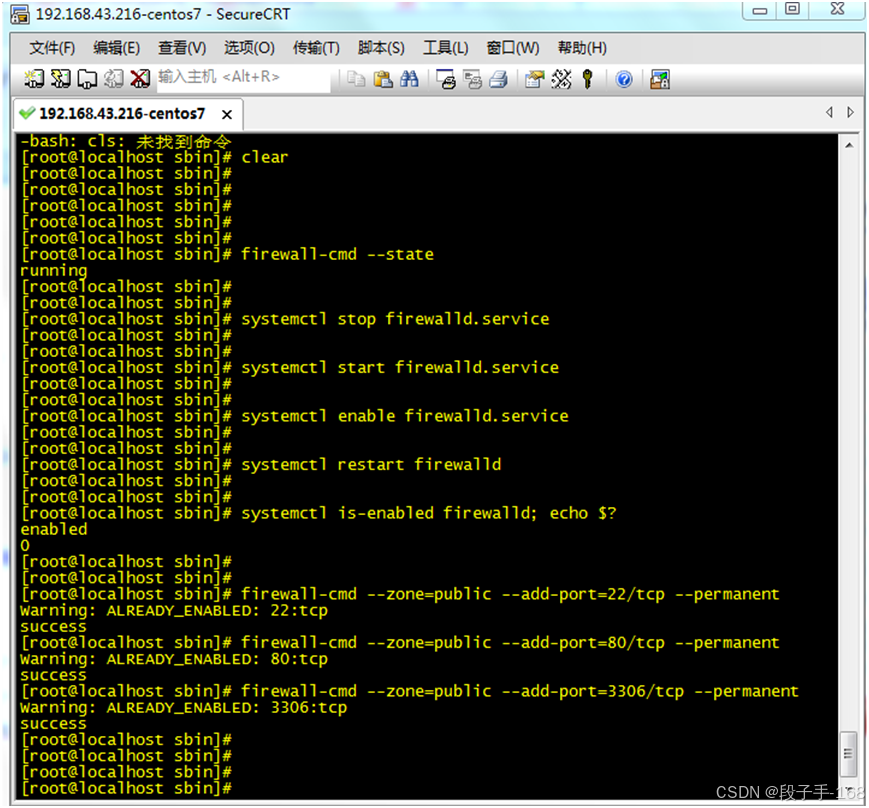
1、查看防火墙状态
[root@localhost sbin]# firewall-cmd --state
running
2、开启防火墙:
[root@localhost sbin]# systemctl start firewalld.service
3、关闭防火墙:
[root@localhost sbin]# systemctl stop firewalld.service
4、设置开机自启防火墙
[root@localhost sbin]# systemctl enable firewalld.service
5、重启防火墙
[root@localhost sbin]# systemctl restart firewalld
6、查看防火墙设置开机自启是否成功
[root@localhost sbin]# systemctl is-enabled firewalld; echo $?
enabled
0
7、开启特定端口(如:让防火墙放行端口:22, 80, 3306 等)
[root@localhost sbin]# firewall-cmd --zone=public --add-port=22/tcp --permanent
Warning: ALREADY_ENABLED: 22:tcp
success
[root@localhost sbin]# firewall-cmd --zone=public --add-port=80/tcp --permanent
Warning: ALREADY_ENABLED: 80:tcp
success
[root@localhost sbin]# firewall-cmd --zone=public --add-port=3306/tcp --permanent
Warning: ALREADY_ENABLED: 3306:tcp
success

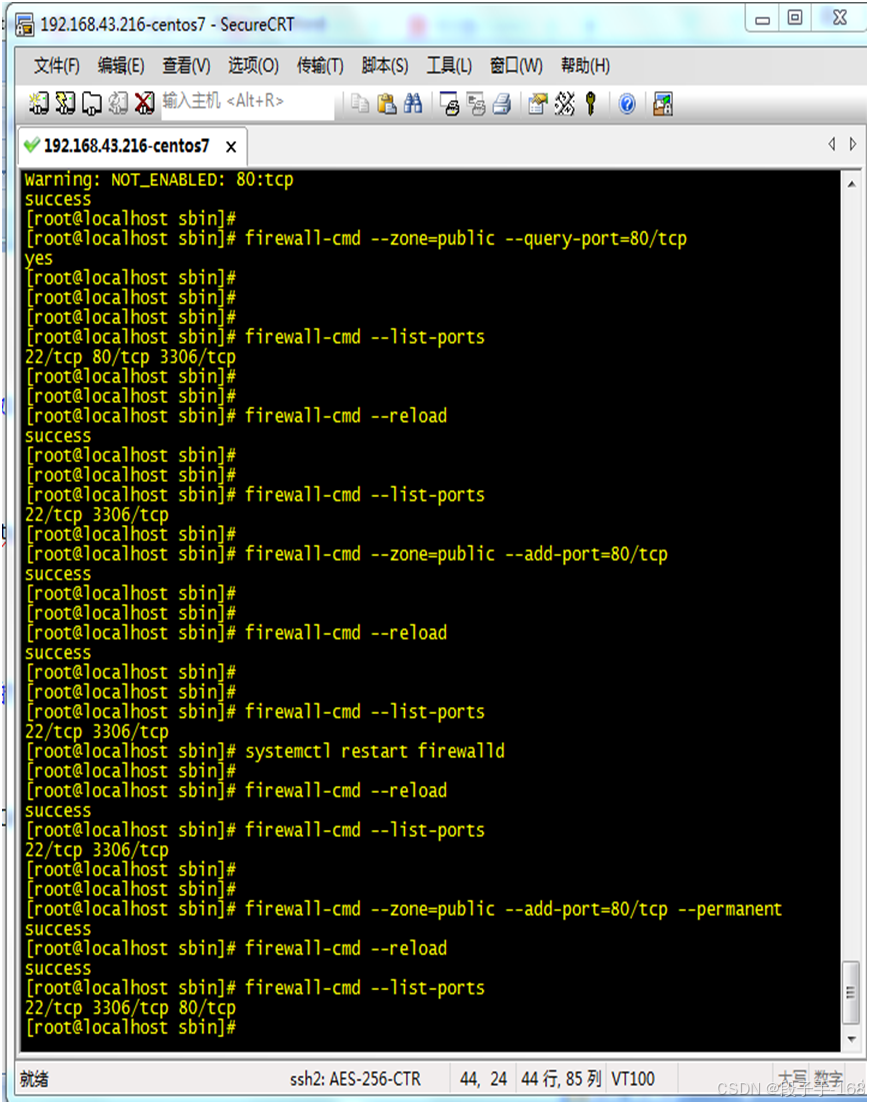
#设置完,重新载入防火墙使设置第一次
[root@bogon jdk8]# firewall-cmd --reload
success
参数说明:
–permanent永久生效,没有此参数重启后失效
–zone #作用域
–add-port=80/tcp #添加端口,格式为:端口/通讯协议。
8、批量添加端口(添加端口1000到2000之间的所有)
firewall-cmd --zone=public --add-port=1000-2000/tcp --permanent
9、重新载入防火墙
firewall-cmd --reload
10、查看防火墙是否旅行某一端口(如:查看80端口是否放行,返回yes 或 no)
firewall-cmd --zone=public --query-port=80/tcp
11、 删除某一规则,如删除80端口的放行规则,即启动防火墙后不放行80端口。
firewall-cmd --zone=public --remove-port=80/tcp --permanent
12、查看防火墙开启的所有端口
firewall-cmd --list-ports
13、查看服务的监听
netstat -ntlp

一站式 AI 云服务平台
更多推荐


 15
15 0
0- 0


 已为社区贡献8条内容

所有评论(0)