
aardio 谷歌浏览器自动化 (八) 表单元素自动化
aardio 谷歌浏览器自动化 (八) 表单元素自动化表单元素自动化包括检测元素状态,点击,输入文本,选择列表项等
·
表单元素自动化包括检测元素状态,点击,输入文本,选择列表项等,详细看下面函数列表
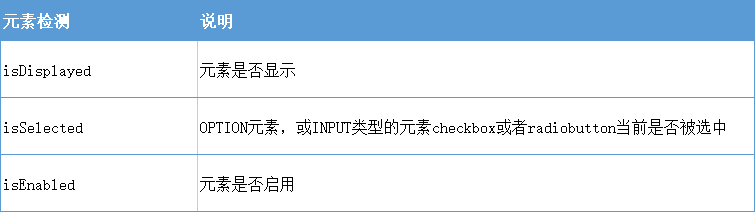
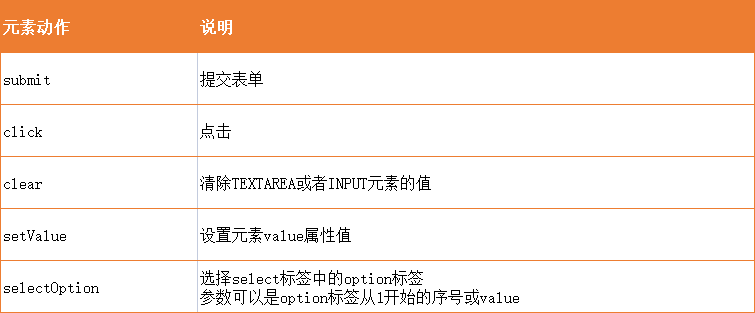
这次,我们创建自己的表单页面进行操作,一次过演示
import chrome.driverex

driver = chrome.driverex()

//禁止显示浏览器被控制提示
driver.disableAutomation()

wb = driver.startBrowser()

html = /*
<!DOCTYPE html>
            <html>
            <head>
            <meta content="text/html; charset=UTF-8" http-equiv="content-type">
            <title>test</title>
            <style>body {font-family: Arial}
            td {padding:6px}</style>
            </head>
            <body>
            <form name="ExampleForm" onSubmit="javascript:alert(''ExampleFormSubmitted'');" method="post">
            <table style="border-spacing:6px 6px;" border=1>
            <tr>
            <td>ExampleForm</td>
            <td><form name="ExampleForm" onSubmit="javascript:alert(''ExampleFormSubmitted'');" method="post"></td>
            </tr>
            <tr>
            <td>Hidden Input Element<input type="hidden" name="hiddenExample" value="secret value"></td>
            <td><input type="hidden" name="hiddenExample" value="secret value"></td>
            </tr>
            <tr>
            <td>
            <input type="text" name="textExample" value="http://" size="20" maxlength="30">
            </td>
            <td><input type="text" name="textExample" value="http://" size="20" maxlength="30"></td>
            </tr>
            <tr>
            <td>
            <input type="password" name="passwordExample" size="10">
            </td>
            <td><input type="password" name="passwordExample" size="10"></td>
            </tr>
            <tr>
            <td>
            <input type="file" name="fileExample">
            </td>
            <td><input type="file" name="fileExample"></td>
            </tr>
            <tr>
            <td>
            <input type="image" name="imageExample" alt="aardio.cc" src="https://www.aardio.cc/template/dbc_community_02/assets/images/logo.png" style="background: #204080;>
            </td>
            <td><input type="image" name="imageExample" alt="AutoIt Homepage" src="http://www.autoitscript.com/images/logo_autoit_210x72.png"></td>
            </tr>
            <tr>
            <td>
            <textarea name="textareaExample" rows="5" cols="15">Hello!</textarea>
            </td>
            <td><textarea name="textareaExample" rows="5" cols="15">Hello!</textarea></td>
            </tr>
            <tr>
            <td>
            <input type="checkbox" name="checkboxG1Example" value="gameBasketball">Basketball<br>
            <input type="checkbox" name="checkboxG1Example" value="gameFootball">Football<br>
            <input type="checkbox" name="checkboxG1Example" value="gameTennis" checked>Tennis<br>
            <input type="checkbox" name="checkboxG1Example" value="gameBaseball">Baseball
            </td>
            <td><input type="checkbox" name="checkboxG1Example" value="gameBasketball">Basketball<br><br>
            <input type="checkbox" name="checkboxG1Example" value="gameFootball">Football<br><br>
            <input type="checkbox" name="checkboxG2Example" value="gameTennis" checked>Tennis<br><br>
            <input type="checkbox" name="checkboxG2Example" value="gameBaseball">Baseball</td>
            </tr>
            <tr>
            <td>
            <input type="radio" name="radioExample" value="vehicleAirplane">Airplane<br>
            <input type="radio" name="radioExample" value="vehicleTrain" checked>Train<br>
            <input type="radio" name="radioExample" value="vehicleBoat">Boat<br>
            <input type="radio" name="radioExample" value="vehicleCar">Car</td>
            <td><input type="radio" name="radioExample" value="vehicleAirplane">Airplane<br><br>
            <input type="radio" name="radioExample" value="vehicleTrain" checked>Train<br><br>
            <input type="radio" name="radioExample" value="vehicleBoat">Boat<br><br>
            <input type="radio" name="radioExample" value="vehicleCar">Car<br></td>
            </tr>
            <tr>
            <td>
            <select name="selectExample">
            <option value="homepage.html">Homepage
            <option value="midipage.html">Midipage
            <option value="freepage.html">Freepage
            </select>
            </td>
            <td><select name="selectExample"><br>
            <option value="homepage.html">Homepage<br>
            <option value="midipage.html">Midipage<br>
            <option value="freepage.html">Freepage<br>
            </select></td>
            </tr>
            <tr>
            <td>
            <select name="multipleSelectExample" size="6" multiple>
            <option value="Name1">Aaron
            <option value="Name2">Bruce
            <option value="Name3">Carlos
            <option value="Name4">Denis
            <option value="Name5">Ed
            <option value="Name6">Freddy
            </select>
            </td>
            <td><select name="multipleSelectExample" size="6" multiple><br>
            <option value="Name1">Aaron<br>
            <option value="Name2">Bruce<br>
            <option value="Name3">Carlos<br>
            <option value="Name4">Denis<br>
            <option value="Name5">Ed<br>
            <option value="Name6">Freddy<br>
            </select></td>
            </tr>
            <tr>
            <td>
            <input name="submitExample" type="submit" value="Submit">
            <input name="resetExample" type="reset" value="Reset">
            </td>
            <td><input name="submitExample" type="submit" value="Submit"><br>
            <input name="resetExample" type="reset" value="Reset"></td>
            </tr>
            </table>
            <input type="hidden" name="hiddenExample" value="secret value">
            </form>
            </body>
            </html>
*/

//保存为网页文件
string.save("/form.html",html)

//打开本地网页文件
wb.go(io.fullpath("/form.html"))
wb.wait()

//查找隐藏的input,以name属性查找
hi = wb.getEle("name","hiddenExample")

win.msgbox(hi.getAttribute("outerHTML"),"是否显示:" + tostring(hi.isDisplayed()))

//填写网址
wb.getEle("name","textExample").setValue("https://www.aardio.cc")

//清除hello!
wb.getEle("name","textareaExample").clear()

//返回所有复选框数组,4个name相同
chs = wb.getEles("name","checkboxG1Example")

for(i=1;#chs;1){
    //判断是否被选中,如果选中点击取消
    if (chs[i].isSelected()){
        chs[i].click()
        break
    }

}

//返回所有单选框数组,4个name相同
radios = wb.getEles("name","radioExample")

for(i=1;#radios;1){
    //判断是否被选中,显示value
    if (radios[i].isSelected()){
        win.msgbox(radios[i].getAttribute("value"),"单选框")
        break
    }

}

//查找下拉组合框
sel = wb.getEle("name","selectExample")
//选择第2个
sel.selectOption(2)

//查找列表框
list = wb.getEle("name","multipleSelectExample")
//以value来选择
list.selectOption("Name4")

//查找并提交按钮,因为提交后页面还原,所以注释掉,测试时可以取消注释
//wb.getEle("name","submitExample").submit()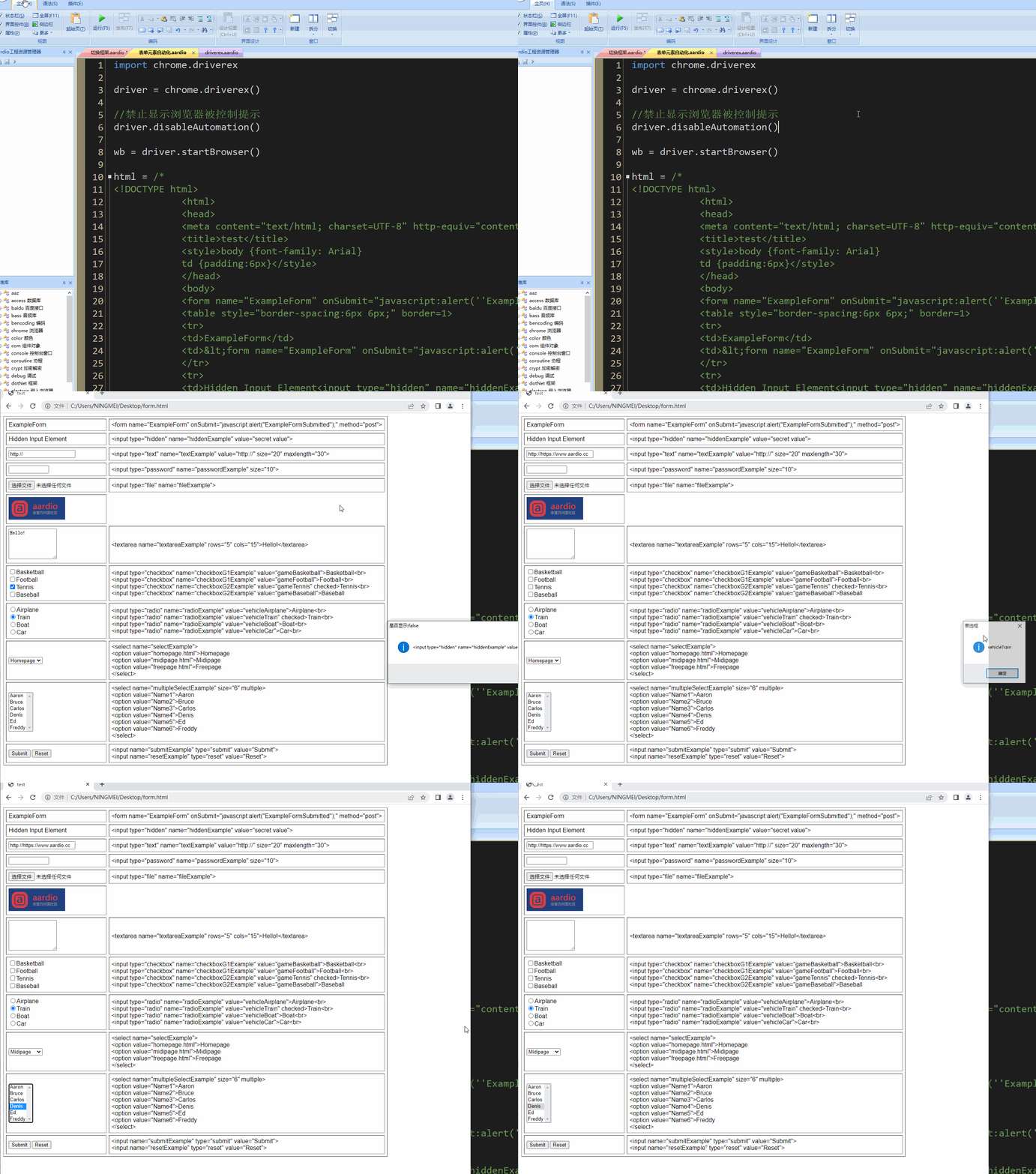

一站式 AI 云服务平台
更多推荐


 6
6 0
0- 0


 已为社区贡献4条内容

所有评论(0)