
搞定Selenium自动化测试图片滑块验证码了!!
因为背景图片中的残缺块位置和原始残缺图的亮度有所差异,直接对比两张图片相似的地方,往往得不到令人满意的结果,在此要对两张图片进行一定的处理,为了避免这种亮度的干扰,笔者这里将两张图片先进行灰度处理,再对图像进行高斯处理,最后进行边缘检测。在对极验验证码进行学习中,有的网站对移动轨迹进行了验证,如果滑动太快,也会被识别出机器操作,为了模拟人工操作,出色的程序员写出了一个魔幻移动轨迹。关于第二个问题,
这篇文章主要是用selenium解决滑块验证码的个别案列。
思路:
-
用selenium打开浏览器指定网站
-
将残缺块图片和背景图片下载到本地
-
对比两张图片的相似地方,计算要滑动的距离
-
规划路线,移动滑块
01 实现步骤
01 用selenium打开浏览器浏览指定网站
1、找到chromedriver.exe的路径
点击开始找到谷歌图标==》右键更多==》打开文件位置==》右键谷歌快捷方式==》属性 ==》打开文件所在的位置 ==》复制路径

2、代码
-
from selenium import webdriver -
# chrome_path要改成你自己的路径 -
chrome_path = r"C:\Users\11248\AppData\Local\Google\Chrome\Application\chromedriver.exe" -
url = 'https://icas.jnu.edu.cn/cas/login' -
driver = webdriver.Chrome(chrome_path) -
driver.get(url)
02 将残缺块图片和背景图片下载到本地
1、找到图片位置
打开网页进入开发者工具,找到图片位置

2、代码
-
import time -
import requests -
from PIL import Image -
from selenium.webdriver.common.by import By -
from io import BytesIO -
time.sleep(5)# 进入页面要停留几秒钟,等页面加载完 -
target_link = driver.find_element(By.CLASS_NAME, "yidun_bg-img").get_attribute('src') -
template_link = driver.find_element(By.CLASS_NAME, "yidun_jigsaw").get_attribute('src') -
target_img = Image.open(BytesIO(requests.get(target_link).content)) -
template_img = Image.open(BytesIO(requests.get(template_link).content)) -
target_img.save('target.jpg') -
template_img.save('template.png')
03 对比两张图片的相似地方,计算要滑动的距离
1、用matchTemplate获取移动距离
因为背景图片中的残缺块位置和原始残缺图的亮度有所差异,直接对比两张图片相似的地方,往往得不到令人满意的结果,在此要对两张图片进行一定的处理,为了避免这种亮度的干扰,笔者这里将两张图片先进行灰度处理,再对图像进行高斯处理,最后进行边缘检测。
-
def handel_img(img): -
imgGray = cv2.cvtColor(img, cv2.COLOR_RGBA2GRAY) # 转灰度图 -
imgBlur = cv2.GaussianBlur(imgGray, (5, 5), 1) # 高斯模糊 -
imgCanny = cv2.Canny(imgBlur, 60, 60) # Canny算子边缘检测 -
return imgCanny
将JPG图像转变为4通道(RGBA)
-
def add_alpha_channel(img): -
""" 为jpg图像添加alpha通道 """ -
r_channel, g_channel, b_channel = cv2.split(img) # 剥离jpg图像通道 -
alpha_channel = np.ones(b_channel.shape, dtype=b_channel.dtype) * 255 # 创建Alpha通道 -
img_new = cv2.merge((r_channel, g_channel, b_channel, alpha_channel)) # 融合通道 -
return img_new
2、代码
-
import cv2 -
# 读取图像 -
def match(img_jpg_path, img_png_path): -
# 读取图像 -
img_jpg = cv2.imread(img_jpg_path, cv2.IMREAD_UNCHANGED) -
img_png = cv2.imread(img_png_path, cv2.IMREAD_UNCHANGED) -
# 判断jpg图像是否已经为4通道 -
if img_jpg.shape[2] == 3: -
img_jpg = add_alpha_channel(img_jpg) -
img = handel_img(img_jpg) -
small_img = handel_img(img_png) -
res_TM_CCOEFF_NORMED = cv2.matchTemplate(img, small_img, 3) -
value = cv2.minMaxLoc(res_TM_CCOEFF_NORMED) -
value = value[3][0] # 获取到移动距离 -
return value
3、检验效果
为了验证思路和方法是否得当,这里将滑块图片与背景图片进行拼接,为后面埋下一个小坑。
-
def merge_img(jpg_img, png_img, y1, y2, x1, x2): -
""" 将png透明图像与jpg图像叠加 -
y1,y2,x1,x2为叠加位置坐标值 -
""" -
# 判断jpg图像是否已经为4通道 -
if jpg_img.shape[2] == 3: -
jpg_img = add_alpha_channel(jpg_img) -
# 获取要覆盖图像的alpha值,将像素值除以255,使值保持在0-1之间 -
alpha_png = png_img[yy1:yy2, xx1:xx2, 3] / 255.0 -
alpha_jpg = 1 - alpha_png -
# 开始叠加 -
for c in range(0, 3): -
jpg_img[y1:y2, x1:x2, c] = ((alpha_jpg * jpg_img[y1:y2, x1:x2, c]) + (alpha_png * png_img[yy1:yy2, xx1:xx2, c])) -
return jpg_img -
-
img_jpg_path = 'target.jpg' # 读者可自行修改文件路径 -
img_png_path = 'template.png' # 读者可自行修改文件路径 -
x1 = match(img_jpg_path, img_png_path) -
y1 = 0 -
x2 = x1 + img_png.shape[1] -
y2 = y1 + img_png.shape[0] -
# 开始叠加 -
res_img = merge_img(img_jpg, img_png, y1, y2, x1, x2) -
cv2.imshow("res_img ", res_img) -
cv2.waitKey(0)
04 规划路线,移动滑块
1、点击滑块移动
用第3节已经获取到的距离,点击滑块进行移动
-
from selenium.webdriver.support import expected_conditions as EC -
from selenium.webdriver.support.wait import WebDriverWait -
from selenium.webdriver import ActionChains -
def crack_slider(distance): -
wait = WebDriverWait(driver, 20) -
slider = wait.until(EC.element_to_be_clickable((By.CLASS_NAME, 'yidun_slider'))) -
ActionChains(self.driver).click_and_hold(slider).perform() -
ActionChains(self.driver).move_by_offset(xoffset=distance, yoffset=0).perform() -
time.sleep(2) -
ActionChains(self.driver).release().perform() -
return 0
神奇的事情是,坑来了,没有匹配成功。
2、匹配失败原因
这里有以下两点原因:
-
图片尺寸发生了变化,距离要进行转换。
-
滑块滑动时,滑块和残缺块的相对位置有变动。
首先解决图片尺寸变化问题,找到网页中图片大小:345x172.500

下载到本地图片大小:480x240

所以要对距离进行以下处理:
distance = distance / 480 * 345关于第二个问题,这里没有找到很好的测量工具测量出来,好在验证码对位置精确度要求不高,就一个个试数吧。
distance = distance /480 * 345 + 1205 补充
在对极验验证码进行学习中,有的网站对移动轨迹进行了验证,如果滑动太快,也会被识别出机器操作,为了模拟人工操作,出色的程序员写出了一个魔幻移动轨迹
举个例子:我们可以先超过目标,再往回移动。
-
def get_tracks(distance): -
distance += 20 -
v = 0 -
t = 0.2 -
forward_tracks = [] -
current = 0 -
mid = distance * 3 / 5 -
while current < distance: -
if current < mid: -
a = 2 -
else: -
a = -3 -
s = v * t + 0.5 * a * (t ** 2) -
v = v + a * t -
current += s -
forward_tracks.append(round(s)) -
back_tracks = [-3, -3, -2, -2, -2, -2, -2, -1, -1, -1] -
return {'forward_tracks': forward_tracks, 'back_tracks': back_tracks} -
def crack_slider(tracks): -
wait = WebDriverWait(driver, 20) -
slider = wait.until(EC.element_to_be_clickable((By.CLASS_NAME, 'yidun_slider'))) -
ActionChains(driver).click_and_hold(slider).perform() # 模拟按住鼠标左键 -
for track in tracks['forward_tracks']: -
ActionChains(driver).move_by_offset(xoffset=track, yoffset=0).perform() -
time.sleep(0.5) -
for back_tracks in tracks['back_tracks']: -
ActionChains(driver).move_by_offset(xoffset=back_tracks, yoffset=0).perform() -
ActionChains(driver).move_by_offset(xoffset=-4, yoffset=0).perform() -
ActionChains(driver).move_by_offset(xoffset=4, yoffset=0).perform() -
time.sleep(0.5) -
ActionChains(driver).release().perform()# 释放左键 -
return 0
06 完整代码
-
# coding=utf-8 -
import re -
import requests -
import time -
from io import BytesIO -
import cv2 -
import numpy as np -
from PIL import Image -
from selenium import webdriver -
from selenium.webdriver import ActionChains -
from selenium.webdriver.common.by import By -
from selenium.webdriver.support import expected_conditions as EC -
from selenium.webdriver.support.wait import WebDriverWait -
class CrackSlider(): -
# 通过浏览器截图,识别验证码中缺口位置,获取需要滑动距离,并破解滑动验证码 -
def __init__(self): -
super(CrackSlider, self).__init__() -
self.opts = webdriver.ChromeOptions() -
self.opts.add_experimental_option('excludeSwitches', ['enable-logging']) -
# self.driver = webdriver.Chrome(ChromeDriverManager().install(), options=self.opts) -
chrome_path = r"C:\Users\11248\AppData\Local\Google\Chrome\Application\chromedriver.exe" -
self.driver = webdriver.Chrome(chrome_path, options=self.opts) -
self.url = 'https://icas.jnu.edu.cn/cas/login' -
self.wait = WebDriverWait(self.driver, 10) -
def get_pic(self): -
self.driver.get(self.url) -
time.sleep(5) -
target_link = self.driver.find_element(By.CLASS_NAME, "yidun_bg-img").get_attribute('src') -
template_link = self.driver.find_element(By.CLASS_NAME, "yidun_jigsaw").get_attribute('src') -
target_img = Image.open(BytesIO(requests.get(target_link).content)) -
template_img = Image.open(BytesIO(requests.get(template_link).content)) -
target_img.save('target.jpg') -
template_img.save('template.png') -
def crack_slider(self, distance): -
slider = self.wait.until(EC.element_to_be_clickable((By.CLASS_NAME, 'yidun_slider'))) -
ActionChains(self.driver).click_and_hold(slider).perform() -
ActionChains(self.driver).move_by_offset(xoffset=distance, yoffset=0).perform() -
time.sleep(2) -
ActionChains(self.driver).release().perform() -
return 0 -
def add_alpha_channel(img): -
""" 为jpg图像添加alpha通道 """ -
r_channel, g_channel, b_channel = cv2.split(img) # 剥离jpg图像通道 -
alpha_channel = np.ones(b_channel.shape, dtype=b_channel.dtype) * 255 # 创建Alpha通道 -
img_new = cv2.merge((r_channel, g_channel, b_channel, alpha_channel)) # 融合通道 -
return img_new -
def handel_img(img): -
imgGray = cv2.cvtColor(img, cv2.COLOR_RGBA2GRAY) # 转灰度图 -
imgBlur = cv2.GaussianBlur(imgGray, (5, 5), 1) # 高斯模糊 -
imgCanny = cv2.Canny(imgBlur, 60, 60) # Canny算子边缘检测 -
return imgCanny -
def match(img_jpg_path, img_png_path): -
# 读取图像 -
img_jpg = cv2.imread(img_jpg_path, cv2.IMREAD_UNCHANGED) -
img_png = cv2.imread(img_png_path, cv2.IMREAD_UNCHANGED) -
# 判断jpg图像是否已经为4通道 -
if img_jpg.shape[2] == 3: -
img_jpg = add_alpha_channel(img_jpg) -
img = handel_img(img_jpg) -
small_img = handel_img(img_png) -
res_TM_CCOEFF_NORMED = cv2.matchTemplate(img, small_img, 3) -
value = cv2.minMaxLoc(res_TM_CCOEFF_NORMED) -
value = value[3][0] # 获取到移动距离 -
return value -
# 1. 打开chromedriver,试试下载图片 -
cs = CrackSlider() -
cs.get_pic() -
# 2. 对比图片,计算距离 -
img_jpg_path = 'target.jpg' # 读者可自行修改文件路径 -
img_png_path = 'template.png' # 读者可自行修改文件路径 -
distance = match(img_jpg_path, img_png_path) -
distance = distance /480 * 345 + 12 -
# 3. 移动 -
cs.crack_slider(distance)
总结:
感谢每一个认真阅读我文章的人!!!
作为一位过来人也是希望大家少走一些弯路,如果你不想再体验一次学习时找不到资料,没人解答问题,坚持几天便放弃的感受的话,在这里我给大家分享一些自动化测试的学习资源,希望能给你前进的路上带来帮助。
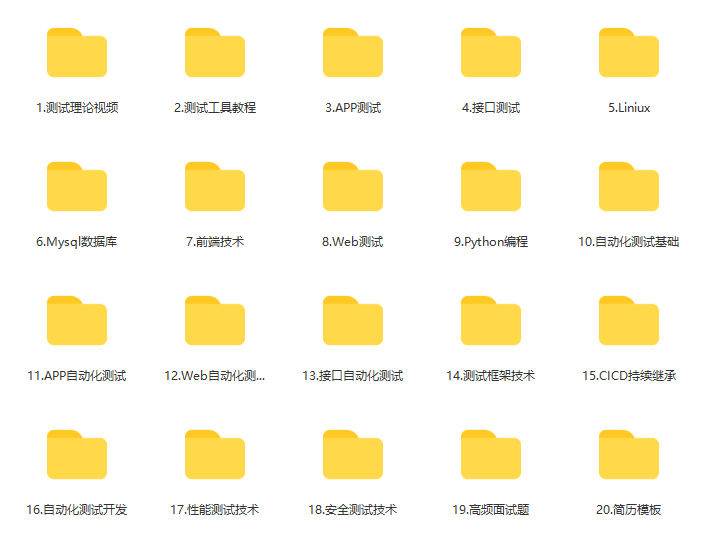
软件测试面试文档
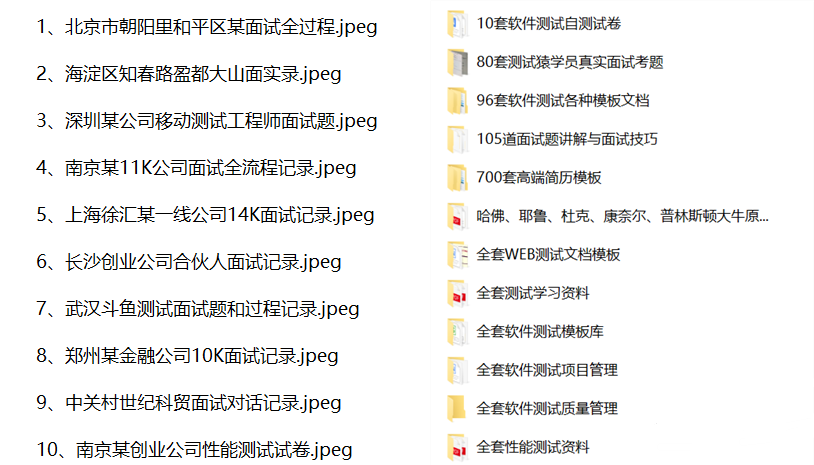
我们学习必然是为了找到高薪的工作,下面这些面试题是来自阿里、腾讯、字节等一线互联网大厂最新的面试资料,并且有字节大佬给出了权威的解答,刷完这一套面试资料相信大家都能找到满意的工作。
视频文档获取方式:
这份文档和视频资料,对于想从事【软件测试】的朋友来说应该是最全面最完整的备战仓库,这个仓库也陪伴我走过了最艰难的路程,希望也能帮助到你!以上均可以分享,点下方小卡片即可自行领取。

一站式 AI 云服务平台
更多推荐


 22
22 0
0- 0


 已为社区贡献31条内容

所有评论(0)