
第19天-Python自动化生成PPT图文教程(基于python-pptx)
slide = prs.slides.add_slide(prs.slide_layouts[0])# 标题幻灯片。slide = prs.slides.add_slide(prs.slide_layouts[6])# 空白布局。shape.fill.fore_color.rgb = RGBColor(173, 216, 230)# 浅蓝色。p.font.color.rgb = RGBColor(
·
环境准备
pip install python-pptx Pillow基础示例:批量插入图片
from pptx import Presentation
from pptx.util import Inches
import os

from PIL import Image

def create_image_slides():
    # 初始化演示文稿
    prs = Presentation()

    # 获取当前目录所有图片(支持多种格式)
    img_formats = ['.png']
    images = [f for f in os.listdir() if os.path.splitext(f)[1].lower() in img_formats]

    if not images:
        raise FileNotFoundError("未找到图片文件!")

    for img_file in images:
        # 使用标题+内容布局(第5个布局)
        slide_layout = prs.slide_layouts[5]
        slide = prs.slides.add_slide(slide_layout)

        # 设置图片位置和大小(自动适应幻灯片)
        slide_width = prs.slide_width
        slide_height = prs.slide_height
        img_path = os.path.abspath(img_file)

        # 自动计算图片尺寸(保持宽高比)
        with Image.open(img_file) as img:
            width, height = img.size
            ratio = min(slide_width/width, slide_height/height) * 0.8  # 80%缩放

        # 添加图片(居中显示)
        left = (slide_width - width*ratio) / 2
        top = (slide_height - height*ratio) / 2
        slide.shapes.add_picture(
            img_path,
            left,
            top,
            width=width*ratio,
            height=height*ratio
        )

        # 添加图片文件名作为标题
        title = slide.shapes.title
        title.text = os.path.splitext(img_file)[0]
        title.top = Inches(0.5)
        title.width = Inches(8)
        title.height = Inches(1)

    prs.save('自动生成报告.pptx')
    print(f"成功创建包含 {len(images)} 张幻灯片的演示文稿")

if __name__ == '__main__':
    create_image_slides()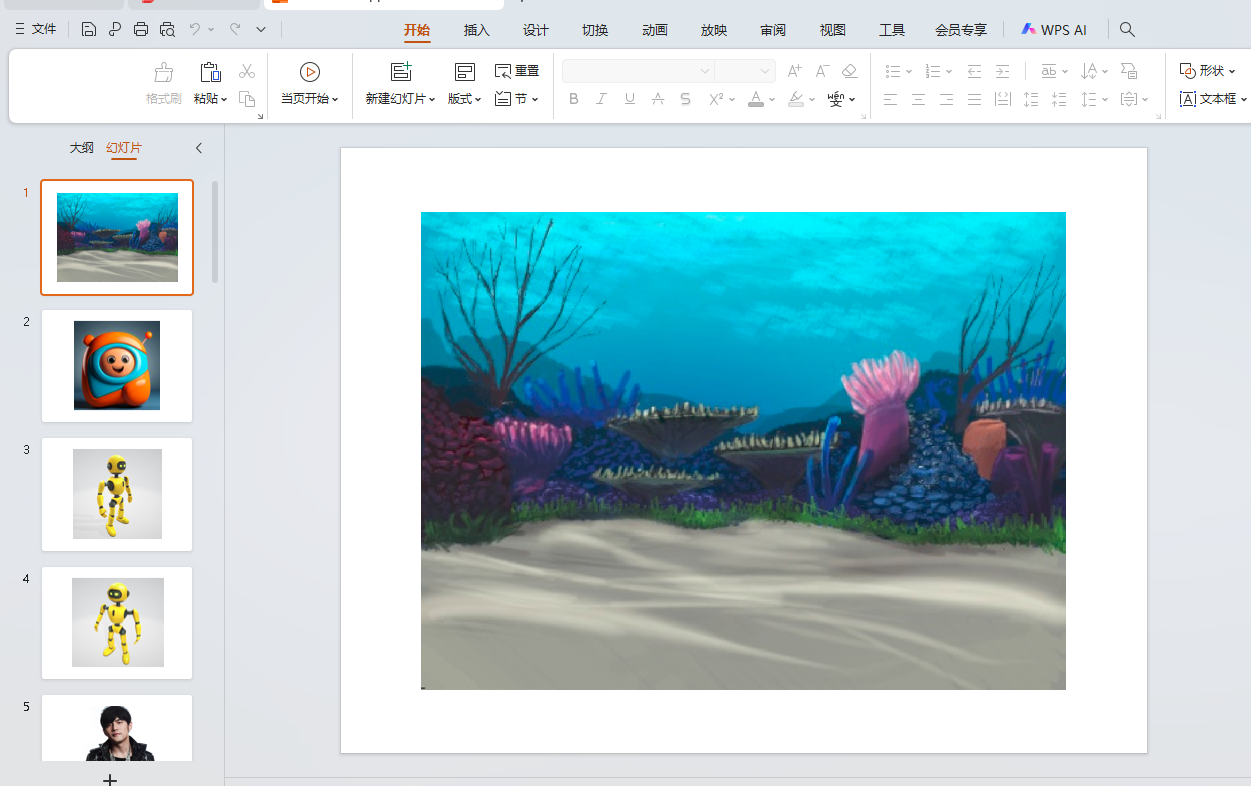
进阶功能示例
示例1:图文混排(左图右文)
def create_mixed_slide():
    prs = Presentation()

    # 使用两栏内容布局(第3个布局)
    slide = prs.slides.add_slide(prs.slide_layouts[3])

    # 添加图片到左侧占位符
    left_placeholder = slide.placeholders[1]
    pic = left_placeholder.insert_picture('demo.jpg')

    # 添加文本到右侧占位符
    right_placeholder = slide.placeholders[2]
    text_frame = right_placeholder.text_frame
    text_frame.text = "项目亮点:"
    p = text_frame.add_paragraph()
    p.text = "✓ 创新性技术方案\n✓ 高效执行团队\n✓ 市场前景广阔"
    p.level = 1

    prs.save('图文混排示例.pptx')
示例2:多图网格布局(3x2排列)
def create_grid_layout():
    prs = Presentation()
    slide = prs.slides.add_slide(prs.slide_layouts[6])  # 空白布局

    images = ['img1.jpg', 'img2.jpg', 'img3.jpg', 'img4.jpg']

    # 网格参数
    cols = 2
    rows = (len(images) + cols - 1) // cols
    img_width = Inches(4)
    img_height = Inches(3)
    margin = Inches(0.5)

    for i, img_file in enumerate(images):
        row = i // cols
        col = i % cols

        left = margin + col * (img_width + margin)
        top = margin + row * (img_height + margin)

        slide.shapes.add_picture(
            img_file,
            left,
            top,
            width=img_width,
            height=img_height
        )

    prs.save('网格布局示例.pptx')
示例3:添加页眉页脚
def add_header_footer():
    prs = Presentation()
    slide = prs.slides.add_slide(prs.slide_layouts[0])  # 标题幻灯片

    # 设置页脚(所有幻灯片生效)
    prs.slide_masters[0].footer.text = "机密文件 · 禁止外传"

    # 添加日期占位符
    date_placeholder = prs.slide_masters[0].placeholders[10]
    date_placeholder.text = "最后更新日期:"

    # 添加幻灯片编号
    num_placeholder = prs.slide_masters[0].placeholders[11]
    num_placeholder.text = "页码:"

    prs.save('页眉页脚示例.pptx')
样式调整技巧
1. 字体样式设置
from pptx.dml.color import RGBColor
from pptx.util import Pt

text_box = slide.shapes.add_textbox(Inches(1), Inches(1), Inches(4), Inches(2))
tf = text_box.text_frame

p = tf.add_paragraph()
p.text = "重要提示"
p.font.bold = True
p.font.size = Pt(24)
p.font.color.rgb = RGBColor(255, 0, 0)  # 红色
2. 形状装饰
from pptx.enum.shapes import MSO_SHAPE

# 添加圆形标注
shape = slide.shapes.add_shape(
    MSO_SHAPE.OVAL,
    left=Inches(2),
    top=Inches(2),
    width=Inches(3),
    height=Inches(2)
)
shape.fill.solid()
shape.fill.fore_color.rgb = RGBColor(173, 216, 230)  # 浅蓝色
shape.line.color.rgb = RGBColor(0, 0, 139)  # 深蓝色边框
实用功能扩展
批量添加水印
def add_watermark():
    prs = Presentation('template.pptx')
    watermark_text = "草稿版本"

    for slide in prs.slides:
        textbox = slide.shapes.add_textbox(
            left=prs.slide_width - Inches(2.5),
            top=prs.slide_height - Inches(0.5),
            width=Inches(2),
            height=Inches(0.5)
        tf = textbox.text_frame
        p = tf.add_paragraph()
        p.text = watermark_text
        p.font.color.rgb = RGBColor(150, 150, 150)  # 灰色
        p.font.size = Pt(12)
        p.font.italic = True

    prs.save('带水印报告.pptx')
动态生成图表幻灯片
from pptx.chart.data import CategoryChartData

def create_chart_slide():
    prs = Presentation()
    slide = prs.slides.add_slide(prs.slide_layouts[5])

    # 准备图表数据
    chart_data = CategoryChartData()
    chart_data.categories = ['Q1', 'Q2', 'Q3', 'Q4']
    chart_data.add_series('销售额', (12.5, 15.3, 18.9, 20.1))

    # 添加柱状图
    x, y, cx, cy = Inches(1), Inches(1.5), Inches(8), Inches(5)
    chart = slide.shapes.add_chart(
        XL_CHART_TYPE.COLUMN_CLUSTERED,
        x, y, cx, cy,
        chart_data
    ).chart

    prs.save('图表示例.pptx')
注意事项
-
单位转换:
-
1英寸 = 914400 EMU
-
使用
Inches()函数进行单位转换更直观
-
-
布局索引:
索引 布局类型 0 标题幻灯片 1 标题和内容 5 仅标题 6 空白 -
性能优化:
-
批量操作时使用
with语句管理资源 -
预先加载需要重复使用的图片
-
避免在循环中频繁保存PPT文件
-
-
版本兼容:
-
支持生成.pptx格式(Office 2007+)
-
如需兼容旧版,可使用
SaveAs方法转换格式
-

一站式 AI 云服务平台
更多推荐



 0
0 0
0- 0


 已为社区贡献3条内容

所有评论(0)