
Appium+Python+pytest自动化测试框架的实战
Basic目录下写的是一些公共的方法,Data目录下写的是测试数据,image存的是测试失败截图,Log日志文件,Page测试的定位元素,report测试报告,Test测试用例,pytest.ini是pytest启动配置文件,requirements.txt需要安装的py模块,run.py运行文件。APP启动的前置条件,一个是普通的app,一个是微信公众号,配置微信公众号自动化测试和一般的APP是
本文主要介绍了Appium+Python+pytest自动化测试框架的实战,文中通过示例代码介绍的非常详细,具有一定的参考价值,感兴趣的小伙伴们可以参考一下
先简单介绍一下目录,再贴一些代码,代码里有注释
Basic目录下写的是一些公共的方法,Data目录下写的是测试数据,image存的是测试失败截图,Log日志文件,Page测试的定位元素,report测试报告,Test测试用例,pytest.ini是pytest启动配置文件,requirements.txt需要安装的py模块,run.py运行文件

Basic/base.py
里面封装了 一些方法,元素的点击,输入,查找,还有一些自己需要的公共方法也封装在里面,如果你们有别的需要可以自己封装调用
-
# coding=utf-8 -
import random -
import allure -
import pymysql -
import time -
from selenium.webdriver.common.by import By -
from selenium.webdriver.support.ui import WebDriverWait -
from Basic import Log -
import os -
log = Log.MyLog() -
class Base(object): -
def __init__(self, driver): -
self.driver = driver -
# 自定义一个元素查找方法 -
def find_element(self, feature,timeout=5, poll=1.0): -
# feature = By.XPATH,"//*[@text='显示']" -
""" -
依据用户传入的元素信息特征,然后返回当前用户想要查找元素 -
:param feature: 元组类型,包含用户希望的查找方式,及该方式对应的值 -
:return: 返回当前用户查找的元素 -
""" -
by = feature[0] -
value = feature[1] -
wait = WebDriverWait(self.driver, timeout, poll) -
if by == By.XPATH: -
# print( "说明了用户想要使用 xpath 路径的方式来获取元素" ) -
value = self.make_xpath(value) -
return wait.until(lambda x: x.find_element(by,value)) -
def find_elements(self, feature): -
wait = WebDriverWait(self.driver, 5, 1) -
return wait.until(lambda x: x.find_elements(feature[0], feature[1])) -
def click_element(self, loc): -
''' -
封装点击操作函数 -
''' -
self.find_element(loc).click() -
def input_text(self, loc, text): -
''' -
封装输入操作函数 -
''' -
self.fm = self.find_element(loc) -
self.fm.clear() # 需要先清空输入框,防止有默认内容 -
self.fm.send_keys(text) -
# 自定义了一个可以自动帮我们拼接 xpath 路径的工具函数 -
def make_xpath(self, feature): -
start_path = "//*[" -
end_path = "]" -
res_path = "" -
if isinstance(feature, str): -
# 如果是字符串 我们不能直接上来就拆我们可以判断一下它是否是默认正确的 xpath 写法 -
if feature.startswith("//*["): -
return feature -
# 如果用户输入的是字符串,那么我们就拆成列表再次进行判断 -
split_list = feature.split(",") -
if len(split_list) == 2: -
# //*[contains(@text,'设')] -
res_path = "%scontains(@%s,'%s')%s" % (start_path, split_list[0], split_list[1], end_path) -
elif len(split_list) == 3: -
# //[@text='设置'] -
res_path = "%s@%s='%s'%s" % (start_path, split_list[0], split_list[1], end_path) -
else: -
print("请按规则使用") -
elif isinstance(feature, tuple): -
for item in feature: -
# 默认用户在元组当中定义的数据都是字符串 -
split_list2 = item.split(',') -
if len(split_list2) == 2: -
res_path += "contains(@%s,'%s') and " % (split_list2[0], split_list2[1]) -
elif len(split_list2) == 3: -
res_path += "@%s='%s' and " % (split_list2[0], split_list2[1]) -
else: -
print("请按规则使用") -
andIndex = res_path.rfind(" and") -
res_path = res_path[0:andIndex] -
res_path = start_path + res_path + end_path -
else: -
print("请按规则使用") -
return res_path -
def assert_ele_in(self, text, element): -
''' -
封装断言操作函数 -
''' -
try: -
assert text in self.find_element(element).text -
assert 0 -
except Exception: -
assert 1 -
def get_assert_text(self, element): -
ele = self.find_element(element, timeout=5, poll=0.1) -
return ele.text -
# 自定义一个获取 toast内容的方法 -
def get_toast_content(self, message): -
tmp_feature = By.XPATH, "//*[contains(@text,'%s')]" % message -
ele = self.find_element(tmp_feature) -
return ele.text -
# 自定义一个工具函数,可以接收用户传递的部分 toast 信息,然后返回一个布尔值,来告诉 -
# 用户,目标 toast 到底是否存在 -
def is_toast_exist(self, mes): -
# 拿着用户传过来的 message 去判断一下包含该内容的 toast 到底是否存在。 -
try: -
self.get_toast_content(mes) -
return True -
except Exception: -
# 如果目标 toast 不存在那么就说明我们的实际结果和预期结果不一样 -
# 因此我们想要的是断言失败 -
return False -
def get_mysql(self, table, value): -
'''连接数据库''' -
# 打开数据库连接 -
db = pymysql.connect(host='', port=, db=, user='', passwd='', charset='utf8') -
# 使用 cursor() 方法创建一个游标对象 cursor -
cursor = db.cursor() -
try: -
# 使用 execute() 方法执行 SQL 查询 -
cursor.execute(value) -
db.commit() -
except Exception as e: -
print(e) -
db.rollback() -
# 使用 fetchone() 方法获取单条数据. -
data = cursor.fetchone() -
# 关闭数据库连接 -
db.close() -
return data -
def get_xpath(self, value): -
'''封装获取xpath方法''' -
text = By.XPATH, '//*[@text="%s"]' % value -
return text -
# 自定义一个获取当前设备尺寸的功能 -
def get_device_size(self): -
x = self.driver.get_window_size()["width"] -
y = self.driver.get_window_size()["height"] -
return x, y -
# 自定义一个功能,可以实现向左滑屏操作。 -
def swipe_left(self): -
start_x = self.get_device_size()[0] * 0.9 -
start_y = self.get_device_size()[1] * 0.5 -
end_x = self.get_device_size()[0] * 0.4 -
end_y = self.get_device_size()[1] * 0.5 -
self.driver.swipe(start_x, start_y, end_x, end_y) -
# 自定义一个功能,可以实现向上滑屏操作。 -
def swipe_up(self): -
start_x = self.get_device_size()[0] * 1/2 -
start_y = self.get_device_size()[1] * 1/2 -
end_x = self.get_device_size()[0] * 1/2 -
end_y = self.get_device_size()[1] * 1/7 -
self.driver.swipe(start_x, start_y, end_x, end_y, 500) -
# 切换到微信 -
def switch_weixxin(self): -
self.driver.start_activity("com.tencent.mm", ".ui.LauncherUI") -
# 切换到医生端 -
def switch_doctor(self): -
self.driver.start_activity("com.rjjk_doctor", ".MainActivity") -
# 切换到销售端 -
def switch_sale(self): -
self.driver.start_activity("com.rjjk_sales", ".MainActivity") -
def switch_webview(self): -
# 切换到webview -
print(self.driver.contexts) -
time.sleep(5) -
self.driver.switch_to.context("WEBVIEW_com.tencent.mm:tools") -
print("切换成功") -
time.sleep(3) -
# 自定义根据坐标定位 -
def taptest(self, a, b): -
# 设定系数,控件在当前手机的坐标位置除以当前手机的最大坐标就是相对的系数了 -
# 获取当前手机屏幕大小X,Y -
X = self.driver.get_window_size()['width'] -
Y = self.driver.get_window_size()['height'] -
# 屏幕坐标乘以系数即为用户要点击位置的具体坐标 -
self.driver.tap([(a * X, b * Y)]) -
# 自定义截图函数 -
def take_screenShot(self): -
''' -
测试失败截图,并把截图展示到allure报告中 -
''' -
tm = time.strftime("%Y-%m-%d-%H-%M-%S", time.localtime(time.time())) -
self.driver.get_screenshot_as_file( -
os.getcwd() + os.sep + "image/%s.png" % tm) -
allure.attach.file(os.getcwd() + os.sep + "image/%s.png" % -
tm, attachment_type=allure.attachment_type.PNG) -
# 自定义随机生成11位手机号 -
def create_phone(self): -
# 第二位数字 -
second = [3, 4, 5, 7, 8][random.randint(0, 4)] -
# 第三位数字 -
third = { -
3: random.randint(0, 9), -
4: [5, 7, 9][random.randint(0, 2)], -
5: [i for i in range(10) if i != 4][random.randint(0, 8)], -
7: [i for i in range(10) if i not in [4, 9]][random.randint(0, 7)], -
8: random.randint(0, 9), -
}[second] -
# 最后八位数字 -
suffix = random.randint(9999999, 100000000) -
# 拼接手机号 -
return "1{}{}{}".format(second, third, suffix)
Basic/deiver.py
APP启动的前置条件,一个是普通的app,一个是微信公众号,配置微信公众号自动化测试和一般的APP是有点区别的,微信需要切换webview才能定位到公众号
-
from appium import webdriver -
def init_driver(): -
desired_caps = {} -
# 手机 系统信息 -
desired_caps['platformName'] = 'Android' -
desired_caps['platformVersion'] = '9' -
# 设备号 -
desired_caps['deviceName'] = 'emulator-5554' -
# 包名 -
desired_caps['appPackage'] = '' -
# 启动名 -
desired_caps['appActivity'] = '' -
desired_caps['automationName'] = 'Uiautomator2' -
# 允许输入中文 -
desired_caps['unicodeKeyboard'] = True -
desired_caps['resetKeyboard'] = True -
desired_caps['autoGrantPermissions'] = True -
desired_caps['noReset'] = False -
# 手机驱动对象 -
driver = webdriver.Remote("http://127.0.0.1:4723/wd/hub", desired_caps) -
return driver -
def driver_weixin(): -
desired_caps = {} -
# 手机 系统信息 -
desired_caps['platformName'] = 'Android' -
desired_caps['platformVersion'] = '9' -
# 设备号 -
desired_caps['deviceName'] = '' -
# 包名 -
desired_caps['appPackage'] = 'com.tencent.mm' -
# 启动名 -
desired_caps['appActivity'] = '.ui.LauncherUI' -
# desired_caps['automationName'] = 'Uiautomator2' -
# 允许输入中文 -
desired_caps['unicodeKeyboard'] = True -
desired_caps['resetKeyboard'] = True -
desired_caps['noReset'] = True -
# desired_caps["newCommandTimeout"] = 30 -
# desired_caps['fullReset'] = 'false' -
# desired_caps['newCommandTimeout'] = 10 -
# desired_caps['recreateChromeDriverSessions'] = True -
desired_caps['chromeOptions'] = {'androidProcess': 'com.tencent.mm:tools'} -
# 手机驱动对象 -
driver = webdriver.Remote("http://127.0.0.1:4723/wd/hub", desired_caps) -
return driver
Basic/get_data.py
这是获取测试数据的方法
-
import os -
import yaml -
def getData(funcname, file): -
PATH = os.getcwd() + os.sep -
with open(PATH + 'Data/' + file + '.yaml', 'r', encoding="utf8") as f: -
data = yaml.load(f, Loader=yaml.FullLoader) -
# 1 先将我们获取到的所有数据都存放在一个变量当中 -
tmpdata = data[funcname] -
# 2 所以此时我们需要使用循环走进它的内心。 -
res_arr = list() -
for value in tmpdata.values(): -
tmp_arr = list() -
for j in value.values(): -
tmp_arr.append(j) -
res_arr.append(tmp_arr) -
return res_arr
Basic/Log.py
日志文件,不多介绍
-
# -*- coding: utf-8 -*- -
""" -
封装log方法 -
""" -
import logging -
import os -
import time -
LEVELS = { -
'debug': logging.DEBUG, -
'info': logging.INFO, -
'warning': logging.WARNING, -
'error': logging.ERROR, -
'critical': logging.CRITICAL -
} -
logger = logging.getLogger() -
level = 'default' -
def create_file(filename): -
path = filename[0:filename.rfind('/')] -
if not os.path.isdir(path): -
os.makedirs(path) -
if not os.path.isfile(filename): -
fd = open(filename, mode='w', encoding='utf-8') -
fd.close() -
else: -
pass -
def set_handler(levels): -
if levels == 'error': -
logger.addHandler(MyLog.err_handler) -
logger.addHandler(MyLog.handler) -
def remove_handler(levels): -
if levels == 'error': -
logger.removeHandler(MyLog.err_handler) -
logger.removeHandler(MyLog.handler) -
def get_current_time(): -
return time.strftime(MyLog.date, time.localtime(time.time())) -
class MyLog: -
path = os.path.dirname(os.path.dirname(os.path.abspath(__file__))) -
log_file = path+'/Log/log.log' -
err_file = path+'/Log/err.log' -
logger.setLevel(LEVELS.get(level, logging.NOTSET)) -
create_file(log_file) -
create_file(err_file) -
date = '%Y-%m-%d %H:%M:%S' -
handler = logging.FileHandler(log_file, encoding='utf-8') -
err_handler = logging.FileHandler(err_file, encoding='utf-8') -
@staticmethod -
def debug(log_meg): -
set_handler('debug') -
logger.debug("[DEBUG " + get_current_time() + "]" + log_meg) -
remove_handler('debug') -
@staticmethod -
def info(log_meg): -
set_handler('info') -
logger.info("[INFO " + get_current_time() + "]" + log_meg) -
remove_handler('info') -
@staticmethod -
def warning(log_meg): -
set_handler('warning') -
logger.warning("[WARNING " + get_current_time() + "]" + log_meg) -
remove_handler('warning') -
@staticmethod -
def error(log_meg): -
set_handler('error') -
logger.error("[ERROR " + get_current_time() + "]" + log_meg) -
remove_handler('error') -
@staticmethod -
def critical(log_meg): -
set_handler('critical') -
logger.error("[CRITICAL " + get_current_time() + "]" + log_meg) -
remove_handler('critical') -
if __name__ == "__main__": -
MyLog.debug("This is debug message") -
MyLog.info("This is info message") -
MyLog.warning("This is warning message") -
MyLog.error("This is error") -
MyLog.critical("This is critical message")
Basic/Shell.py
执行shell语句方法
-
# -*- coding: utf-8 -*- -
# @Time : 2018/8/1 下午2:54 -
# @Author : WangJuan -
# @File : Shell.py -
""" -
封装执行shell语句方法 -
""" -
import subprocess -
class Shell: -
@staticmethod -
def invoke(cmd): -
output, errors = subprocess.Popen(cmd, shell=True, stdout=subprocess.PIPE, stderr=subprocess.PIPE).communicate() -
o = output.decode("utf-8") -
return o
Page/page.py
-
class Page: -
def __init__(self, driver): -
self.driver = driver -
@property -
def initloginpage(self): -
return Login_Page(self.driver)
Test/test_login.py
登陆的测试用,我贴一条使用数据文件的用例
-
class Test_login: -
@pytest.mark.parametrize("args", getData("test_login_error", 'data_error_login')) -
def test_error_login(self, args): -
"""错误登陆""" -
self.page.initloginpage.input_user(args[0]) -
self.page.initloginpage.input_pwd(args[1]) -
self.page.initloginpage.click_login() -
toast_status = self.page.initloginpage.is_toast_exist(args[2]) -
if toast_status == False: -
self.page.initpatientpage.take_screenShot() -
assert False
pytest.ini
pytest配置文件,注释的是启动失败重试3次,因为appium会因为一些不可控的原因失败,所有正式运行脚本的时候需要加上这个
-
[pytest] -
;addopts = -s --html=report/report.html --reruns 3 -
addopts = -s --html=report/report.html -
testpaths = ./Test -
python_files = test_*.py -
python_classes = Test* -
python_functions = test_add_prescription_list -
requirements.txt -
框架中需要的患教,直接pip install -r requirements.txt 安装就可以了,可能会失败,多试几次 -
```python -
adbutils==0.3.4 -
allure-pytest==2.7.0 -
allure-python-commons==2.7.0 -
Appium-Python-Client==0.46 -
atomicwrites==1.3.0 -
attrs==19.1.0 -
certifi==2019.6.16 -
chardet==3.0.4 -
colorama==0.4.1 -
coverage==4.5.3 -
decorator==4.4.0 -
deprecation==2.0.6 -
docopt==0.6.2 -
enum34==1.1.6 -
facebook-wda==0.3.4 -
fire==0.1.3 -
humanize==0.5.1 -
idna==2.8 -
importlib-metadata==0.18 -
logzero==1.5.0 -
lxml==4.3.4 -
more-itertools==7.1.0 -
namedlist==1.7 -
packaging==19.0 -
Pillow==6.1.0 -
pluggy==0.12.0 -
progress==1.5 -
py==1.8.0 -
PyMySQL==0.9.3 -
pyparsing==2.4.0 -
pytest==5.0.0 -
pytest-cov==2.7.1 -
pytest-html==1.21.1 -
pytest-metadata==1.8.0 -
pytest-repeat==0.8.0 -
pytest-rerunfailures==7.0 -
PyYAML==5.1.1 -
requests==2.22.0 -
retry==0.9.2 -
selenium==3.141.0 -
six==1.12.0 -
tornado==6.0.3 -
uiautomator2==0.3.3 -
urllib3==1.25.3 -
wcwidth==0.1.7 -
weditor==0.2.3 -
whichcraft==0.6.0 -
zipp==0.5.1
到此这篇关于Appium+Python+pytest自动化测试框架的实战的文章就介绍到这了
总结:
感谢每一个认真阅读我文章的人!!!
作为一位过来人也是希望大家少走一些弯路,如果你不想再体验一次学习时找不到资料,没人解答问题,坚持几天便放弃的感受的话,在这里我给大家分享一些自动化测试的学习资源,希望能给你前进的路上带来帮助。

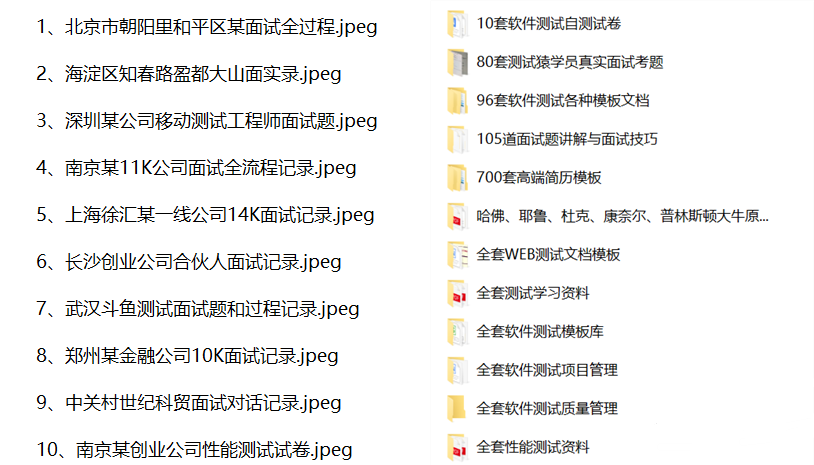
软件测试面试文档
我们学习必然是为了找到高薪的工作,下面这些面试题是来自阿里、腾讯、字节等一线互联网大厂最新的面试资料,并且有字节大佬给出了权威的解答,刷完这一套面试资料相信大家都能找到满意的工作。
视频文档获取方式:
这份文档和视频资料,对于想从事【软件测试】的朋友来说应该是最全面最完整的备战仓库,这个仓库也陪伴我走过了最艰难的路程,希望也能帮助到你!以上均可以分享,点下方小卡片即可自行领取。

一站式 AI 云服务平台
更多推荐


 19
19 0
0- 0


 已为社区贡献31条内容

所有评论(0)