
《基于ArkTS的跨设备拖拽流转功能实现》:HarmonyOS 空间交互与剪贴板接续深度解析

文章目录
前言
在传统的移动操作系统中,设备之间的信息传递往往是一场漫长而割裂的旅途:用户需要选中文字,点击“复制”,退回主屏幕,打开微信或备忘录,粘贴并发送给自己,然后在另一台设备上重复繁琐的接收过程。这种基于“应用内沙盒”的交互模式,严重阻碍了生产力的爆发。
HarmonyOS 彻底打破了这一物理疆界。其引以为傲的跨设备拖拽(Cross-Device Drag & Drop)技术,将两块独立的屏幕在逻辑上拼接成了一块无限大的画布。当用户长按平板上的图片并向右拖拽,手势竟然能跨越空气,直接落入另一台电脑的文档中。
要实现这种极具科幻感的交互,底层需要协同三大超级系统服务:手势与拖拽事件总线(DragEvent/DragController)负责捕捉物理动作与视觉阴影;全局分布式剪贴板(Pasteboard)负责数据的跨端时空穿梭;分布式任务调度中心(ContinuationManager)负责目标应用的保活与唤醒。
本文将基于一段高度浓缩的双机跨端拖拽模拟源码,使用 ArkTS 语言,为您逐行解构这场跨越设备边界的“魔法交互”。我们将深入探讨 MIME 类型注册、拖拽状态机的流转、以及跨端剪贴板的安全读取机制。
一、 跨端架构初始化:三位一体的系统级服务注册
要让应用具备跨端接力能力,首先必须向系统底层声明自身的“超能力”。
@Entry
@Component
struct Index {
  // ... (数据源与状态变量定义)

  private sessionId: string = 'DRAG_FLOW_2026' // 分布式任务流转专属 ID
  private myDeviceA: string = 'deviceA-0x0001'
  private myDeviceB: string = 'deviceB-0x0002'

  aboutToAppear(): void {
    // 1. 注册拖拽总线监听:允许应用响应物理层面的拖拽动作
    this.appendLog('A', '[dragController] registerDragEventListener(ctx)', '#26A69A')

    // 2. 申请分布式剪贴板权限:获取跨物理设备复制/粘贴数据的能力
    this.appendLog('A', '[pasteboard] getSystemPasteboard(ctx)', '#5C6BC0')

    // 3. 注册流转接续能力:告诉系统,“我”这个应用可以参与 sessionId 为 DRAG_FLOW_2026 的接力任务
    this.appendLog('A', '[continuationManager] registerContinueAbility(' + this.sessionId + ')', '#FF9800')

    // ... B端同样注册
  }
}
系统级架构原理解析:
continuationManager(任务流转中心):这是鸿蒙分布式底座的大脑。只有调用registerContinueAbility注册过的应用,才能在多设备协同任务中心里被识别。sessionId相当于是一条专线频道,保证了拖拽的数据不会跑错应用。- 分布式安全性:在真实的生产环境中,获取系统剪贴板(尤其是分布式剪贴板)是高危操作,必须在
module.json5中声明ohos.permission.READ_PASTEBOARD,并在运行时进行严格的权限拦截。
二、 起航时刻 (Drag Start):数据打包与视觉阴影生成
当用户的手指长按某个卡片并开始滑动,一场跨越设备的数据搬运正式起航。在源端(如设备 A),我们必须处理两件事:告诉系统“拖的是什么样子”(视觉),以及“拖的是什么数据”(内核)。
  private handleDragStart(item: DragItem, from: string): void {
    this.currentId = item.id // 锁定当前操作对象的 ID

    // 1. 声明数据类型与 MIME Type
    this.appendLog(from, '[DragEvent] ACTION_DRAG_START · ' +
      (item.type === 'text' ? 'MIME text/plain' : 'MIME image/*') + ' key=' + item.id, '#5C6BC0')

    // 2. 渲染物理反馈:拖拽视觉阴影 (Drag Shadow)
    this.appendLog(from, '[dragController] setDragShadow(bounds, pixelMap)', '#888')

    // 3. 数据装载入舱:写入分布式剪贴板
    this.appendLog(from, '[pasteboard] setData("' + item.id + '", "' + item!.content.substring(0, 16) + '...")', '#FF9800')
  }
底层机制深度解析:
- MIME 协议定轨:拖拽引擎无法理解什么是“商品卡片”,它只认标准的 MIME 格式。如果你拖拽的是文本,必须声明为
text/plain;如果是图片,必须是image/jpeg。如果需要拖拽业务自定义的复杂 JSON 对象,应使用自定义协议头(如application/vnd.my_company.drag_item)。 setDragShadow(视觉欺骗):当手指移动时,跟着手指跑的并不是原本的 DOM 组件,而是一张通过pixelMap实时生成的组件截图(Shadow)。为了增加交互高级感,开发者通常会将其设置为半透明,并在外围加上浮雕阴影。pasteboard.setData:极其关键的一步。此时数据已经离开了当前应用的内存空间,被写入了操作系统的底层公共内存(剪贴板)。只要设备连在同一个软总线下,这块内存对另一台设备瞬间可见。
三、 跨越边界 (Drag Enter/Leave):目标端的状态机感应
当这块带有拖拽阴影的“云数据”离开设备 A 的屏幕边缘,并凭借鸿蒙软总线的空间推演算法,出现在设备 B 的屏幕上时,目标设备 B 开始响应。
  // 拖拽点进入设备容器上方
  private handleDragEnter(targetSide: string): void {
    if (targetSide === 'A') { this.dragOverA = true }
    if (targetSide === 'B') { this.dragOverB = true }
    this.appendLog(targetSide, '[DragEvent] ACTION_DRAG_ENTER · 进入跨端区域', '#26A69A')
  }

  // 拖拽点滑出容器边界
  private handleDragLeave(targetSide: string): void {
    if (targetSide === 'A') { this.dragOverA = false }
    if (targetSide === 'B') { this.dragOverB = false }
    this.appendLog(targetSide, '[DragEvent] ACTION_DRAG_LEAVE', '#888')
  }
在 UI 层,这些生命周期函数极其重要。我们会在 @Builder DeviceCard 组件上绑定 .gesture(TapGesture().onAction(...))(在真实开发中绑定在 .onDragEnter 属性上)。
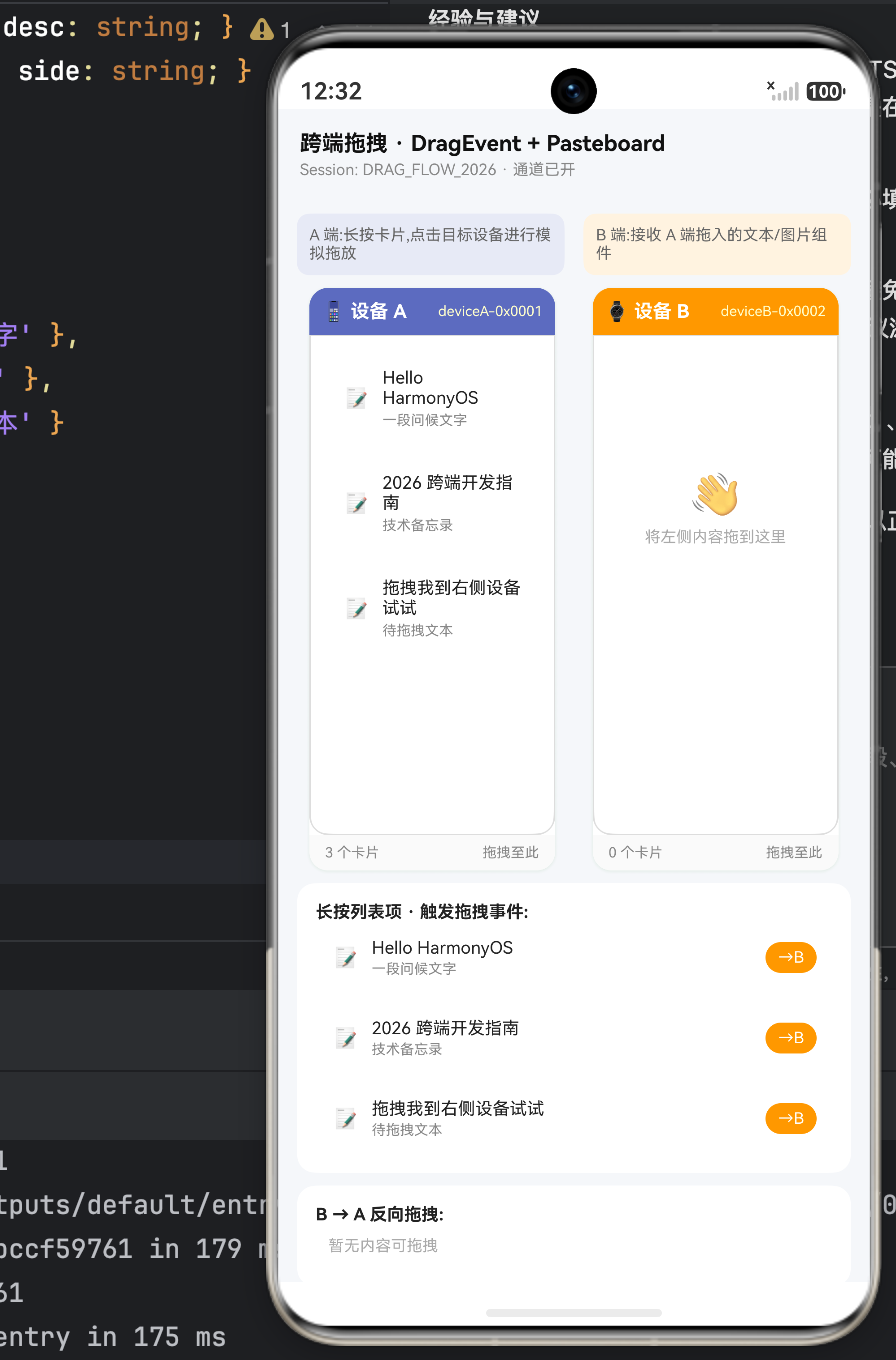
当触发 Enter 且 dragOver = true 时,接收区的 UI 必须发生剧烈的反馈(如边框变为绿色虚线、背景变亮),给用户一个强烈的心理暗示:“这里可以松手,数据能接住”。
四、 完美落地 (Drop):时空接收与 UI 撕裂重组
用户在目标设备 B 上松开手指(触发 Drop),分布式系统开始最复杂的接收与重组流程。
  private handleDrop(targetSide: string): void {
    // 1. 恢复接受区的视觉状态
    if (targetSide === 'A') { this.dragOverA = false }
    if (targetSide === 'B') { this.dragOverB = false }

    // 前置防抖与通道检查
    if (!this.transferEnabled) { ... return }
    let item = /*... 查找当前被拖拽的元素...*/ ;
    if (!item) { return }

    const fromSide: string = targetSide === 'A' ? 'B' : 'A'
    const self: Index = this

    // 2. 目标端接收指令,跨设备协同引擎介入
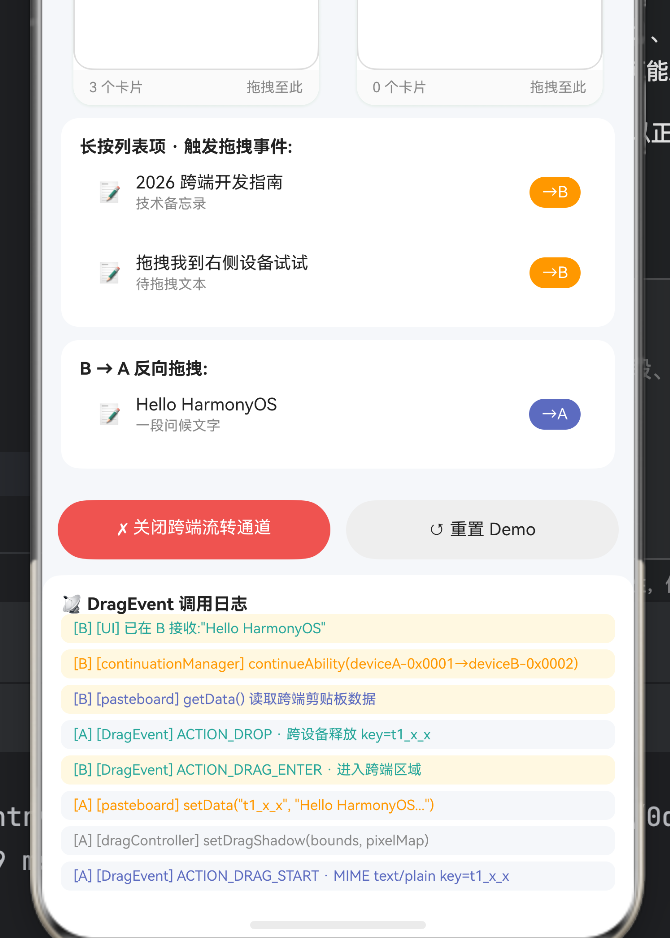
    this.appendLog(fromSide, '[DragEvent] ACTION_DROP · 跨设备释放 key=' + item!.id, '#26A69A')

    // 3. 核心:从分布式剪贴板反向读取数据
    this.appendLog(targetSide, '[pasteboard] getData() 读取跨端剪贴板数据', '#5C6BC0')

    // 4. 唤醒机制:如果目标应用未启动,由 ContinuationManager 进行拉起
    this.appendLog(targetSide, '[continuationManager] continueAbility(' + self.myDeviceA + '→' + self.myDeviceB + ')', '#FF9800')
    const targetItem = item!

    // 5. 模拟分布式网络传输与反序列化延迟 (550ms)
    setTimeout(() => {
      // --- 逻辑 A:彻底从源设备的数据源中剔除该元素 ---
      if (fromSide === 'A') {
        const newA: DragItem[] = []
        for (let k: number = 0; k < self.itemsA.length; k++) {
          if (self.itemsA[k].id !== targetItem.id) { newA.push(self.itemsA[k]) }
        }
        self.itemsA = newA
      } else { /* ... 同理 B */ }

      // --- 逻辑 B:在目标设备的数据源中插入新生成的元素 ---
      const newItem: DragItem = { id: targetItem.id + '_x', type: targetItem.type, content: targetItem.content, desc: targetItem.desc }
      if (targetSide === 'A') {
        self.itemsA.unshift(newItem)
      } else {
        self.itemsB.unshift(newItem)
      }

      this.appendLog(targetSide, '[UI] 已在 ' + targetSide + ' 接收:"' + targetItem.content.substring(0, 18) + '"', '#26A69A')
      self.currentId = '' // 解除拖拽锁定
    }, 550)
  }
数据流转逻辑闭环拆解:
- 非复制,而是移动(Move Semantic):跨端拖拽默认是“移动(Move)”语义,而非“复制(Copy)”。这意味着我们不仅要在 B 侧的 UI 列表里插入数据,还必须精确地从 A 侧的数组中抹去原有的对象,造成一种物理实体的绝对转移错觉。
- 数据洗脱与重建:注意在生成
newItem时,我们给 id 添加了后缀(targetItem.id + '_x')。在复杂的列表中,如果保留绝对相同的 id,极有可能在分布式状态机中引发渲染引擎(Diff)混乱或 Reactivity 追踪失败,重建一个新的 id 是最安全的做法。
完整代码
interface DragItem { id: string; type: 'text' | 'image'; content: string; desc: string; }
interface LogItem { id: number; time: string; text: string; color: string; side: string; }

@Entry
@Component
struct Index {
  @State itemsA: DragItem[] = [
    { id: 't1', type: 'text', content: 'Hello HarmonyOS', desc: '一段问候文字' },
    { id: 't2', type: 'text', content: '2026 跨端开发指南', desc: '技术备忘录' },
    { id: 't3', type: 'text', content: '拖拽我到右侧设备试试', desc: '待拖拽文本' }
  ]
  @State itemsB: DragItem[] = []
  @State logs: LogItem[] = []
  @State logSeq: number = 0
  @State dragOverA: boolean = false
  @State dragOverB: boolean = false
  @State currentId: string = ''
  @State transferEnabled: boolean = true

  private sessionId: string = 'DRAG_FLOW_2026'
  private myDeviceA: string = 'deviceA-0x0001'
  private myDeviceB: string = 'deviceB-0x0002'

  aboutToAppear(): void {
    this.appendLog('A', '[dragController] registerDragEventListener(ctx)', '#26A69A')
    this.appendLog('B', '[dragController] registerDragEventListener(ctx)', '#26A69A')
    this.appendLog('A', '[pasteboard] getSystemPasteboard(ctx)', '#5C6BC0')
    this.appendLog('B', '[pasteboard] getSystemPasteboard(ctx)', '#5C6BC0')
    this.appendLog('A', '[continuationManager] registerContinueAbility(' + this.sessionId + ')', '#FF9800')
    this.appendLog('B', '[continuationManager] registerContinueAbility(' + this.sessionId + ')', '#FF9800')
  }

  private appendLog(side: string, text: string, color: string): void {
    this.logSeq++
    const d: Date = new Date()
    const hh: string = d.getHours() < 10 ? '0' + d.getHours() : d.getHours().toString()
    const mm: string = d.getMinutes() < 10 ? '0' + d.getMinutes() : d.getMinutes().toString()
    const ss: string = d.getSeconds() < 10 ? '0' + d.getSeconds() : d.getSeconds().toString()
    this.logs.unshift({ id: this.logSeq, time: hh + ':' + mm + ':' + ss, text: '[' + side + '] ' + text, color: color, side: side })
    if (this.logs.length > 28) { this.logs.pop() }
  }

  private handleDragStart(item: DragItem, from: string): void {
    this.currentId = item.id
    this.appendLog(from, '[DragEvent] ACTION_DRAG_START · ' +
      (item.type === 'text' ? 'MIME text/plain' : 'MIME image/*') + ' key=' + item.id, '#5C6BC0')
    this.appendLog(from, '[dragController] setDragShadow(bounds, pixelMap)', '#888')
    this.appendLog(from, '[pasteboard] setData("' + item.id + '", "' + item!.content.substring(0, 16) + '...")', '#FF9800')
  }

  private handleDragEnter(targetSide: string): void {
    if (targetSide === 'A') { this.dragOverA = true }
    if (targetSide === 'B') { this.dragOverB = true }
    this.appendLog(targetSide, '[DragEvent] ACTION_DRAG_ENTER · 进入跨端区域', '#26A69A')
  }

  private handleDragLeave(targetSide: string): void {
    if (targetSide === 'A') { this.dragOverA = false }
    if (targetSide === 'B') { this.dragOverB = false }
    this.appendLog(targetSide, '[DragEvent] ACTION_DRAG_LEAVE', '#888')
  }

  private handleDrop(targetSide: string): void {
    if (targetSide === 'A') { this.dragOverA = false }
    if (targetSide === 'B') { this.dragOverB = false }

    if (!this.transferEnabled) {
      this.appendLog(targetSide, '[continuationManager] 跨端通道已关闭,拖拽失败', '#EF5350')
      return
    }

    let item: DragItem | null = null
    for (let i: number = 0; i < this.itemsA.length; i++) {
      if (this.itemsA[i].id === this.currentId) { item = this.itemsA[i] }
    }
    if (!item) {
      for (let j: number = 0; j < this.itemsB.length; j++) {
        if (this.itemsB[j].id === this.currentId) { item = this.itemsB[j] }
      }
    }
    if (!item) { return }

    const fromSide: string = targetSide === 'A' ? 'B' : 'A'
    const self: Index = this
    this.appendLog(fromSide, '[DragEvent] ACTION_DROP · 跨设备释放 key=' + item!.id, '#26A69A')
    this.appendLog(targetSide, '[pasteboard] getData() 读取跨端剪贴板数据', '#5C6BC0')
    this.appendLog(targetSide, '[continuationManager] continueAbility(' + self.myDeviceA + '→' + self.myDeviceB + ')', '#FF9800')
    const targetItem = item!

    setTimeout(() => {
      // 从源端移除
      if (fromSide === 'A') {
        const newA: DragItem[] = []
        for (let k: number = 0; k < self.itemsA.length; k++) {
          if (self.itemsA[k].id !== targetItem.id) { newA.push(self.itemsA[k]) }
        }
        self.itemsA = newA
      } else {
        const newB: DragItem[] = []
        for (let k: number = 0; k < self.itemsB.length; k++) {
          if (self.itemsB[k].id !== targetItem.id) { newB.push(self.itemsB[k]) }
        }
        self.itemsB = newB
      }

      // 添加到目标端
      const newItem: DragItem = { id: targetItem.id + '_x', type: targetItem.type, content: targetItem.content, desc: targetItem.desc }
      if (targetSide === 'A') {
        self.itemsA.unshift(newItem)
      } else {
        self.itemsB.unshift(newItem)
      }
      self.appendLog(targetSide, '[UI] 已在 ' + targetSide + ' 接收:"' + targetItem.content.substring(0, 18) + '"', '#26A69A')
      self.currentId = ''
    }, 550)
  }

  private toggleTransfer(): void {
    this.transferEnabled = !this.transferEnabled
    if (this.transferEnabled) {
      this.appendLog('A', '[continuationManager] 跨端通道已开启', '#26A69A')
      this.appendLog('B', '[continuationManager] 跨端通道已开启', '#26A69A')
    } else {
      this.appendLog('A', '[continuationManager] 跨端通道已关闭', '#EF5350')
      this.appendLog('B', '[continuationManager] 跨端通道已关闭', '#EF5350')
    }
  }

  private resetDemo(): void {
    this.itemsA = [
      { id: 't1', type: 'text', content: 'Hello HarmonyOS', desc: '一段问候文字' },
      { id: 't2', type: 'text', content: '2026 跨端开发指南', desc: '技术备忘录' },
      { id: 't3', type: 'text', content: '拖拽我到右侧设备试试', desc: '待拖拽文本' }
    ]
    this.itemsB = []
    this.logs = []
    this.currentId = ''
    this.dragOverA = false
    this.dragOverB = false
    this.appendLog('A', '[reset] Demo 已重置', '#888')
  }

  @Builder
  DeviceCard(title: string, subtitle: string, bg: string, items: DragItem[], side: string, over: boolean) {
    Column() {
      Row() {
        Text(title).fontSize(12).fontColor('#FFFFFF').fontWeight(FontWeight.Bold).layoutWeight(1)
        Text(subtitle).fontSize(9).fontColor('#FFFFFFCC')
      }
      .width('100%').padding(8).backgroundColor(bg).borderRadius({ topLeft: 12, topRight: 12 })

      Column() {
        if (items.length === 0) {
          Column() {
            Text('👋').fontSize(26)
            Text('将左侧内容拖到这里').fontSize(10).fontColor('#AAA').margin({ top: 6 })
          }
          .width('100%').height(200)
          .alignItems(HorizontalAlign.Center).justifyContent(FlexAlign.Center)
        } else {
          Column({ space: 8 }) {
            ForEach(items, (it: DragItem, _idx: number) => {
              Column() {
                Row() {
                  Text(it.type === 'text' ? '📝' : '🖼').fontSize(14).margin({ right: 8 })
                  Column() {
                    Text(it.content).fontSize(11).fontColor('#222').width('100%')
                    Text(it.desc).fontSize(9).fontColor('#888').width('100%').margin({ top: 3 })
                  }.layoutWeight(1).alignItems(HorizontalAlign.Start)
                }
                .width('100%')
              }
              .width('100%').padding(10)
              .backgroundColor('#FFFFFF').borderRadius(10)
              .border({
                width: this.currentId === it.id ? 1 : 0,
                color: bg,
                radius: 10,
                style: BorderStyle.Dashed
              })
            })
          }
          .width('100%')
        }
      }
      .layoutWeight(1).width('100%').padding(10)
      .border({
        width: over ? 2 : 1,
        color: over ? '#26A69A' : '#DDD',
        style: over ? BorderStyle.Dashed : BorderStyle.Solid,
        radius: 0
      })
      .borderRadius({ bottomLeft: 12, bottomRight: 12 })

      Row() {
        Text(items.length + ' 个卡片').fontSize(9).fontColor('#888')
        Blank()
        Text(over ? '✓ 可释放' : '拖拽至此').fontSize(9).fontColor(over ? '#26A69A' : '#888')
      }
      .width('100%').padding({ left: 10, right: 10, top: 6, bottom: 6 })
      .backgroundColor('#FAFAFA')
      .borderRadius({ bottomLeft: 12, bottomRight: 12 })
    }
    .layoutWeight(1).backgroundColor('#FFFFFF').borderRadius(12)
    .shadow({ radius: 8, color: '#1A237E22', offsetY: 2 })
    .margin({ left: 8, right: 8 })
    .onClick(() => this.handleDrop(side))
    .gesture(TapGesture().onAction(() => this.handleDragEnter(side)))
  }

  build() {
    Column() {
      Row() {
        Column() {
          Text('跨端拖拽 · DragEvent + Pasteboard').fontSize(14).fontColor('#111').fontWeight(FontWeight.Bold)
          Text('Session: ' + this.sessionId + ' · ' + (this.transferEnabled ? '通道已开' : '通道关闭'))
            .fontSize(10).fontColor('#888').margin({ top: 3 })
        }
        .layoutWeight(1).alignItems(HorizontalAlign.Start)
      }
      .width('100%').padding({ left: 14, right: 14, top: 14, bottom: 10 })

      Scroll() {
        Column() {
          Column() {
            Row() {
              Column() {
                Text('A 端:长按卡片,点击目标设备进行模拟拖放').fontSize(10).fontColor('#666')
                  .width('100%').padding(8).backgroundColor('#E8EAF6').borderRadius(8)
              }
              .layoutWeight(1).margin({ right: 6 })

              Column() {
                Text('B 端:接收 A 端拖入的文本/图片组件').fontSize(10).fontColor('#666')
                  .width('100%').padding(8).backgroundColor('#FFF3E0').borderRadius(8)
              }
              .layoutWeight(1).margin({ left: 6 })
            }
            .width('100%')

            Row({ space: 8 }) {
              this.DeviceCard('📱 设备 A', this.myDeviceA, '#5C6BC0', this.itemsA, 'A', this.dragOverA)
              this.DeviceCard('⌚ 设备 B', this.myDeviceB, '#FF9800', this.itemsB, 'B', this.dragOverB)
            }
            .width('100%').height(380).padding({ top: 8 })

            Column() {
              Text('长按列表项 · 触发拖拽事件:').fontSize(11).fontColor('#222').fontWeight(FontWeight.Bold).width('100%')
              Column({ space: 6 }) {
                ForEach(this.itemsA, (it: DragItem, _idx: number) => {
                  Row() {
                    Text(it.type === 'text' ? '📝' : '🖼').fontSize(14).margin({ right: 8 })
                    Column() {
                      Text(it.content).fontSize(11).fontColor('#222').width('100%')
                      Text(it.desc).fontSize(9).fontColor('#888').width('100%').margin({ top: 2 })
                    }.layoutWeight(1).alignItems(HorizontalAlign.Start)
                    Text('→B').fontSize(10).fontColor('#FFFFFF')
                      .padding({ left: 8, right: 8, top: 4, bottom: 4 })
                      .backgroundColor('#FF9800').borderRadius(10)
                  }
                  .width('100%').padding(10)
                  .backgroundColor('#FFFFFF').borderRadius(8)
                  .onClick(() => {
                    this.handleDragStart(it, 'A')
                    this.handleDragEnter('B')
                    const self: Index = this
                    setTimeout(() => {
                      self.handleDrop('B')
                      self.dragOverB = false
                    }, 800)
                  })
                })
              }
              .width('100%')
            }
            .width('100%').padding(12).backgroundColor('#FFFFFF').borderRadius(12).margin({ top: 8 })

            Column() {
              Text('B → A 反向拖拽:').fontSize(11).fontColor('#222').fontWeight(FontWeight.Bold).width('100%')
              if (this.itemsB.length === 0) {
                Text('暂无内容可拖拽').fontSize(10).fontColor('#AAA').width('100%').padding(8)
              } else {
                Column({ space: 6 }) {
                  ForEach(this.itemsB, (it: DragItem, _idx: number) => {
                    Row() {
                      Text(it.type === 'text' ? '📝' : '🖼').fontSize(14).margin({ right: 8 })
                      Column() {
                        Text(it.content).fontSize(11).fontColor('#222').width('100%')
                        Text(it.desc).fontSize(9).fontColor('#888').width('100%').margin({ top: 2 })
                      }.layoutWeight(1).alignItems(HorizontalAlign.Start)
                      Text('→A').fontSize(10).fontColor('#FFFFFF')
                        .padding({ left: 8, right: 8, top: 4, bottom: 4 })
                        .backgroundColor('#5C6BC0').borderRadius(10)
                    }
                    .width('100%').padding(10)
                    .backgroundColor('#FFFFFF').borderRadius(8)
                    .onClick(() => {
                      this.handleDragStart(it, 'B')
                      this.handleDragEnter('A')
                      const self: Index = this
                      setTimeout(() => {
                        self.handleDrop('A')
                        self.dragOverA = false
                      }, 800)
                    })
                  })
                }
                .width('100%')
              }
            }
            .width('100%').padding(12).backgroundColor('#FFFFFF').borderRadius(12).margin({ top: 8 })
          }
          .width('100%').padding(12).backgroundColor('#F5F7FA').borderRadius(12).margin({ left: 10, right: 10 })

          Row({ space: 10 }) {
            Column() { Text(this.transferEnabled ? '✗ 关闭跨端流转通道' : '✓ 开启跨端流转通道').fontSize(11).fontColor('#FFFFFF') }
              .layoutWeight(1).height(38).backgroundColor(this.transferEnabled ? '#EF5350' : '#26A69A').borderRadius(19)
              .alignItems(HorizontalAlign.Center).justifyContent(FlexAlign.Center)
              .onClick(() => this.toggleTransfer())

            Column() { Text('↺ 重置 Demo').fontSize(11).fontColor('#222') }
              .layoutWeight(1).height(38).backgroundColor('#EEEEEE').borderRadius(19)
              .alignItems(HorizontalAlign.Center).justifyContent(FlexAlign.Center)
              .onClick(() => this.resetDemo())
          }
          .width('100%').padding({ left: 10, right: 10, top: 8 })

          Column() {
            Text('📡 DragEvent 调用日志').fontSize(11).fontColor('#222').fontWeight(FontWeight.Bold).width('100%')
            Scroll() {
              Column({ space: 4 }) {
                ForEach(this.logs, (l: LogItem, _idx: number) => {
                  Text(l.text).fontSize(9).fontColor(l.color).width('100%')
                    .padding({ left: 8, right: 8, top: 4, bottom: 4 })
                    .backgroundColor(l.side === 'A' ? '#F5F7FA' : '#FFF8E1').borderRadius(6)
                })
              }.width('100%')
            }
            .height(180).width('100%').scrollBar(BarState.Off)
          }
          .width('100%').padding(12).backgroundColor('#FFFFFF').borderRadius(12).margin({ left: 10, right: 10, top: 10 })

          Column() {
            Text('🧩 跨端拖拽架构原理').fontSize(11).fontColor('#222').fontWeight(FontWeight.Bold).width('100%')
            Text('① 源端:registerDragEventListener 监听 ACTION_DRAG_START').fontSize(10).fontColor('#444').width('100%').margin({ top: 6 })
            Text('② setDragShadow 设置拖拽视觉预览(半圆/矩形)').fontSize(10).fontColor('#444').width('100%').margin({ top: 3 })
            Text('③ pasteboard.setData 写入跨端剪贴板(MIME + payload)').fontSize(10).fontColor('#444').width('100%').margin({ top: 3 })
            Text('④ 目标端:onDragEnter 标记区域,边框变绿').fontSize(10).fontColor('#444').width('100%').margin({ top: 3 })
            Text('⑤ ACTION_DROP 触发 continuationManager.continueAbility').fontSize(10).fontColor('#444').width('100%').margin({ top: 3 })
            Text('⑥ 目标端 pasteboard.getData 还原组件并刷新 UI').fontSize(10).fontColor('#444').width('100%').margin({ top: 3 })
            Text('⑦ 源端清理监听器,释放 DragInfo 资源').fontSize(10).fontColor('#444').width('100%').margin({ top: 3 })
          }
          .width('100%').padding(14).backgroundColor('#FFF8E1').borderRadius(14).margin({ left: 10, right: 10, top: 10, bottom: 20 })
        }
        .width('100%')
      }
      .layoutWeight(1).scrollBar(BarState.Off)
    }
    .width('100%').height('100%').backgroundColor('#F5F7FA')
  }
}
运行界面
五、 全场景最佳开发实践(实战演练避坑指南)
这段代码浓缩了跨端开发的基础原理。在真实的生产力 App(如超级备忘录、图库、WPS)中开发此功能,还需防范以下技术深坑:
- 大数据量拖拽的死亡陷阱 (Payload Limitation):
剪贴板(Pasteboard)的可用内存极其有限(通常在2MB以内)。如果你长按拖拽一张20MB的原图或者一整个复杂的富文本长文档,直接写入setData会瞬间撑爆分布式底座引发崩溃。
架构建议:遇到超过尺寸的媒体文件,必须禁止将其转为 Base64 或 Buffer 塞入剪贴板。正确的做法是将文件写入沙盒,向剪贴板写入这个文件的鸿蒙分布式文件系统 URI 引用(datashare://...或file://...)。目标端 B 收到 URI 后,自己去分布式底层将文件串流拉回。 - 安全性:拖拽流出与拖入的业务审查 (Data Verification):
你的应用必须做好随时被恶意的或格式不支持的数据“砸中”的准备。在handleDrop中调用getData()拿到数据后,第一件事必须是验证 MIME 类型。如果你的区域只接受文本,而别人从图库拖了一张图片进来,必须立刻弹窗阻断操作,绝对不能盲目插入 DOM 树导致渲染异常。 - UI 状态机的恢复 (State Recovery):
很多初级开发者会忘记处理ACTION_DRAG_CANCEL或者中途拖拽取消的事件。如果用户拖拽一半放弃了,界面上的虚线框(dragOver)或正在拖拽的高亮样式如果不重置,UI 会永久“锁死”在拖拽状态。在真实的onDragEnd事件中,无论成功失败,都必须将所有的 Hover 视觉状态全部清零。
在 HarmonyOS 的分布式哲学中,“设备不再是物理的孤岛,而是算力和屏幕的集合体”。掌握了跨设备 Drag & Drop 与 Pasteboard 的精妙配合,您所开发的应用将瞬间超越单一设备的局限,为全场景智慧生产力生态贡献出最为震撼的交互体验。

一站式 AI 云服务平台
更多推荐

 7
7 0
0- 0


 已为社区贡献8条内容

所有评论(0)